





How to optimize Windows 10/11 for peak gaming performance?
Transforming your Windows 10 or 11 PC into a gaming powerhouse doesn’t always require new hardware. Often, simply tweaking your operating system’s settings can yield significant improvements in frame rates, responsiveness, and overall gaming experience. This guide will walk you through the essential steps to optimize your system for peak performance, ensuring smoother gameplay and fewer distractions.
Keep Drivers and Windows Up-to-Date
The foundation of any high-performance gaming PC lies in its software being current. Outdated drivers and Windows versions can lead to performance bottlenecks, compatibility issues, and even system instability.
Graphics Drivers
Your graphics card is the heart of your gaming experience. Ensure you’re running the latest drivers from NVIDIA, AMD, or Intel. These updates often include game-specific optimizations, performance boosts, and bug fixes that directly impact your frame rates and visual fidelity.
- NVIDIA: Use GeForce Experience.
- AMD: Use AMD Software: Adrenalin Edition.
- Intel: Use Intel Driver & Support Assistant.
Windows Updates
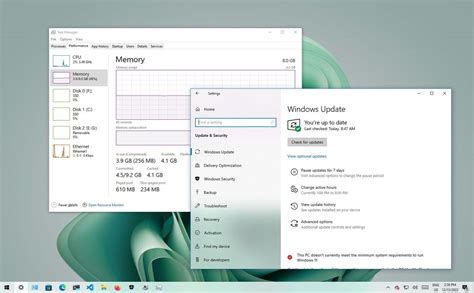
While some gamers shy away from Windows updates due to potential issues, they often include critical security patches, performance enhancements, and new features that can benefit gaming. Make sure your Windows installation is always current.
![[FIX] 'Windows Update Components Must Be Repaired' In Windows 10](/images/aHR0cHM6Ly90czEubW0uYmluZy5uZXQvdGg/aWQ9T0lQLjVDcVNPZVRlS1QxSHI4SHdZNWdBUFFBQUFBJnBpZD0xNS4x.webp)
Optimize Windows Settings for Gaming
Windows 10 and 11 offer several built-in features designed to improve gaming performance. Proper configuration of these settings can make a noticeable difference.
Enable Game Mode
Windows Game Mode prioritizes your game, allocating system resources to it and reducing background process interference. It’s usually enabled by default but it’s worth checking.
- Go to
Settings > Gaming > Game Modeand ensure it’s “On”.
Adjust Graphics Settings
Windows allows you to control graphics performance on a per-app basis and leverage advanced GPU features.
- Hardware-accelerated GPU scheduling: Navigate to
Settings > System > Display > Graphics > Change default graphics settingsand toggle “Hardware-accelerated GPU scheduling” to “On”. This can reduce latency and improve performance on supported hardware. - Variable Refresh Rate: If your monitor supports VRR (like G-Sync or FreeSync), enable it here for smoother gameplay.
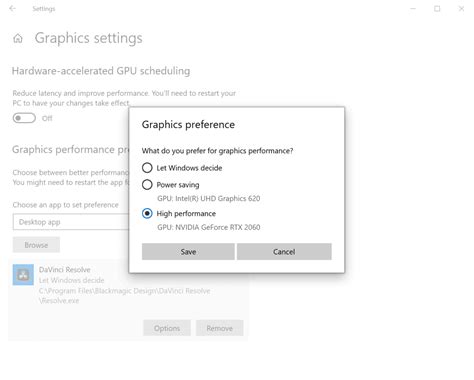
- Specify Graphics Performance: In the
Graphicssettings, you can add specific games and set them to “High performance” to ensure your dedicated GPU is always used.
Set Power Plan to High Performance
The default “Balanced” power plan can throttle your CPU and GPU to save energy. For gaming, you want maximum power.
- Go to
Control Panel > Hardware and Sound > Power Options. - Select “High performance” or “Ultimate Performance” (if available). If not, you might need to enable it via a command prompt command.
Disable Visual Effects
While visually appealing, some Windows visual effects consume precious system resources that could be better spent on gaming.
- Search for “Adjust the appearance and performance of Windows”.
- In the “Performance Options” window, select “Adjust for best performance” or customize by unchecking unnecessary animations and shadows.

Minimize Background Processes and Notifications
Anything running in the background, from apps to notifications, consumes CPU, RAM, and disk I/O, impacting game performance.
Disable Background Apps
Prevent apps from running in the background when not actively used.
- For Windows 10: Go to
Settings > Privacy > Background appsand toggle off those you don’t need. - For Windows 11: Go to
Settings > Apps > Installed apps, click the three dots next to an app, choose “Advanced options,” and set “Let this app run in background” to “Never.”
Manage Startup Programs
Many applications automatically launch when Windows starts, cluttering your system tray and consuming resources.
- Open Task Manager (
Ctrl+Shift+Esc), go to the “Startup” tab. - Disable any programs that aren’t essential for your daily workflow or gaming.
Silence Notifications with Focus Assist
Pop-up notifications can be distracting and, in rare cases, cause performance hiccups. Focus Assist (or Focus) helps.
- Go to
Settings > System > Focus assist(Windows 10) orSettings > System > Focus(Windows 11). - Set it to “Alarms only” or during specific times/when gaming.
Optimize Storage and Network
A healthy storage drive and a stable internet connection are crucial for modern gaming.
Clean Up and Optimize Drives
- Disk Cleanup: Search for “Disk Cleanup” and remove temporary files, old Windows installations, and other junk.
- Defragmentation (HDDs only): If you still use an HDD, search for “Defragment and Optimize Drives” and run the tool. For SSDs, Windows automatically optimizes them, so manual defragmentation is unnecessary and can even reduce their lifespan.
- Free up space: Games require a lot of space. Ensure you have ample free space on your primary gaming drive.
Network Optimization
For online gaming, a stable, low-latency connection is paramount.
- Use Ethernet: A wired connection is almost always superior to Wi-Fi for gaming due to lower latency and greater stability.
- Update Network Drivers: Just like graphics drivers, keep your network adapter drivers updated.
- Disable unnecessary network services: In some cases, disabling specific services might help, but this is an advanced step and generally not recommended for average users.

Advanced Tips for Power Users
For those comfortable delving a bit deeper, these tips can squeeze out even more performance.
BIOS/UEFI Settings
- Enable XMP/DOCP: Ensure your RAM is running at its advertised speed by enabling its Extreme Memory Profile in your motherboard’s BIOS/UEFI.
- Disable Virtualization Technologies: If you don’t use Hyper-V or other virtualization features, disabling them in BIOS can free up some resources.
Overclocking (with caution)
Overclocking your CPU and/or GPU can provide significant performance gains, but it comes with risks of instability and heat. Only attempt this if you know what you’re doing, have adequate cooling, and understand the potential for hardware damage.
Conclusion
By systematically going through these optimization steps, you can significantly enhance your Windows 10/11 gaming experience. Remember to test your games after each major change to gauge the impact. A well-tuned system not only performs better but also provides a more stable and enjoyable gaming environment. Happy gaming!


