Best practices for mod load order & conflict resolution in games?
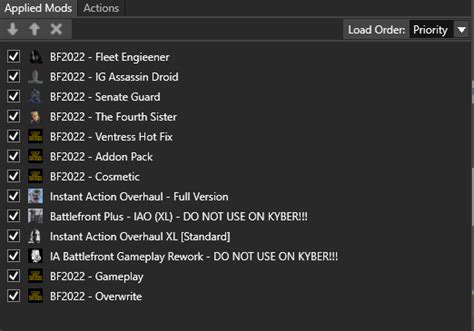
The Crucial Role of Load Order and Conflict Resolution
The world of PC gaming is often enhanced by a vibrant modding community, offering everything from minor tweaks to massive overhauls that breathe new life into beloved titles. However, the path to a stable, modded game is rarely straightforward. As you add more modifications, the likelihood of encountering compatibility issues, crashes, and unexpected behavior increases significantly. This is where understanding mod load order and conflict resolution becomes not just helpful, but absolutely essential for any aspiring modder aiming for a smooth and crash-free experience.
Understanding Mod Load Order Fundamentals
At its core, “load order” refers to the sequence in which your game loads different mod files. Most games process mod data sequentially, meaning that if two mods alter the same game record, the one loaded later will “win” and its changes will be applied. This principle is fundamental. A poorly managed load order can lead to missing textures, broken quests, character T-poses, or even game-breaking crashes.
General rules of thumb include loading master files (like DLCs or essential framework mods) first, followed by larger content additions, then smaller tweaks, and finally compatibility patches. Think of it as building a house: you lay the foundation first, then the walls, then the roof, and finally add the decorations and touch-ups.
Leveraging Mod Managers and Sorters
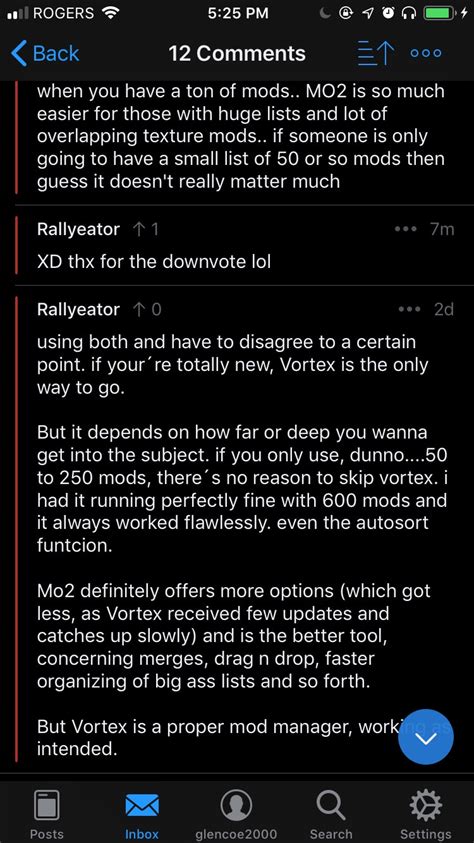
Manually sorting hundreds of mods is a nightmare, which is why mod managers are indispensable. Tools like Mod Organizer 2 (MO2) and Vortex provide sophisticated ways to install, manage, and deploy mods, creating virtual file systems that keep your game’s data folder clean. This non-destructive approach allows for easy testing and removal of mods without permanently altering your core game files.
Beyond simple installation, dedicated load order sorting tools like LOOT (Load Order Optimisation Tool) are critical. LOOT automatically reads your mod list, identifies dependencies, and sorts your plugins based on a community-maintained database of rules. While LOOT is incredibly powerful, it’s not foolproof and sometimes requires manual intervention or custom rules, especially with very new or niche mods.
Demystifying Conflict Resolution with xEdit
Even with a perfect load order, conflicts can arise. A conflict occurs when two or more mods try to modify the exact same piece of game data (e.g., an item’s stats, a character’s appearance, a script, or a world cell). While the “last loaded wins” rule applies, sometimes you want specific changes from multiple mods to coexist, or you need to merge changes from different sources.
This is where advanced tools like xEdit (TES5Edit, FO4Edit, SSEEdit, etc., depending on the game) come into play. xEdit allows you to view the raw game records modified by your mods, highlighting conflicts in an intuitive color-coded interface. By examining conflicting records, you can decide which mod’s changes you prefer or even create a “patch” file that selectively merges desired changes from multiple mods. This process, while daunting at first, is the cornerstone of a truly stable and customized modding experience.
Best Practices for a Stable Modded Experience
- Read Mod Descriptions Thoroughly: Before installing any mod, carefully read its description, requirements, known issues, and compatibility notes. Mod authors often provide crucial load order suggestions or list incompatible mods.
- Install Incrementally and Test: Don’t install 50 mods at once. Add a small batch (5-10 at most), sort your load order, test your game, and ensure stability before adding more. This makes troubleshooting significantly easier.
- Understand Dependencies: Many mods require other mods to function (e.g., a “patch” mod requires the two mods it patches). Ensure all dependencies are met and loaded correctly.
- Backup Your Saves: Regularly back up your game saves, especially before making significant changes to your mod list.
- Clean Your Plugins: Some mods may contain “dirty edits” that conflict with the base game or other mods. Tools like xEdit can help identify and clean these.

Testing, Troubleshooting, and Community Support
Even with best practices, issues can arise. When they do, a systematic approach is key:
- Isolate the Problem: Disable mods in batches to narrow down the culprit. If you added 10 mods and have a crash, disable 5 to see if it stops.
- Check Error Logs: Many games or modding frameworks (like SKSE for Skyrim) generate logs that can point to the conflicting mod or missing files.
- Consult Mod Author Pages: Check the bug reports or forums on the mod’s download page. Others may have encountered and resolved the same issue.
- Utilize Community Resources: Modding forums (e.g., Nexus Forums, specific game subreddits) are invaluable. When asking for help, provide as much detail as possible: your mod list, load order, error messages, and what steps you’ve already taken.
Conclusion: The Art of Modding
Modding a game to perfection is often described as an art form, requiring patience, research, and a willingness to learn. By diligently managing your mod load order, understanding the basics of conflict resolution, and utilizing the powerful tools available, you can transform a crash-prone experience into a seamless, personalized adventure. Embrace the learning curve, experiment cautiously, and soon you’ll be enjoying your favorite games in ways the developers never even imagined, all thanks to the incredible modding community.