RAM vs SSD: Which upgrade boosts PC speed more?
When your computer starts to feel sluggish, the natural inclination is to seek an upgrade that will inject new life into its performance. Among the most popular and often recommended hardware enhancements are upgrading your Random Access Memory (RAM) or switching your primary storage drive from a traditional Hard Disk Drive (HDD) to a Solid State Drive (SSD). Both can dramatically improve speed, but they tackle different aspects of performance. Understanding their roles is key to making the most impactful upgrade for your specific needs.
Understanding RAM: The System’s Short-Term Memory
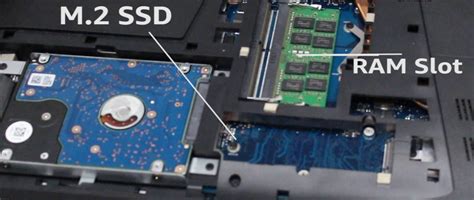
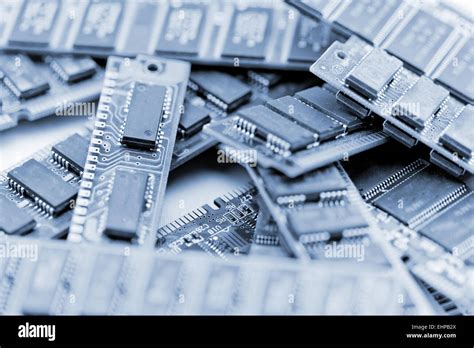
RAM, or Random Access Memory, is your computer’s high-speed working memory. It stores data that the CPU needs to access quickly, such as the operating system, running applications, and open files. Think of it as your desk space: the larger your desk (more RAM), the more documents and tools you can lay out at once, making them instantly accessible without having to retrieve them from a filing cabinet.
When your system runs low on RAM, it resorts to using a portion of your storage drive (whether HDD or SSD) as ‘virtual memory’ or a ‘page file.’ This process, known as ‘swapping’ or ‘paging,’ is significantly slower than accessing physical RAM. If your PC frequently lags when multitasking, switching between applications, or opening large files (like video projects or complex spreadsheets), insufficient RAM is often the culprit.
Understanding SSDs: The Modern Storage Solution
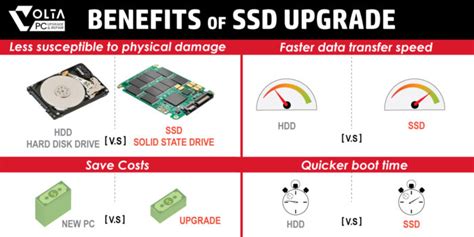
An SSD, or Solid State Drive, is a type of storage device that uses flash memory to store data persistently. Unlike traditional HDDs, SSDs have no moving parts, which makes them much faster, more durable, and completely silent. They replace the slow, mechanical platters and read/write heads of an HDD with semiconductor chips.
The primary benefit of an SSD is its incredibly fast read and write speeds. This translates directly into:
- Faster Boot Times: Your operating system loads in seconds, not minutes.
- Quicker Application Launches: Programs open almost instantly.
- Rapid File Transfers: Copying large files is significantly faster.
- Improved Overall Responsiveness: Everything from browsing the web to loading game levels feels snappier.
If your PC still relies on an HDD for its operating system and primary applications, an SSD upgrade will likely be the most dramatic performance improvement you can make.

RAM vs. SSD: Which Upgrade Delivers More Speed?
The Initial Bottleneck: HDD vs. SSD
For the vast majority of users, especially those still running their operating system from a traditional Hard Disk Drive (HDD), upgrading to an SSD will provide the most noticeable and significant speed boost. An HDD is often the single slowest component in an older computer system. Replacing it with an SSD eliminates this massive bottleneck, making the entire system feel dramatically faster and more responsive for daily tasks.
The Multitasking & Heavy Usage Bottleneck: RAM
If your PC already has an SSD but you find it struggling when you have many applications open simultaneously, or when working with memory-intensive programs (e.g., video editing, CAD, virtual machines, modern gaming), then a RAM upgrade is likely your next best step. When your system is constantly hitting its RAM limit and relying on slow virtual memory, adding more physical RAM will prevent this bottleneck and allow your applications to run smoother.
When to Prioritize Each Upgrade
Upgrade to SSD if:
- Your computer still uses an HDD as its primary drive.
- Your PC takes a long time to boot up.
- Applications load slowly.
- You experience significant delays when opening or saving files.
- You want a generally snappier and more responsive system.
Upgrade RAM if:
- You already have an SSD (or don’t mind the slower boot/load times of an HDD).
- Your system frequently lags or crashes when multitasking.
- You work with large files or memory-intensive applications (e.g., photo/video editing, gaming, CAD).
- Your task manager shows high RAM usage, with the system constantly using virtual memory.
Conclusion: The Best of Both Worlds
For most users, the answer isn’t necessarily one or the other, but rather a sequence. If your PC is still lumbering along with an old HDD, an SSD upgrade will provide the most dramatic and universally felt performance boost. It’s often considered the single best upgrade for an aging computer.
Once you have an SSD, or if you already do, then evaluating your RAM needs becomes the next logical step. Having enough RAM ensures that your fast SSD isn’t bottlenecked by constant data swapping. Ideally, a well-performing PC benefits from both sufficient RAM and fast SSD storage, working in tandem to deliver a smooth and responsive computing experience. Assess your current system’s weakest link and your primary usage to determine which upgrade will deliver the most bang for your buck.