





How to stop gaming PC overheating? Best CPU cooler & case airflow tips?
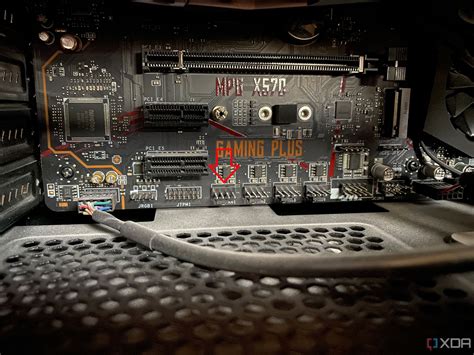
A high-performance gaming PC generates a significant amount of heat, and if not properly managed, this can lead to overheating. Overheating can cause performance throttling, system instability, reduced hardware lifespan, and even permanent damage. Ensuring your rig stays cool is paramount for a smooth and enduring gaming experience. This guide will walk you through the most effective strategies to combat overheating, focusing on CPU cooling solutions and optimizing your case’s airflow.
Understanding PC Overheating and Its Causes
Before diving into solutions, it’s important to understand why your PC might be overheating. Intense gaming sessions push components like the CPU and GPU to their limits, generating substantial heat. Common culprits for overheating include inadequate cooling solutions, poor airflow within the case, accumulated dust, dried-out thermal paste, or even improper fan configurations. Recognizing the signs, such as frame drops, system crashes, or loud fan noise, is the first step towards a cooler system.
The Heart of the Solution: Your CPU Cooler
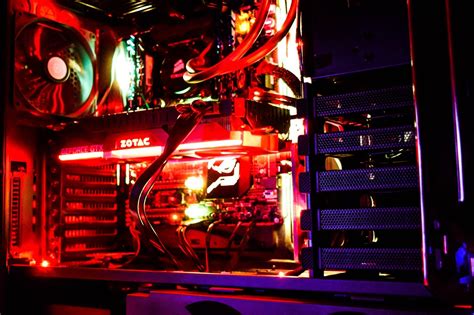
The Central Processing Unit (CPU) is one of the primary heat generators in a gaming PC. An effective CPU cooler is non-negotiable for stable performance. There are two main types:
Air Coolers
Air coolers use a heatsink (made of copper or aluminum fins) to absorb heat from the CPU, which is then dissipated by one or more fans. High-end air coolers with large heatsinks and multiple fans can be incredibly effective, often rivaling liquid cooling solutions while being more affordable and simpler to install. They are generally quieter and more reliable in the long run as they lack pumps that can fail.
Liquid Coolers (AIOs – All-In-One)
Liquid coolers, specifically AIO units, circulate a coolant through a cold plate that sits on the CPU, carrying heat away to a radiator where fans dissipate it. AIOs often offer superior cooling performance, especially for overclocked CPUs, and can look sleeker inside a case. However, they are typically more expensive, more complex to install, and introduce the potential for pump failure or leaks, though modern units are very reliable.
![Liquid vs Air CPU Cooler – Which Should I Choose [Simple Guide] - YouTube](/images/aHR0cHM6Ly90czMubW0uYmluZy5uZXQvdGg/aWQ9T0lQLnduSWFfNWlMM1Z3Vmk4LXp3cTdfN2dIYUVLJnBpZD0xNS4x.webp)
Thermal Paste Application
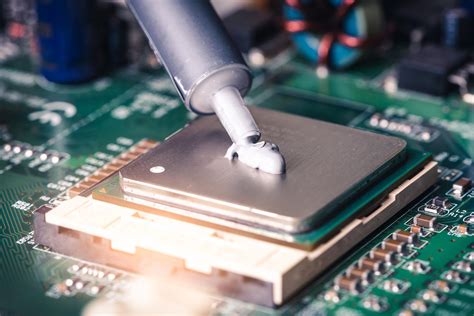
Regardless of your cooler choice, proper thermal paste application is critical. Thermal paste fills microscopic imperfections between the CPU’s integrated heat spreader (IHS) and the cooler’s cold plate, facilitating efficient heat transfer. Old, dried-out thermal paste loses its effectiveness, making a reapplication every few years a good maintenance practice. Always use a high-quality thermal compound and apply it sparingly, typically a pea-sized dot in the center, allowing the cooler’s pressure to spread it evenly.
Optimizing Case Airflow for Maximum Cooling
A powerful CPU cooler is only half the battle; the heat it dissipates still needs to exit the case. Effective case airflow ensures a constant supply of cool air enters your system and hot air is exhausted. This involves strategic fan placement and understanding pressure dynamics.
Fan Configuration: Intake vs. Exhaust
- Intake Fans: These draw cooler air into the PC case, typically positioned at the front and bottom.
- Exhaust Fans: These push hot air out of the PC case, commonly located at the rear and top.
A good rule of thumb is to aim for a slightly positive air pressure within your case (more intake than exhaust). This helps prevent dust from entering through unfiltered openings, as air will always be pushing outwards.
Cable Management and Obstructions
Messy cables can significantly impede airflow. Route cables neatly behind the motherboard tray or along the case’s edges to ensure unobstructed paths for air. Similarly, ensure there are no physical obstructions like large GPU backplates or unnecessary accessories blocking fan vents.

Beyond Hardware: Software & Maintenance Tips
Even with the best hardware, a few additional steps can help keep your PC cool:
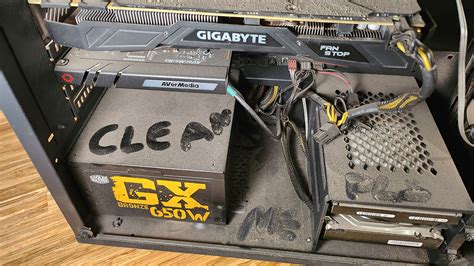
- Regular Cleaning: Dust is an insulator and a cooling enemy. Use compressed air to regularly clean dust from fan blades, heatsinks, and vents.
- Monitoring Software: Utilize tools like HWMonitor, MSI Afterburner, or NZXT CAM to keep an eye on CPU and GPU temperatures during gaming. This helps identify overheating issues early.
- Room Temperature: A cooler ambient room temperature directly translates to a cooler PC.
- Proper Placement: Ensure your PC case has adequate space around it for air circulation. Don’t place it in an enclosed cabinet or directly against a wall.
Conclusion
Preventing gaming PC overheating is a multi-faceted approach, combining robust hardware choices with diligent maintenance and smart setup. By investing in an appropriate CPU cooler, meticulously optimizing your case’s airflow, and performing regular cleaning, you can ensure your gaming rig runs at peak performance, silently and reliably, for years to come. Don’t let heat be the bottleneck in your gaming adventures!


