





High gaming temps? Best ways to lower CPU/GPU heat for stable FPS & no throttling.

The Silent Killer: Why High Gaming Temperatures Matter
There’s nothing quite like diving into your favorite game, only to notice your frame rates drop, stutters appear, or even a sudden crash. Often, the culprit isn’t a lack of raw power, but excessive heat. High CPU and GPU temperatures during gaming are more than just a minor inconvenience; they can severely impact performance, reduce the lifespan of your components, and lead to an unstable gaming experience. This phenomenon, known as thermal throttling, forces your components to reduce their clock speed to prevent damage, directly translating to lower FPS and inconsistent gameplay.
Understanding and managing your system’s thermals is crucial for maintaining peak performance and ensuring the longevity of your valuable hardware. Whether you’re a casual gamer or a competitive enthusiast, keeping your PC cool is a fundamental aspect of PC maintenance.

Diagnosing the Heat Problem
Before you can fix high temperatures, you need to know if you actually have a problem and where it’s originating. Monitoring software is your best friend here. Tools like HWMonitor, MSI Afterburner, Core Temp, or NZXT CAM can provide real-time readings of your CPU and GPU temperatures, fan speeds, and clock speeds. Run these alongside your games to observe peak temperatures. Generally, CPU temperatures above 85°C (185°F) and GPU temperatures above 90°C (194°F) during gaming are causes for concern and indicate that your system is running too hot.
Fundamental Cooling Strategies
Cleanliness is Key
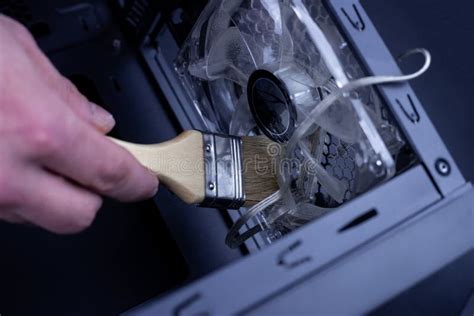
The most common and often overlooked cause of high temperatures is dust. Over time, dust accumulates on heatsinks, fans, and inside your case, forming an insulating layer that traps heat. It also impedes fan performance, making them less effective at moving air.
- Dust Removal: Regularly (every 3-6 months) clean your PC with compressed air. Pay special attention to CPU and GPU heatsinks, case fans, and power supply vents.
- Fan Maintenance: Ensure all fans (CPU, GPU, case) are spinning freely and not obstructed. Clean fan blades gently with a soft brush if necessary.
Optimize Case Airflow
Good airflow is the backbone of an efficient cooling system. Your case needs to have a clear path for cool air to enter and hot air to exit.
- Fan Configuration: Aim for a balanced positive or neutral air pressure. Typically, front and bottom fans act as intakes, while top and rear fans act as exhausts. Ensure more air is coming in than going out (positive pressure) to minimize dust ingress, or equal amounts for neutral.
- Cable Management: Untidy cables can block airflow. Use zip ties or Velcro straps to bundle cables and route them behind the motherboard tray, out of the main airflow path.
- Clear Obstructions: Ensure your PC isn’t sitting in an enclosed space or against a wall, which can recirculate hot air. Give it plenty of room to breathe.
Advanced Cooling Solutions
Thermal Paste Refresh
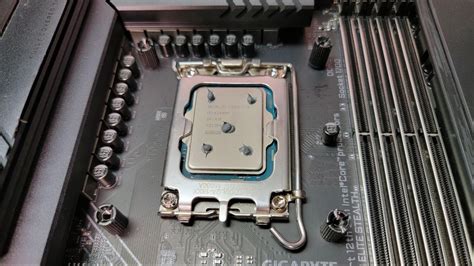
The thermal paste between your CPU/GPU and their respective heatsinks facilitates heat transfer. Over time (typically 3-5 years, or if temps suddenly spike), this paste can dry out and become less effective.
- Replacement: Carefully remove the CPU/GPU cooler, clean off the old thermal paste with isopropyl alcohol, and apply a fresh layer of high-quality thermal paste. This is a delicate procedure, so consult guides or professionals if unsure.
Upgrade Your Coolers
Stock CPU coolers are often adequate for basic use but may struggle under heavy gaming loads. GPU cooling solutions can also vary greatly.
- Aftermarket CPU Coolers: Invest in a better air cooler (e.g., Noctua, be quiet!, Cooler Master) or an All-in-One (AIO) liquid cooler. These provide significantly better heat dissipation.
- GPU Cooling: While more complex, some users opt for custom water cooling loops or aftermarket GPU coolers (e.g., Arctic Accelero) for significantly improved GPU thermals.

Undervolting & Underclocking
This advanced technique involves reducing the voltage supplied to your CPU or GPU without significantly impacting performance. Less voltage means less power consumption and, consequently, less heat generation. Similarly, a slight underclock can yield significant temperature drops with minimal FPS loss.
- CPU Undervolting: Can be done via BIOS/UEFI settings or software like Throttlestop (for Intel).
- GPU Undervolting: Best achieved through tools like MSI Afterburner, allowing you to fine-tune the voltage/frequency curve.
Software & Environmental Tweaks
- Custom Fan Curves: Use software like MSI Afterburner (for GPU) or motherboard utilities (for case/CPU fans) to create more aggressive fan curves, allowing fans to spin faster at lower temperatures.
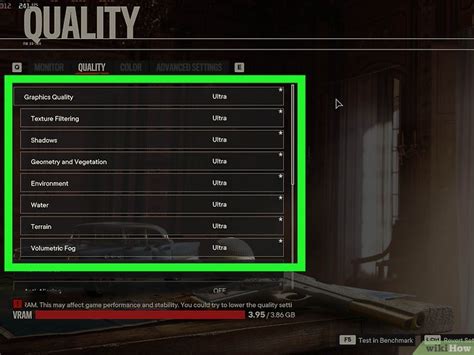
- Game Settings: Lowering certain graphics settings, especially those tied to resolution scaling or demanding effects, can significantly reduce the load on your GPU and, thus, its temperature.
- Room Temperature: A cooler ambient room temperature directly translates to lower internal PC temperatures. Ensure your gaming space is well-ventilated or air-conditioned if possible.
Conclusion: Keep Your Cool, Game On
High gaming temperatures are a common issue, but one that is largely preventable and manageable. By regularly cleaning your system, optimizing airflow, considering thermal paste replacement, or even upgrading your cooling hardware, you can effectively lower CPU and GPU heat. These proactive measures not only ensure stable frame rates and prevent performance-damaging thermal throttling but also extend the life of your valuable gaming rig, allowing you to enjoy uninterrupted, high-performance gaming for years to come.


