Best SSD upgrade for old laptop? SATA vs NVMe?
Is your old laptop feeling sluggish? Applications taking forever to load, boot times stretching into minutes, and file transfers feeling like a crawl? The most impactful upgrade you can make to breathe new life into an aging machine isn’t more RAM or a faster processor, but rather replacing its slow, mechanical hard drive (HDD) with a Solid State Drive (SSD). But which one should you choose: SATA or NVMe?
Why Your Old Laptop Needs an SSD Upgrade
Traditional hard drives use spinning platters and read/write heads, making them inherently slow and susceptible to mechanical failure. SSDs, on the other hand, use flash memory, offering significantly faster boot times, application loading, file transfers, and overall system responsiveness. Even an older CPU or limited RAM can feel much snappier when paired with an SSD, making it the king of laptop upgrades for performance.
SATA SSDs: The Reliable Workhorse
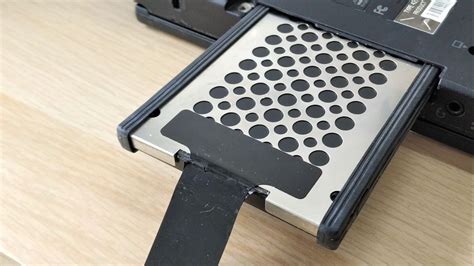
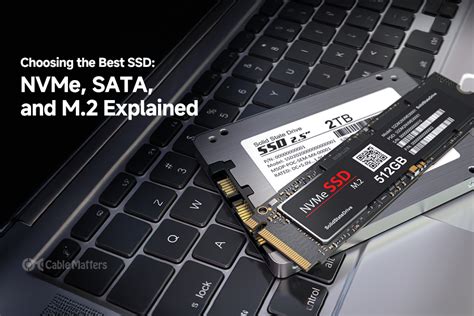
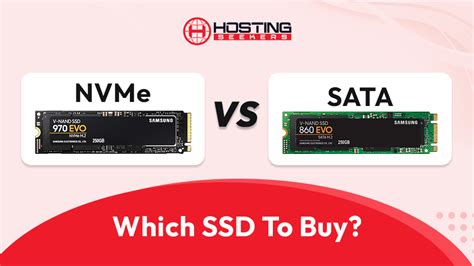
SATA (Serial Advanced Technology Attachment) SSDs are the most common and widely compatible type. They typically come in a 2.5-inch form factor, making them a direct replacement for the 2.5-inch HDDs found in nearly all laptops manufactured in the last 15-20 years. They connect via the SATA III interface, which offers theoretical speeds up to 600 MB/s. For most users, this speed is a dramatic improvement over any HDD, delivering lightning-fast boot-ups and application launches.
NVMe SSDs: The Speed Demon
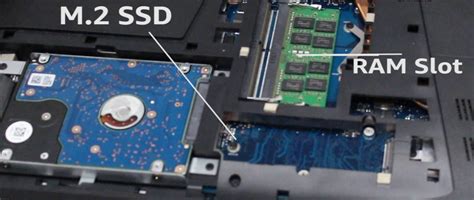
NVMe (Non-Volatile Memory Express) SSDs utilize the PCIe (Peripheral Component Interconnect Express) interface, which provides a much wider data pipeline than SATA. This allows NVMe drives to achieve theoretical speeds far exceeding SATA, often reaching 3,000 MB/s or more. NVMe drives typically come in the M.2 form factor, which resembles a stick of chewing gum and plugs directly into a dedicated slot on the motherboard.
Compatibility: Can Your Old Laptop Handle NVMe?
This is the crucial question for older laptops. While almost all old laptops can accommodate a 2.5-inch SATA SSD, NVMe compatibility is far less common. For an NVMe SSD to work, your laptop needs:
- An M.2 slot: Not all laptops have one, especially older models.
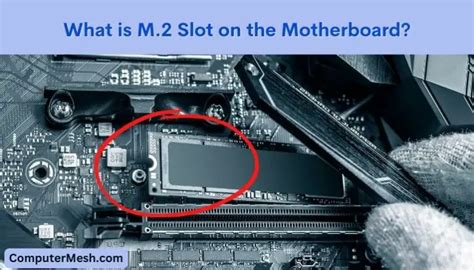
- PCIe support for the M.2 slot: Some M.2 slots only support SATA M.2 drives, which look identical to NVMe M.2 drives but are limited to SATA speeds. You need an M.2 slot that explicitly supports PCIe/NVMe.
- BIOS/UEFI support: The laptop’s firmware must be able to recognize and boot from an NVMe drive.
To check compatibility, you’ll need to consult your laptop’s specific model manual or use online tools like Crucial’s SSD compatibility checker. Often, the easiest way to confirm is to open your laptop and look for an M.2 slot and any labels next to it.
Performance: Is NVMe Overkill for an Older System?
Even if your old laptop *can* support an NVMe drive, the performance gains over a SATA SSD might be negligible for everyday use. Here’s why:
- CPU/RAM Bottleneck: An older CPU or insufficient RAM will often become the limiting factor before the SATA III interface speed does.
- PCIe Lane Limitations: Older laptops with NVMe support might only offer PCIe Gen2 or Gen3 x2 lanes, which limits the NVMe drive’s maximum potential speed, bringing it closer to SATA performance in real-world scenarios.
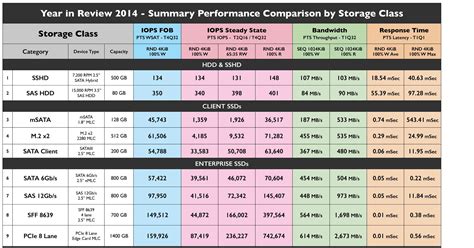
- Everyday Usage: For general tasks like web browsing, office work, media consumption, and even light gaming, the difference between a 500 MB/s SATA SSD and a 2000 MB/s NVMe SSD is often imperceptible. Both will feel incredibly fast compared to an HDD.
Where NVMe truly shines is in professional workflows involving large file transfers, heavy video editing, or massive database operations – tasks rarely performed on an aging laptop.
Making Your Choice: SATA is Often Best
For most old laptop users, a SATA SSD is the superior choice due to several factors:
- Compatibility: It’s almost guaranteed to work.
- Cost-Effectiveness: SATA SSDs are generally more affordable per gigabyte than NVMe drives.
- Sufficient Performance: The speed boost over an HDD is immense and will satisfy the vast majority of users, dramatically improving the user experience of an old laptop.
- Ease of Installation: Replacing a 2.5-inch HDD with a 2.5-inch SATA SSD is often a straightforward process.
If your laptop *does* have an M.2 slot that supports NVMe, and the price difference is minimal, an NVMe drive could be a future-proof choice. However, do not assume an M.2 slot automatically means NVMe compatibility; always verify the PCIe support.
Ultimately, for injecting new life into an old laptop, a SATA SSD is the safest, most cost-effective, and usually perfectly adequate solution. It provides the most significant ‘bang for your buck’ and will transform your slow machine into a responsive workhorse once again.