My PC is slow. Should I upgrade RAM or SSD first?
Decoding Your PC’s Slowdown: RAM or SSD?
It’s a common dilemma for many computer users: your once zippy PC now crawls, applications take ages to load, and multitasking feels like a chore. The immediate thought often turns to hardware upgrades, with RAM (Random Access Memory) and SSDs (Solid State Drives) being the two most frequently considered options. But which one should you prioritize for the most impactful improvement? The answer largely depends on the specific symptoms your slow PC is exhibiting.
Understanding the Role of RAM
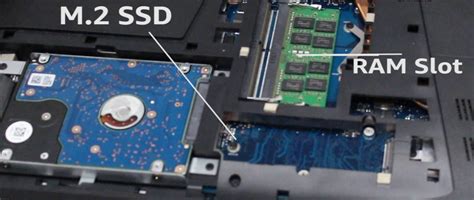
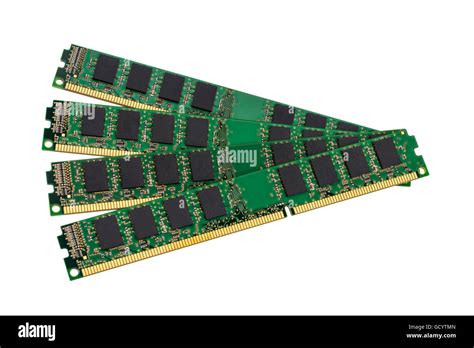
RAM acts as your computer’s short-term memory. It’s where your operating system, active applications, and current data are stored for quick access by the CPU. The more RAM you have, the more programs and data your computer can hold in this fast-access memory simultaneously. When your PC runs out of physical RAM, it starts using a portion of your storage drive (either an HDD or SSD) as “virtual memory” or a “page file.” This process is significantly slower than using actual RAM.
Signs You Need More RAM:
- Frequent system freezes or crashes, especially when running multiple applications.
- Applications taking a long time to open or becoming unresponsive.
- Stuttering or delays when switching between tasks.
- Web browser tabs reloading constantly.
- Performance issues in memory-intensive applications like video editing, graphic design, or complex gaming.
Understanding the Role of an SSD
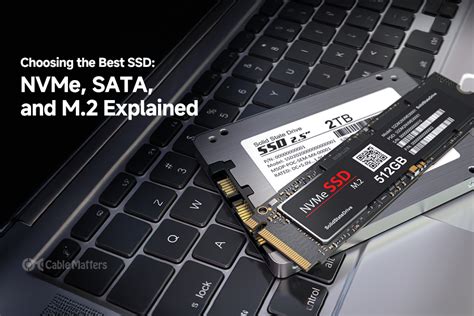
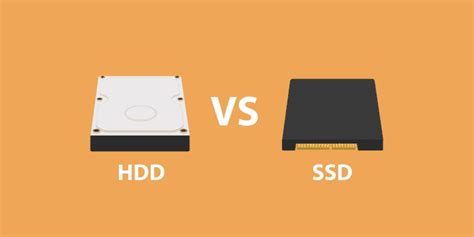
An SSD (Solid State Drive) is a type of storage device that stores data on flash memory, similar to a USB drive. Unlike traditional HDDs (Hard Disk Drives) which use spinning platters and read/write heads, SSDs have no moving parts. This makes them significantly faster, more durable, and quieter. Your operating system, all your programs, and your files are stored on this drive. The speed of this drive directly impacts boot times, application loading times, and file transfer speeds.
Signs You Need an SSD (or a faster one):
- Extremely slow boot-up times for your operating system.
- Applications taking a very long time to launch.
- Sluggish file copying, moving, or saving.
- General system unresponsiveness, even when RAM usage seems low.
- Heavy disk activity (e.g., 100% disk usage in Task Manager) during normal operations.
Making the Decision: Which First?
To determine whether RAM or an SSD upgrade will yield the most benefit, consider your current setup and usage patterns:
Prioritize an SSD Upgrade If:
- You are currently using an HDD: This is almost universally the most impactful upgrade you can make. Replacing an old HDD with an SSD will dramatically improve boot times, application loading, and overall system responsiveness. It’s like upgrading from a bicycle to a sports car for your data access.
- Your PC takes an eternity to boot up or load programs: These are classic symptoms of a slow storage drive.
- Your Task Manager (Windows) or Activity Monitor (macOS) shows consistently high disk usage (near 100%) even when you’re not actively saving or transferring large files.
Prioritize a RAM Upgrade If:
- You already have an SSD as your primary drive: If your operating system is already on an SSD, and your PC still feels slow, RAM is the next logical place to look.
- You frequently multitask with many tabs open, or use memory-intensive applications: If your system chokes when you have Chrome with 20 tabs, Photoshop, and a video open simultaneously, more RAM will directly address this.
- Your Task Manager (Windows) or Activity Monitor (macOS) shows consistently high RAM usage (e.g., 90%+), and your system feels sluggish, even if disk usage isn’t critically high.
The Diagnostic Step: Check Your PC’s Performance Metrics
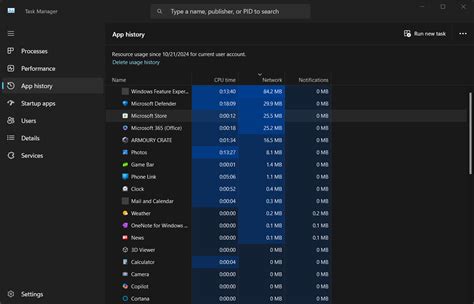
Before buying anything, take a moment to observe your PC’s behavior. On Windows, open Task Manager (Ctrl+Shift+Esc) and go to the “Performance” tab. On macOS, use Activity Monitor. Pay close attention to your “Memory” and “Disk” usage during your typical workflow. This will give you concrete data to back up your decision.
- High Memory Usage & Slowdown: Points to RAM as the bottleneck.
- High Disk Usage & Slowdown (especially with an HDD): Points to the storage drive as the bottleneck.
The Ideal Scenario
If your budget allows, upgrading both your primary storage to an SSD (if you don’t have one) and increasing your RAM will provide the most comprehensive performance boost. However, if you must choose one, the diagnostic steps above should guide you to the most effective first upgrade.

Conclusion
Deciding between a RAM and an SSD upgrade hinges on identifying the root cause of your PC’s slowness. For users still on a traditional HDD, an SSD is almost always the game-changer. If you already have an SSD but frequently push your system with heavy multitasking or demanding applications, more RAM will likely be your best bet. By understanding what each component does and observing your PC’s performance, you can make an informed decision that breathes new life into your slow machine.