PC crashes under load. Is my PSU or GPU failing?

Understanding PC Crashes Under Load
There’s little more frustrating for a PC user than a sudden, unannounced system crash, especially when you’re in the middle of a demanding task like gaming, video editing, or rendering. These crashes, often occurring under ‘load’, point to a component struggling to keep up with power demands or thermal stress. The two most common culprits in such scenarios are often the Power Supply Unit (PSU) or the Graphics Processing Unit (GPU). Differentiating between the two can be tricky, but a methodical approach can help pinpoint the problem.

Common Symptoms: PSU vs. GPU
Power Supply Unit (PSU) Failure Indicators:
- Sudden, Complete Shutdowns: The PC simply dies, as if the power cord was pulled. No blue screen, no error messages, just black.
- Random Restarts: The system reboots without warning, especially under load.
- Failure to Boot: PC won’t turn on, or powers on briefly before shutting down.
- Burning Smell or Unusual Noises: A definite red flag, indicating internal component failure within the PSU.
- Intermittent Problems: Crashes are unpredictable and not always tied directly to graphical intensity.
Graphics Processing Unit (GPU) Failure Indicators:
- Visual Artifacts: Glitches, strange colors, checkerboards, lines, or distorted images appearing on screen before a crash.
- Driver Crashes/Restarts: The display driver stops responding, recovers, or causes a crash to desktop or a blue screen of death (BSOD) related to graphics drivers (e.g., ATIKMPAG.SYS, NVLDDMKM.SYS).
- Screen Freezing: The image on screen locks up, often with sound continuing in the background, eventually leading to a hard reset.
- Black Screen, System Still Running: The display goes black, but the PC remains powered on and sometimes sound can still be heard.
- Crashes only during demanding graphical tasks: The PC runs fine during general use but crashes reliably when running a graphically intensive game or benchmark.
Initial Troubleshooting Steps
Before diving into more complex diagnostics, start with these basic checks:
- Check Temperatures: Use monitoring software (e.g., HWMonitor, MSI Afterburner, HWiNFO) to check your CPU and GPU temperatures both at idle and under load. Excessive heat is a common cause of instability. GPUs typically run hotter than CPUs, but sustained temperatures above 85-90°C under load can indicate an issue.
- Update Drivers: Ensure your GPU drivers are up-to-date. Outdated or corrupted drivers can lead to crashes. Perform a clean installation of the latest drivers from NVIDIA or AMD’s official websites.
- Check Event Viewer: Windows Event Viewer (found by searching in the Start menu) can provide clues. Look under ‘Windows Logs’ -> ‘System’ or ‘Application’ for critical errors around the time of the crash. Kernel-Power error (ID 41) often points to a sudden power loss, which can be PSU related, but isn’t definitive.
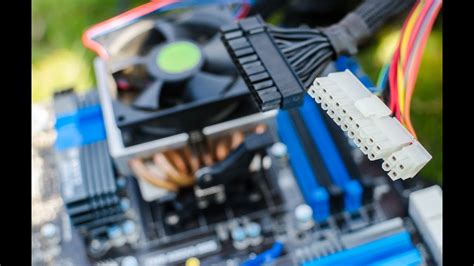
- Inspect Connections: Ensure all power cables (especially the 24-pin ATX, 8-pin EPS, and PCIe power cables to the GPU) are securely seated in both the components and the PSU itself (if modular).
Advanced Diagnostics: Pinpointing the Culprit
Stress Testing
Stress testing tools can push your components to their limits, helping to reproduce and isolate the problem:
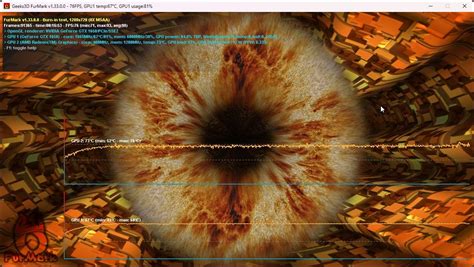
- GPU Stress Test: Tools like FurMark or Unigine Heaven/Superposition Benchmark can put a heavy load specifically on your GPU. If your system crashes during these tests, especially with visual artifacts, it strongly suggests a GPU issue or the PSU failing to provide adequate power to the GPU.
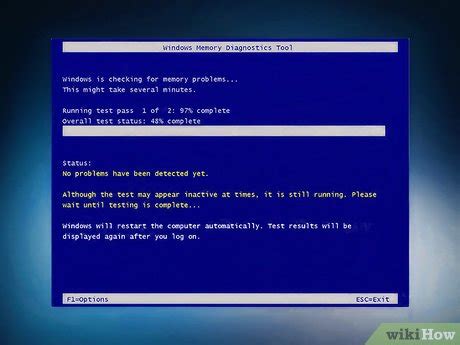
- CPU/RAM Stress Test: Prime95 (for CPU/RAM) or AIDA64 (for CPU, RAM, GPU, and even FPU stress) can help rule out other components. If your system crashes during a CPU-only or RAM-only stress test, it points away from the GPU and more towards the CPU, RAM, or potentially the PSU if it can’t handle the overall system load.
Power Monitoring
While software power monitoring can be inaccurate for total system draw, it can give you insights into GPU power draw (e.g., using MSI Afterburner’s OSD). For a more accurate reading of total system power, an external watt meter plugged into your wall socket can show how much power your PC is drawing before a crash. Compare this to your PSU’s rated wattage.
Component Swapping (If Feasible)
The most definitive test is often to swap out the suspected component with a known good one:
- Test with a Different GPU: If you have access to another GPU, install it and see if the crashes persist. If they stop, your original GPU is likely at fault.
- Test with a Different PSU: Similarly, trying a different, known-good PSU (especially one with ample wattage) can rule out your existing PSU. If the crashes cease, your original PSU was the problem.
Differentiating the Failures
Based on symptoms and testing, you can often make an educated guess:
- If crashes occur ONLY during graphically intensive tasks, especially with visual anomalies: Strongly points to the GPU. The PSU might also be inadequate to power the GPU specifically.
- If crashes are sudden, complete shutdowns without warning, affecting various loads (even CPU-only tests): Leans heavily towards the PSU, indicating a general power delivery issue.
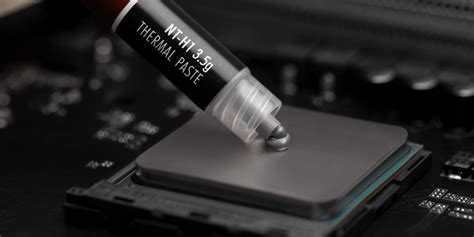
- If temperatures are excessively high for either component: Addressing cooling (cleaning dust, replacing thermal paste) should be your first step.
When to Upgrade or Replace
If you’ve identified a failing PSU or GPU, replacement is usually the only solution. Consider the age of your components and your budget. An old PSU might be worth upgrading to a higher wattage and efficiency rating if you plan future upgrades. A failing GPU might be an opportunity to upgrade to a newer model, but ensure your PSU can handle the new power demands.
Conclusion
Diagnosing PC crashes under load requires patience and systematic testing. By carefully observing symptoms, monitoring temperatures, utilizing stress tests, and, if possible, swapping components, you can effectively determine whether your PSU or GPU is failing. Always prioritize safety, and if you’re unsure, consult a professional technician.