





Updating mods mid-save: How to prevent save corruption?

The Peril and Promise of Mid-Save Mod Updates
For many PC gamers, mods are the lifeblood that extends a game’s replayability, enhances graphics, or even transforms the core gameplay experience. However, the joy of a new mod update often comes with a looming fear: will updating this mod mid-save corrupt my precious game progress? The answer isn’t a simple yes or no, but rather a cautious ‘it depends,’ heavily influenced by how you approach the process.
Updating mods while deeply invested in a save game is a common desire, yet it introduces numerous variables that can lead to anything from minor glitches to catastrophic save file corruption. Understanding the risks and implementing preventative measures is crucial for a smooth transition and continued enjoyment of your modded adventures.
Why Mid-Save Updates Can Be Risky
Game saves are complex data structures that record everything from character positions and inventory to quest states and global variables. When a mod is introduced, it often injects its own data into this structure. An update, even a minor one, can alter how this data is handled, leading to potential conflicts:
- Script Changes: Mods often use scripts that interact with the game engine. An update might change script functions, remove old ones, or add new ones, which the existing save file might not be prepared to handle.
- Asset ID Mismatches: Items, NPCs, or world objects introduced by a mod are assigned unique identifiers. If an update changes these IDs, your save game might be looking for assets that no longer exist or have been re-assigned, leading to missing objects or crashes.
- Missing Dependencies: A mod update might drop support for an older dependency or introduce a new one. If these changes aren’t properly managed, the mod might fail to load or cause errors.
- World State Alterations: Mods that drastically change terrain, quests, or the game world can be particularly problematic. Updating such a mod mid-playthrough can cause conflicts with your current game world’s state.

The Golden Rule: Backup Your Save!
Before you even *think* about updating a single mod, the absolute most critical step is to back up your current save game. This isn’t just a suggestion; it’s non-negotiable. If something goes wrong, a recent backup is your only lifeline.
- Manual Backup: Locate your game’s save folder (often in My Documents, AppData, or the game’s installation directory) and copy the entire folder to a safe location, like another drive or a cloud service. Timestamp your backups so you know which one is the most recent.
- Mod Manager Backups: Some advanced mod managers (like Mod Organizer 2 for Bethesda games) offer built-in save backup functionalities. Utilize them if available.
Pre-Update Preparations: Be Informed
Knowledge is your second-best defense against save corruption:
- Read the Mod Update Log/Notes: Always, always, always read the mod author’s update notes or changelog. They often provide crucial information about mid-save compatibility, required clean save procedures, or specific installation instructions.
- Check for Compatibility Patches: Has the mod author released a specific patch for existing saves? Are there new dependencies or conflicts with other mods you’re using?
- Community Feedback: Check the mod’s comments section or forums. Other users might have already encountered and reported issues (or successful updates) that can inform your decision.
The Update Process: Step-by-Step
Once you’ve backed up and researched, you can proceed with the update. The exact steps might vary by game and mod manager, but the general principle remains:
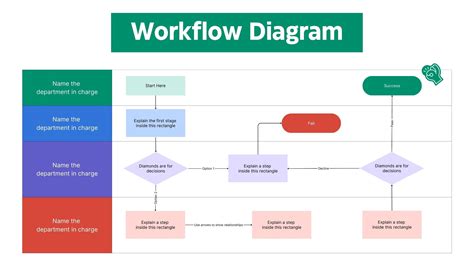
1. Disable/Uninstall the Old Version
If you’re using a mod manager, disable or uninstall the old version of the mod. Do not just overwrite files without first removing the previous iteration, as this can leave behind orphaned files or cause conflicts.
2. Install the New Version
Install the updated mod files using your preferred mod manager. Ensure it’s correctly placed in your load order, especially if it’s a mod that significantly affects other mods.
3. Run Game Utilities (If Applicable)
- Load Order Sorting: Re-run any load order optimizers (e.g., LOOT for Skyrim/Fallout).
- Clean Save Tools: For games like Skyrim, tools like FallrimTools (Resaver) can sometimes help clean residual script data from removed mods. Use these cautiously and always on a backup save.
- Patchers: Run any relevant patchers (e.g., FO4Edit scripts, TES5Edit scripts) if required by the new mod version or your overall mod setup.
![How to Backup & Restore Steam Cloud Saves [Gaming Tips]](/images/aHR0cHM6Ly90czIubW0uYmluZy5uZXQvdGg/aWQ9T0lQLmtScTRvaGJsRWRmUFIxYU5tNmlmclFIYUU4JnBpZD0xNS4x.webp)
Post-Update Testing: Vigilance is Key
Your work isn’t done after installation. Now comes the critical testing phase:
- Load a Test Save: Ideally, load a fresh save game or a very old backup first to see if the game launches and the mod functions correctly in a ‘clean’ environment.
- Load Your Current Save: Load your most recent save. Immediately check for obvious issues: crashes to desktop, infinite loading screens, missing textures (pink/purple), or character models T-posing.
- Test Mod Functionality: Actively engage with the mod’s features. If it adds quests, start one. If it changes combat, get into a fight. If it modifies an inventory system, open your inventory.
- Play for a While: Don’t just load and quit. Play for 15-30 minutes, or longer if possible, to see if hidden issues emerge during regular gameplay.
When to Absolutely Avoid Mid-Save Updates
While many mods can be updated mid-save with caution, some situations warrant starting a completely new game to avoid insurmountable issues:
- Major Version Changes: If a mod jumps from version 1.x to 2.x, or if the author explicitly states it’s a ‘new game required’ update.
- Fundamental Game Mechanic Overhauls: Mods that fundamentally alter core game systems (e.g., perk systems, combat mechanics, world generation) are often too risky to update mid-playthrough.
- Engine-Level Modifications: Mods that deeply integrate into the game engine or change how the game loads assets.

Conclusion
Updating mods mid-save doesn’t have to be a terrifying gamble. By adhering to a rigorous routine of backing up saves, thoroughly reading documentation, carefully managing your mod installation, and performing diligent post-update testing, you can significantly mitigate the risk of save corruption. Remember, prevention is always easier than attempting to fix a broken save game. Happy modding!


