





Fix gaming FPS drops & stuttering: Essential troubleshooting guide?
Few things are more frustrating for a PC gamer than experiencing sudden FPS drops and incessant stuttering. One moment you’re immersed in a high-octane battle, the next your screen freezes or jerks, pulling you out of the experience and potentially costing you the game. These performance hitches aren’t just annoying; they can ruin your enjoyment and hinder your competitive edge. But don’t despair! This comprehensive guide will walk you through essential troubleshooting steps to diagnose and fix common causes of FPS drops and stuttering, getting you back to smooth, uninterrupted gameplay.
Understanding FPS Drops and Stuttering
Before diving into solutions, it’s helpful to differentiate between FPS (Frames Per Second) drops and stuttering. FPS drops refer to a significant, sustained decrease in your frame rate, often making the game feel sluggish. Stuttering, on the other hand, involves brief, intermittent pauses or hitches that can occur even when your average FPS is high. Both indicate that your system is struggling to deliver a consistent gaming experience, but their underlying causes can sometimes differ.
Phase 1: Essential Software Checks and Optimizations
Most performance issues can be traced back to software or driver-related problems. Start here before digging into your hardware.
1. Update Graphics Drivers
This is often the most critical step. Outdated or corrupted graphics drivers (NVIDIA, AMD, Intel) are a leading cause of performance issues. Always download the latest stable drivers directly from the manufacturer’s website. Consider using a clean installation option if available.
2. Close Background Applications
Browser tabs, streaming services, chat apps, and other programs running in the background consume CPU, RAM, and GPU resources. Close everything unnecessary before launching your game. Check Task Manager (Ctrl+Shift+Esc) for resource-hogging applications.
3. Optimize In-Game Settings
Lowering certain graphics settings can significantly improve FPS. Experiment with settings like resolution, anti-aliasing, shadow quality, texture quality, and view distance. Start with medium settings and gradually increase them to find a balance between visuals and performance. Enable V-Sync only if you experience screen tearing and have a consistent high FPS.
4. Verify Game Files
Corrupted or missing game files can lead to instability. Use your game launcher (Steam, Epic Games, GOG Galaxy, etc.) to verify the integrity of game files. This process checks for errors and redownloads any problematic files.
5. Adjust Power Options
Ensure your Windows power plan is set to “High performance” (or equivalent, like “Ultimate Performance” on some systems). This prevents your CPU from throttling down to save power, which can impact gaming performance.
Phase 2: System-Wide Enhancements
These optimizations focus on your operating system and overall system health.
1. Disable Overlays and Game Bar
While features like the Xbox Game Bar, NVIDIA GeForce Experience overlay, or Discord overlay can be useful, they can also consume resources and cause performance issues. Try disabling them temporarily to see if your FPS improves.
2. Keep Windows Up-to-Date
While sometimes a culprit for new bugs, Windows updates often include performance improvements, security patches, and driver compatibility fixes that can resolve underlying issues.
![How to Fix Corrupted Windows Update [Windows Update Failed]](/images/aHR0cHM6Ly90czQubW0uYmluZy5uZXQvdGg/aWQ9T0lQLi1TZ0xTZkVaMVJ5RjlDZEpKekt4bEFIYUU4JnBpZD0xNS4x.webp)
3. Disk Cleanup and Defragmentation (for HDDs)
If your games are installed on an HDD, fragmentation can slow down load times and contribute to stuttering. Run Windows’ built-in Disk Defragmenter. For SSDs, defragmentation is unnecessary and can reduce drive lifespan; ensure TRIM is enabled instead.
4. Scan for Malware
Malware and viruses can silently consume system resources, leading to performance degradation. Run a full scan with a reputable antivirus program.
Phase 3: Hardware Inspection
If software tweaks haven’t resolved the issue, it’s time to look at your physical components.
1. Monitor Temperatures
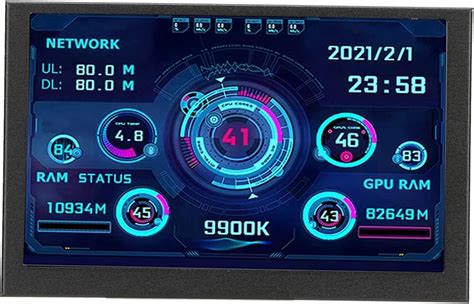
Overheating is a common cause of throttling, where your CPU or GPU automatically reduces its performance to prevent damage. Use monitoring software (e.g., HWMonitor, MSI Afterburner) to check CPU and GPU temperatures during gaming. If they exceed 85-90°C, improve airflow, clean dust from fans and heatsinks, or consider reapplying thermal paste.
2. Check RAM Usage and Integrity
Insufficient RAM or faulty RAM sticks can cause stuttering and crashes. Monitor RAM usage in Task Manager. If you’re consistently maxing out your RAM, consider upgrading. Run a memory diagnostic tool (like Windows Memory Diagnostic) to check for errors.
3. Storage Performance
While SSDs are generally fast, a nearly full SSD can slow down. Ensure you have at least 15-20% free space. For HDDs, their slower read/write speeds can contribute to stuttering, especially in open-world games. Upgrading to an SSD for your operating system and frequently played games is a significant performance boost.
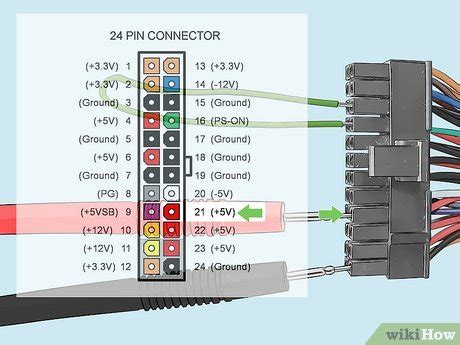
4. Power Supply Unit (PSU)
An underpowered or failing PSU can lead to instability and performance drops, especially when components demand peak power. Ensure your PSU has sufficient wattage for your components and is from a reputable brand. Check for any signs of failure like unusual noise or system crashes under load.
Phase 4: Advanced Troubleshooting and Last Resorts
1. Update BIOS/UEFI
While less common, an outdated BIOS/UEFI can sometimes cause compatibility or stability issues. Only update if you’re comfortable with the process and have followed your motherboard manufacturer’s instructions carefully.
2. Reinstall Windows
If all else fails, a clean installation of Windows can resolve deep-seated software conflicts or corruptions. This is a last resort but often remarkably effective at restoring baseline performance.
3. Benchmark Your System
Use benchmarking tools (e.g., 3DMark, Unigine Heaven/Superposition) to compare your system’s performance against similar setups. This can help identify if your hardware is performing as expected or if there’s a significant underperformance issue.
Conclusion
FPS drops and stuttering can be incredibly frustrating, but with a systematic approach, most issues can be identified and resolved. Start with the simplest software solutions like driver updates and in-game settings optimization, then move onto system-wide checks, and finally, a thorough hardware inspection. Patience and methodical troubleshooting are key. By following this guide, you’ll be well on your way to enjoying smoother, more immersive gaming sessions.


