





Why is my gaming PC overheating? Tips to lower CPU/GPU temps effectively.

The Silent Killer: Why Your Gaming PC Gets Too Hot
An overheating gaming PC isn’t just an annoyance; it’s a critical issue that can lead to performance throttling, system instability, and even permanent hardware damage. High temperatures, particularly on your Central Processing Unit (CPU) and Graphics Processing Unit (GPU), can significantly shorten the lifespan of these expensive components and degrade your gaming experience. Understanding why your system is running hot is the first step towards a cooler, more reliable rig.
![10 Ways to Stop a CPU From Overheating [Ranked]](/images/aHR0cHM6Ly90czMubW0uYmluZy5uZXQvdGg/aWQ9T0lQLjBGOHpCMHFtR1FVcVZHcUZ0aDJZVVFIYUVLJnBpZD0xNS4x.webp)
Common Causes of Overheating in Gaming PCs
Several factors contribute to a PC running hotter than it should. Identifying the root cause is crucial for applying the correct fix.
Dust Accumulation and Poor Airflow
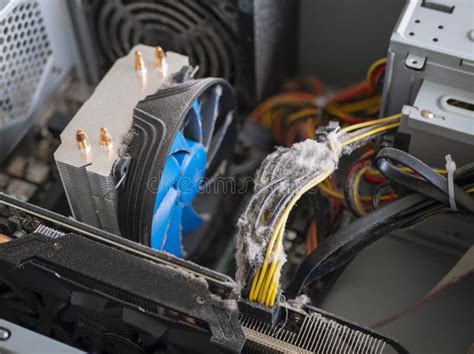
One of the most frequent culprits is simple dust. Over time, dust bunnies accumulate on fan blades, heatsink fins, and air filters, acting as an insulating layer that traps heat. This severely restricts the system’s ability to dissipate heat. Additionally, poor cable management or insufficient case fans can impede the flow of cool air into and hot air out of your system, creating hot pockets within the case.
Dried Out Thermal Paste
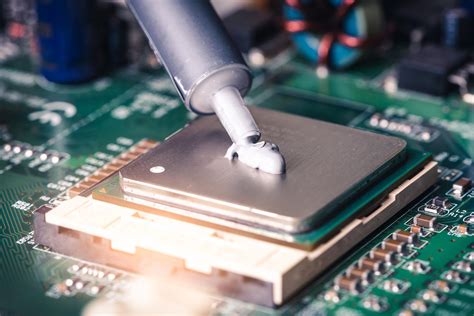
Thermal paste is a critical interface material that helps transfer heat from your CPU and GPU to their respective coolers. After years of use, this paste can dry out and lose its effectiveness, creating an air gap that reduces heat transfer efficiency. This results in the CPU or GPU struggling to shed heat, leading to higher temperatures.
Inadequate Cooling Solutions
Sometimes, the problem isn’t a fault but an oversight. The stock cooler that came with your CPU might not be sufficient for intense gaming sessions, especially if you have a high-end processor or engage in overclocking. Similarly, older or less powerful GPU coolers might struggle under heavy load in demanding modern games.
Effective Tips to Lower CPU/GPU Temperatures
Now that we’ve covered the ‘why,’ let’s dive into the ‘how’ to cool down your gaming beast.
1. Clean Your PC Regularly
This is arguably the easiest and most impactful tip. Using compressed air, carefully blow out dust from all fans (CPU, GPU, case fans, PSU) and heatsinks. Pay special attention to the fins of your CPU cooler and GPU heatsink. Make sure to hold fan blades gently while cleaning to prevent them from spinning too fast and damaging bearings. A clean PC is a cool PC.
2. Optimize Case Airflow and Cable Management
- Add or Rearrange Fans: Ensure you have a balanced setup of intake and exhaust fans. Generally, more intake fans at the front/bottom and exhaust fans at the top/rear provide optimal airflow.
- Improve Cable Management: Tidy up internal cables using zip ties or velcro straps. Loose cables can obstruct airflow, creating turbulence and reducing cooling efficiency.

3. Reapply Thermal Paste
If your PC is a few years old, reapplying fresh thermal paste to your CPU (and potentially your GPU, though this is more involved) can make a significant difference. Remove the old, dried paste thoroughly with isopropyl alcohol before applying a pea-sized dot or a thin line of new, high-quality thermal paste. Consult guides for proper application techniques specific to your CPU cooler.
4. Upgrade Your Cooling System
For more demanding setups or persistent overheating, an upgrade might be necessary:
- CPU Cooler: Replace your stock cooler with a powerful air cooler or an All-in-One (AIO) liquid cooler. These offer vastly superior heat dissipation.
- Case Fans: Invest in higher-quality, higher static pressure or airflow fans for your case. Some fans are designed specifically for intake or exhaust.
- GPU Cooling: While more complex, some users opt for aftermarket GPU coolers or even liquid cooling solutions for their graphics cards.
5. Adjust Fan Curves and Undervolt
- Fan Curves: Use your motherboard’s BIOS/UEFI or software like MSI Afterburner (for GPU) and FanControl (for general system fans) to create custom fan curves. This allows fans to spin faster at higher temperatures, preemptively cooling components.
- Undervolting: Reducing the voltage supplied to your CPU or GPU can lower temperatures without significantly impacting performance. This requires careful testing and understanding but can yield excellent results.
6. Monitor Ambient Temperatures and PC Placement
Ensure your PC is in a well-ventilated area, not crammed into a cabinet or against a wall. A cooler room temperature will naturally lead to cooler internal PC temperatures. Consider placing your PC on a desk rather than on the floor to minimize dust intake.
Conclusion: A Cool PC is a Happy PC
Addressing overheating issues in your gaming PC is crucial for maintaining performance, stability, and hardware longevity. By regularly cleaning your system, optimizing airflow, considering thermal paste reapplications or cooling upgrades, and fine-tuning settings, you can ensure your gaming rig stays cool under pressure. Don’t let high temperatures throttle your fun – take action to keep your PC running at its best.


