How do I optimize my gaming PC for peak FPS and smooth gameplay in new titles?
Unleash Your Gaming PC’s Full Potential
Modern gaming titles demand significant power from your PC, often pushing hardware to its limits. To ensure you’re not just playing, but dominating with peak Frames Per Second (FPS) and silky-smooth gameplay, a systematic approach to optimization is crucial. This guide will walk you through essential software tweaks, in-game settings adjustments, and vital hardware considerations to get the most out of your gaming rig.
Software Optimization: The Foundation of Performance
Before diving into complex settings, ensure your PC’s software foundation is rock solid. Outdated drivers or cluttered systems can severely bottleneck performance.
Keep Your Drivers Up-to-Date
- Graphics Card Drivers: This is paramount. NVIDIA, AMD, and Intel frequently release game-ready drivers optimized for new titles. Always download the latest versions directly from their official websites.
- Chipset Drivers: Update your motherboard’s chipset drivers to ensure proper communication between your CPU, RAM, and other components. Visit your motherboard manufacturer’s website.
- Other Drivers: Ensure drivers for peripherals like your monitor, network adapter, and sound card are current.
Operating System Tweaks (Windows)
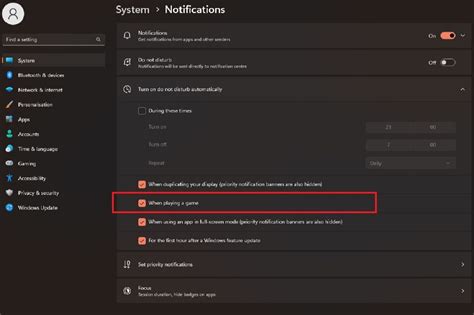
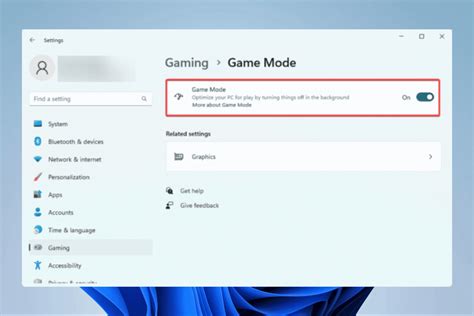
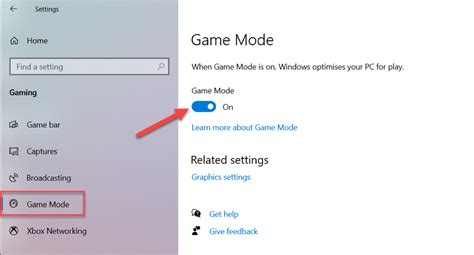
- Game Mode: Windows 10/11 includes a “Game Mode” designed to prioritize gaming resources. Ensure it’s enabled (Settings > Gaming > Game Mode).
- Power Plan: Set your power plan to “High Performance” or “Ultimate Performance” (Control Panel > Hardware and Sound > Power Options). This ensures your CPU doesn’t throttle during intensive gaming.
- Disable Background Processes: Close unnecessary applications running in the background. Task Manager (Ctrl+Shift+Esc) is your friend here. Disable startup programs you don’t need immediately.
- Storage Optimization: For SSDs, ensure TRIM is enabled (usually automatic). For HDDs, a periodic defragmentation can help, though SSDs are highly recommended for game installations.
Mastering In-Game Graphics Settings
This is where you fine-tune the visual experience to match your hardware’s capabilities. A balanced approach between visual fidelity and performance is key.
Resolution and Refresh Rate
- Native Resolution: Always try to play at your monitor’s native resolution for the sharpest image. Lowering it significantly sacrifices visual quality.
- Refresh Rate: Ensure your game is set to utilize your monitor’s full refresh rate (e.g., 144Hz, 240Hz). This is often set in the game’s display options.
Key Graphics Options to Adjust
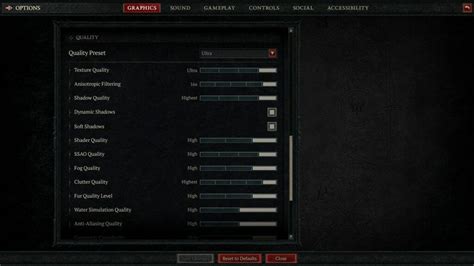
- Texture Quality: Impacts VRAM usage. If you have plenty of VRAM (6GB+), you can often set this high.
- Shadow Quality: Shadows are extremely demanding. Lowering this can yield significant FPS gains with minimal visual degradation for many players.
- Anti-Aliasing (AA): Reduces jagged edges but can be very performance-intensive. Experiment with different types (FXAA, TAA, MSAA). Often, newer upscaling technologies like DLSS (NVIDIA) or FSR (AMD) are better alternatives if available.
- Ray Tracing: While visually stunning, ray tracing is incredibly demanding. If FPS is your priority, consider turning it off or to a lower setting.
- Draw Distance / Object Detail: How far objects are rendered. Lowering this can help in open-world games.
- Volumetric Effects / Ambient Occlusion: These add depth and realism but can be taxing. Adjust based on your GPU.
- V-Sync / G-Sync / FreeSync: V-Sync syncs your FPS to your monitor’s refresh rate to prevent screen tearing but can introduce input lag. G-Sync/FreeSync offer the best of both worlds by dynamically adjusting the refresh rate. Enable them if your monitor and GPU support it.
Hardware Care & Advanced Tweaks
Beyond software, your physical hardware plays a critical role in sustained performance.
Keep It Cool: Thermal Management
- Clean Your PC: Dust accumulation is a silent killer of performance. Regularly clean your case fans, CPU cooler, and GPU heatsink with compressed air.
- Optimal Airflow: Ensure your PC case has good airflow with intake and exhaust fans properly oriented.
- Thermal Paste: If your CPU temperatures are consistently high despite cleaning, reapplying fresh thermal paste might be necessary.
RAM & Overclocking
- Enable XMP/DOCP: If your RAM is rated for higher speeds than its default, enable the XMP (Intel) or DOCP (AMD) profile in your BIOS to unlock its full potential.
- CPU/GPU Overclocking: For advanced users, safely overclocking your CPU and GPU can provide extra performance. However, this requires careful monitoring, proper cooling, and understanding of the risks involved (increased heat, potential instability). Proceed with caution and research specific guides for your hardware.

Monitor Your Performance
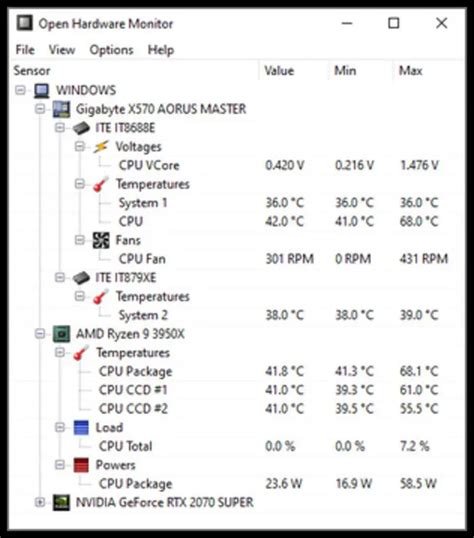
To truly optimize, you need to understand what’s happening under the hood. Tools like MSI Afterburner, HWiNFO, or your GPU’s overlay (NVIDIA GeForce Experience, AMD Radeon Software) can display FPS, GPU usage, CPU usage, and temperatures in real-time. Use these to identify bottlenecks and confirm the impact of your changes.
By systematically applying these optimization strategies, you can transform your gaming experience, ensuring your PC delivers peak FPS and buttery-smooth gameplay even in the most demanding new titles. Consistent maintenance and a willingness to experiment with settings will keep your rig at the top of its game.