





Optimizing Windows for gaming: essential tweaks for FPS and stability?

Unleashing Your PC’s Gaming Potential
Even with top-tier hardware, your Windows operating system can hold back your gaming performance. Bloatware, misconfigured settings, and background processes can collectively reduce your frame rates (FPS) and introduce frustrating stutters or crashes. This guide will walk you through essential tweaks to optimize Windows, ensuring a smoother, faster, and more stable gaming experience.
Power Management: Maximize Performance
High Performance Power Plan
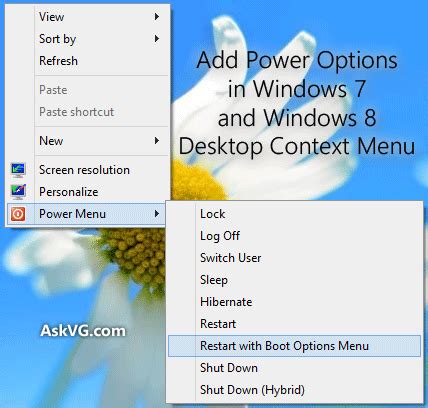
By default, Windows often uses a ‘Balanced’ power plan, which conserves energy but might throttle your CPU and GPU during intensive tasks like gaming. Switching to ‘High Performance’ or ‘Ultimate Performance’ ensures your hardware consistently receives maximum power. Navigate to Control Panel > Hardware and Sound > Power Options and select the appropriate plan. For Windows 11, this is often found in Settings > System > Power & battery > Power mode.
Game Mode and Graphics Settings
Enable Game Mode
Windows Game Mode prioritizes your game, reducing background activity and allocating system resources more efficiently. Go to Settings > Gaming > Game Mode and ensure it’s toggled ‘On’.
Graphics Performance Preference
For demanding games, you can specifically tell Windows to use your dedicated GPU. In Settings > System > Display > Graphics, you can add your game’s executable and set its ‘Graphics preference’ to ‘High performance’.
Minimizing Background Processes
Disable Startup Programs
Many applications launch automatically with Windows, consuming precious RAM and CPU cycles. Open Task Manager (Ctrl+Shift+Esc), go to the ‘Startup’ tab, and disable any non-essential programs. Be cautious not to disable critical system processes.
Turn Off Background Apps
Windows Universal Platform (UWP) apps can run in the background, updating or sending notifications. Go to Settings > Apps > Apps & features, select an app, click ‘Advanced options’, and change ‘Let this app run in background’ to ‘Never’ for apps you don’t need constantly active.

Driver Updates: The Foundation of Performance
Outdated graphics, chipset, and network drivers are common culprits for poor gaming performance and instability. Always ensure you’re running the latest stable drivers from your hardware manufacturer’s website (NVIDIA, AMD, Intel, Motherboard manufacturer). Use tools like NVIDIA GeForce Experience or AMD Radeon Software to keep GPU drivers up-to-date.
Storage Optimization
SSD TRIM and HDD Defragmentation
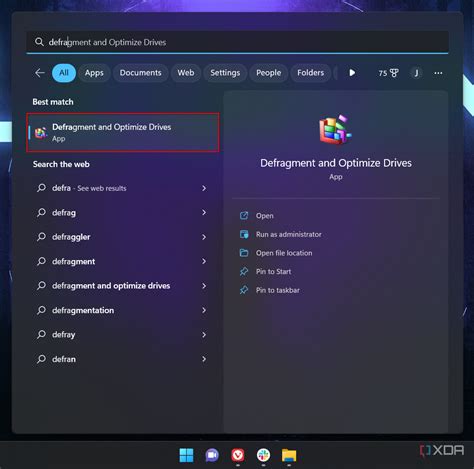
If you’re using an SSD, ensure TRIM is enabled (it usually is by default) to maintain performance. For traditional HDDs, regular defragmentation is crucial. Search for ‘Defragment and Optimize Drives’ in Windows and run the utility. Remember, never defragment an SSD.
Manage Paging File (Virtual Memory)
While typically best left to Windows, if you have ample RAM (16GB+), you can try setting a custom, smaller paging file size or letting Windows manage it entirely on a fast SSD. However, for most users, Windows’ default management is sufficient.
Visual Effects and Notifications
Adjust Visual Effects for Best Performance
Windows’ visual bells and whistles can consume resources. Search for ‘Adjust the appearance and performance of Windows’, go to the ‘Visual Effects’ tab, and select ‘Adjust for best performance’. This will disable animations and other eye candy, freeing up resources.
Disable Notifications and Focus Assist
Pop-up notifications can disrupt gameplay and consume resources. Turn off ‘Notifications & actions’ in Settings > System. Use ‘Focus Assist’ (also in System settings) to automatically suppress notifications when you’re gaming.
Network Optimization for Online Gaming
For online multiplayer games, network stability is as important as FPS.
Disable Nagle’s Algorithm
Some gamers report lower latency by disabling Nagle’s algorithm. This is an advanced registry tweak: navigate to HKEY_LOCAL_MACHINESYSTEMCurrentControlSetServicesTcpipParametersInterfaces{Your Adapter GUID} and create a new DWORD (32-bit) value named TcpNoDelay, setting its value to 1. Proceed with caution when editing the registry.
Prioritize Gaming Traffic (QoS)
Many modern routers offer Quality of Service (QoS) settings that allow you to prioritize gaming traffic over other network activities. Check your router’s administration panel for these options.

Regular Maintenance and Updates
While often seen as a nuisance, keeping Windows updated is vital for security and performance, as updates frequently include performance improvements and bug fixes. Regularly run Disk Cleanup to remove temporary files and uninstall programs you no longer use.

Conclusion: A Smoother Gaming Experience Awaits
By systematically applying these Windows optimization tweaks, you can significantly enhance your gaming experience, enjoying higher frame rates, reduced latency, and improved system stability. Remember to test changes incrementally to identify what works best for your specific system and games. Happy gaming!


