





Troubleshooting random FPS drops: Is it my GPU, CPU, or RAM bottlenecking my gaming PC?

The Frustration of Random FPS Drops
There’s nothing quite as irritating for a PC gamer as a smooth, immersive experience suddenly punctuated by jarring random FPS drops. One moment you’re cruising through a graphically intense landscape, and the next, your frames per second plummet, turning buttery gameplay into a slideshow. These sudden dips can ruin competitive matches, break immersion, and lead to a generally frustrating gaming experience. The natural question that arises is: what’s causing it? Is your graphics card struggling, is your processor giving up, or is your memory holding everything back?
Identifying the root cause of random FPS drops is crucial for resolving the issue. This article will guide you through systematically diagnosing whether your GPU, CPU, or RAM is the primary bottleneck in your gaming rig, empowering you to pinpoint and fix your performance woes.
Understanding Bottlenecks: The Performance Choke Point
In a gaming PC, all components work together. If one component can’t keep up with the others, it becomes a “bottleneck,” limiting the overall performance of the system. Imagine a highway where multiple lanes merge into a single, narrower lane; traffic can only move as fast as that single lane allows. Similarly, if your CPU is too slow for your powerful GPU, the GPU will sit idle part of the time waiting for instructions, leading to lower-than-expected FPS.
Identifying a GPU Bottleneck
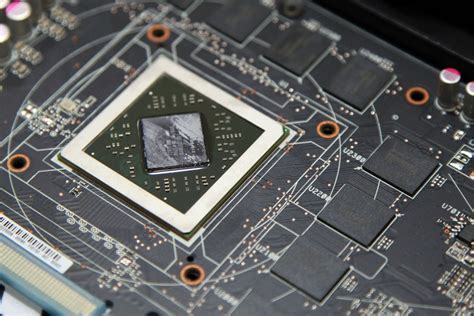
A Graphics Processing Unit (GPU) bottleneck occurs when your graphics card is the limiting factor in your system’s performance. This is often desirable in gaming, as it means your GPU is working at its maximum capacity, driving the highest possible frame rates.
Symptoms:
- High GPU Usage: Your GPU usage is consistently at 99-100% while gaming.
- Lower CPU/RAM Usage: Your CPU and RAM usage might be relatively low (e.g., CPU 50-70%, RAM 50-80%).
- Low FPS at High Settings: You experience low FPS, especially when graphics settings (resolution, textures, anti-aliasing) are cranked up.
Resolution:
If your GPU is the bottleneck, you can either lower in-game graphics settings (e.g., reduce resolution, texture quality, shadows) or consider upgrading your GPU to a more powerful model.
Identifying a CPU Bottleneck
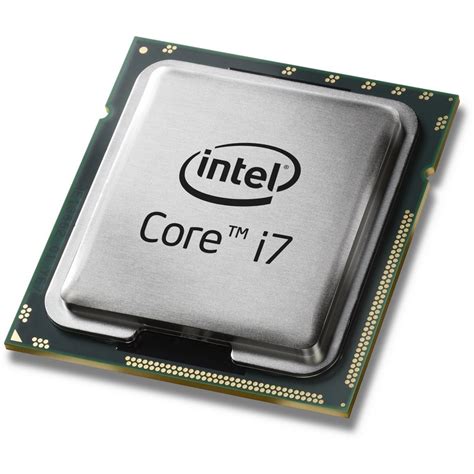
A Central Processing Unit (CPU) bottleneck happens when your processor struggles to keep up with the data requests from your GPU and other system components. This is more common in CPU-intensive games or scenarios with many background applications.
Symptoms:
- High CPU Usage: Your CPU usage is consistently at 90-100% while gaming, often accompanied by lower GPU usage (e.g., GPU 50-70%).
- Stuttering and Low 1% Lows: Even if average FPS is decent, you’ll notice frequent stutters and very low 1% and 0.1% percentile FPS metrics.
- Lower FPS in CPU-bound Games: Games with many NPCs, complex physics, or large open worlds tend to expose CPU bottlenecks more readily.
Resolution:
Close unnecessary background applications, update CPU drivers, ensure adequate cooling (thermal throttling can cause drops), or consider upgrading to a faster CPU, ideally one with more cores and higher clock speeds, depending on the game’s requirements.
Identifying a RAM Bottleneck
While less common as a direct cause of *random* FPS drops compared to CPU or GPU, insufficient or slow RAM can certainly contribute to performance issues and stutters, especially in modern, demanding titles.
Symptoms:
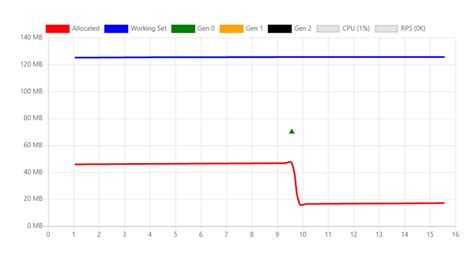
- High RAM Usage: Your system’s RAM usage is consistently near its maximum capacity (e.g., 90%+ for 8GB, 12GB).
- Excessive Disk Paging: The system starts using your storage drive (SSD/HDD) as “virtual memory” (page file), leading to noticeable slowdowns, stuttering, and increased hard drive activity.
- Game Crashing/Freezing: Severe memory limitations can lead to games crashing or the system freezing.
Resolution:
Close memory-intensive background applications, ensure your RAM is running at its advertised speed (XMP/DOCP enabled in BIOS), or, most effectively, upgrade your RAM capacity (e.g., from 8GB to 16GB or 32GB) or speed.
Essential Tools for Diagnosis
To accurately identify a bottleneck, you need monitoring software. Here are some highly recommended options:
- MSI Afterburner with RivaTuner Statistics Server (RTSS): Provides an excellent in-game overlay to monitor GPU usage, temperature, clock speed, CPU usage (per core or overall), RAM usage, and FPS in real-time.
- HWiNFO64: A comprehensive hardware monitoring tool that provides detailed sensor readings for almost every component in your PC.
- Windows Task Manager: A built-in tool (Ctrl+Shift+Esc) that offers basic CPU, RAM, Disk, and Network usage monitoring. While not as detailed as Afterburner, it’s a good starting point.
Run these tools while playing a game where you experience FPS drops. Observe the utilization percentages of your GPU, CPU, and RAM when the drops occur. This will quickly reveal which component is hitting its limit.

Beyond Bottlenecks: Other Causes of FPS Drops
While component bottlenecks are common, other factors can cause random FPS drops:
- Outdated or Corrupt Drivers: Especially GPU drivers. Always keep them updated.
- Overheating: Components (GPU, CPU) will “throttle” down their performance to prevent damage if they get too hot, causing FPS drops. Monitor temperatures.
- Background Processes/Malware: Resource-intensive applications or malicious software running in the background can steal resources.
- Power Supply Issues: An unstable or insufficient power supply can lead to component instability under load.
- Game-Specific Bugs: Some games have optimization issues or bugs that can cause performance drops regardless of hardware.
- Windows Power Plan: Ensure your power plan is set to “High Performance” or “Ultimate Performance.”
Conclusion: Pinpointing and Resolving Your Performance Woes
Random FPS drops are a common, yet solvable, problem for PC gamers. By understanding the concept of bottlenecks and utilizing readily available monitoring tools, you can systematically diagnose whether your GPU, CPU, or RAM is the culprit. Once identified, you can take targeted action – whether it’s adjusting in-game settings, closing background applications, updating drivers, or considering a hardware upgrade – to restore your gaming PC to its peak performance and enjoy a smooth, uninterrupted gaming experience.


