





What are best practices for resolving mod conflicts to ensure stable gameplay?

The Challenge of Mod Conflicts in PC Gaming
Modding a game can dramatically enhance its experience, adding new content, improving graphics, or altering gameplay mechanics. However, the more mods you install, the higher the likelihood of encountering conflicts that can lead to crashes, bugs, or corrupted save files. Resolving these conflicts is crucial for maintaining a stable and enjoyable modded game. This guide outlines best practices to help you navigate the complexities of mod conflicts and achieve consistent gameplay.

Understanding the Roots of Mod Conflicts
Mod conflicts typically arise when two or more mods attempt to modify the same game file, record, script, or resource. This can manifest in several ways:
- File Overwrites: One mod replaces a file that another mod also needs or modifies, leading to one mod’s changes being ignored or breaking the other.
- Record Conflicts: In games with extensive databases (like Bethesda titles), multiple mods might alter the same game record (e.g., an item’s stats, a character’s properties), causing unintended behavior or data corruption.
- Script Incompatibilities: Two scripts attempting to modify the same game function or event can lead to infinite loops, freezes, or crashes.
- Resource Conflicts: Different mods using similar texture or mesh paths but with conflicting assets can result in visual glitches or missing textures.
Essential Tools for Conflict Detection and Resolution
Effective conflict resolution relies on a combination of good practices and powerful tools:
- Mod Managers: Tools like Vortex, Mod Organizer 2 (MO2), or Nexus Mod Manager (NMM) are indispensable. They help organize your mods, manage installation paths, and often provide basic conflict warnings. MO2, in particular, excels with its virtual file system, preventing actual game file overwrites and making troubleshooting easier.
- Load Order Optimizers: For games like Skyrim or Fallout, utilities like LOOT (Load Order Optimization Tool) are critical. LOOT automatically sorts your plugin load order based on a comprehensive database, significantly reducing common conflicts.
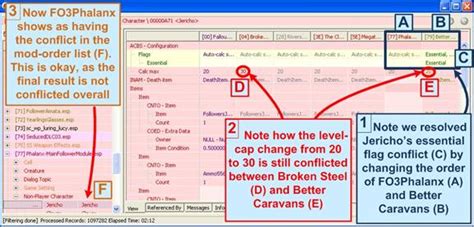
- Deep Conflict Resolution Tools: Programs like xEdit (TES5Edit, FO4Edit, SSEEdit, etc.) allow you to delve into individual game records, see exactly where conflicts occur, and create custom patches to merge changes or decide which mod takes precedence.
- Bashed/Merged Patch Utilities: Tools like Wrye Bash (for older Bethesda games) or Mator Smash create ‘smashed’ or ‘bashed’ patches that intelligently merge conflicting records across multiple mods, minimizing manual effort.

Best Practices for Preventing and Resolving Conflicts
1. Start Small and Test Iteratively
Do not install dozens of mods at once. Begin by installing a few mods, test your game thoroughly, and ensure stability before adding more. This makes it much easier to pinpoint which specific mod or combination of mods is causing an issue.
2. Read Mod Descriptions Carefully
Before downloading, always read the mod description, installation instructions, compatibility notes, and user comments. Mod authors often list known conflicts, required patches, or recommended load order placements. This is your first line of defense against compatibility issues.
3. Manage Your Load Order with Precision
Your plugin load order determines which mod’s changes take precedence when multiple mods modify the same record. While LOOT is an excellent starting point, some conflicts may require manual adjustment based on specific mod instructions or deeper analysis with xEdit. Generally, a mod loaded later in the order will overwrite changes from a mod loaded earlier.
4. Utilize Bashed/Merged Patches
For games with many small-scale conflicts (e.g., changes to items, leveled lists, or small world edits), a bashed or smashed patch can save immense time. These tools consolidate compatible changes from multiple plugins into a single file, reducing the total plugin count and resolving minor conflicts automatically.
5. Learn Basic Manual Conflict Resolution with xEdit
For persistent or complex conflicts, learning how to use xEdit is invaluable. It allows you to:
- Identify exactly which records are conflicting.
- See which mod is overwriting another.
- Create a ‘patch’ plugin where you explicitly choose which mod’s changes to keep, or even merge specific values from different mods.
While daunting at first, many tutorials are available to guide you through this powerful process.
6. Always Back Up Your Game
Before undertaking significant modding efforts or making manual changes, back up your game installation and save files. This safety net allows you to revert to a working state if something goes wrong.
7. Consult Community Resources and Forums
The modding community is a vast repository of knowledge. If you encounter an issue, search the mod’s comment section, relevant game wikis, or dedicated modding forums (like Nexus Forums, Reddit’s r/modding, etc.). Chances are, someone else has encountered and resolved a similar problem.

Conclusion
Resolving mod conflicts can sometimes feel like a puzzle, but with a systematic approach and the right tools, it’s a manageable part of the modding experience. By understanding the types of conflicts, utilizing mod managers and optimizers, learning basic manual resolution techniques, and leaning on community support, you can build a stable and deeply customized game world that provides countless hours of enjoyment without the frustration of constant crashes.

