





Best GPU driver update method for peak gaming FPS and stability?

For any PC gamer, the graphics processing unit (GPU) is the heart of their visual experience. But even the most powerful GPU is only as good as its drivers. Keeping your GPU drivers up to date is crucial for squeezing every last frame out of your games, ensuring smooth performance, and maintaining system stability. However, with various methods available, determining the ‘best’ approach can be confusing. This article will guide you through the most effective strategies to update your GPU drivers for optimal gaming.
Why GPU Drivers Matter for Gaming
GPU drivers are software programs that allow your operating system and games to communicate with your graphics card. They are constantly refined by manufacturers to deliver several key benefits:
- Performance Enhancements: New drivers often include optimizations for the latest game titles, potentially offering significant FPS boosts and smoother gameplay.
- Bug Fixes: They address glitches, crashes, and visual artifacts reported by users.
- New Features: Drivers can introduce support for new technologies, such as improved rendering techniques, VR enhancements, or display features.
- Stability: Regular updates can resolve underlying issues that might cause system freezes or instability during demanding gaming sessions.

Common GPU Driver Update Methods
There are generally three ways to update your GPU drivers, each with its pros and cons:
Official Manufacturer Software (NVIDIA GeForce Experience, AMD Adrenalin)
NVIDIA and AMD both provide dedicated software suites (GeForce Experience and Adrenalin Software, respectively) that automatically detect new driver versions, download them, and guide you through the installation process. This is often the most convenient method for most users.
- Pros: User-friendly, automated updates, often includes game optimization features, easy rollback options.
- Cons: Can sometimes install additional software you may not want (e.g., streaming tools), occasionally less stable than a ‘clean’ manual install.
Manual Download from Manufacturer Websites
This method involves visiting NVIDIA’s or AMD’s official driver download pages, manually selecting your GPU model and operating system, and downloading the installer package. This gives you direct control over which driver version you install.
- Pros: Full control over the driver version, no bloatware if you select a ‘driver-only’ install (if available), often preferred for clean installations.
- Cons: Requires more user input, you need to know your exact GPU model and OS version.

Windows Update (Generally Not Recommended for Gaming)
Windows Update can sometimes deliver GPU drivers. While convenient, these drivers are often older versions and not optimized for the latest games. They are primarily for basic display functionality and system stability, not peak gaming performance.
- Pros: Fully automated, ensures basic functionality.
- Cons: Drivers are typically outdated, lack gaming optimizations, can sometimes overwrite newer drivers you’ve installed manually.
The “Best” Method: Balancing Performance and Stability
For peak gaming FPS and stability, the generally recommended approach is a hybrid: **manual download combined with a clean installation strategy.** While the manufacturer’s software is convenient, a manual clean install often yields the most stable and performant results by preventing conflicts with old driver files.

Step-by-Step Best Practices for Updating
Here’s a detailed approach for ensuring a smooth and effective GPU driver update:
1. Preparation
- Identify Your GPU: Know your exact NVIDIA (e.g., RTX 4070) or AMD (e.g., RX 7800 XT) model.
- Check Current Driver Version: Note your current driver version in your manufacturer’s software or Device Manager.
- Create a System Restore Point: This is a crucial safety net. If something goes wrong, you can revert your system to a previous working state. Search for ‘Create a restore point’ in Windows.
- Download the New Driver: Go to the official NVIDIA or AMD driver download page. Select your GPU and OS, then download the latest recommended driver.
2. Clean Installation (Using DDU)
For the absolute cleanest install, especially if you’re experiencing issues or switching GPU brands, use Display Driver Uninstaller (DDU). This free utility removes all traces of previous display drivers.
- Download DDU: Get it from a reputable source (e.g., Wagnardsoft forum).
- Boot into Safe Mode: Disconnect from the internet. Restart your PC and boot into Safe Mode (this prevents Windows from automatically installing drivers).
- Run DDU: In Safe Mode, run DDU, select your GPU vendor (NVIDIA/AMD), and choose ‘Clean and restart’.

3. Installation
- Install New Driver: After DDU restarts your PC (and you’re still offline), run the driver installer you downloaded.
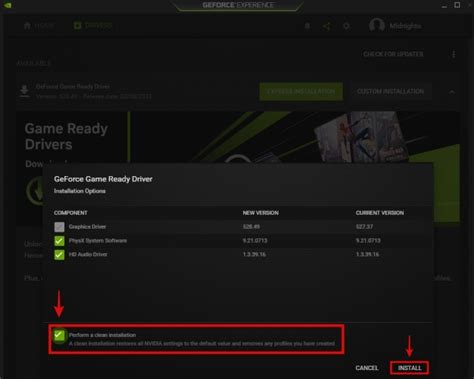
- Custom/Clean Install Option: During the installation, look for an ‘Custom’ or ‘Advanced’ option. Check the box for a ‘Clean Installation’ (both NVIDIA and AMD installers offer this). This will wipe previous profiles and settings, ensuring a fresh start.
- Complete Installation: Follow the on-screen prompts to finish the installation and restart your PC when prompted.
4. Post-Installation
- Reconnect to Internet: Once your PC has restarted, reconnect to the internet.
- Test Performance: Launch your favorite games and monitor FPS and stability. Pay attention to any new issues.
- Monitor Temperatures: Ensure your GPU temperatures are within normal ranges.
- Rollback if Necessary: If you encounter significant issues (crashes, artifacts, performance drops) that weren’t present before, you can try rolling back the driver via Device Manager or by restoring your system to the restore point you created.
Conclusion
While convenience tools like GeForce Experience and Adrenalin Software are generally sufficient, a clean installation, ideally performed after a DDU wipe, provides the best foundation for peak gaming FPS and system stability. Always prioritize drivers from the official manufacturer website and remember to create a system restore point as a safeguard. By following these best practices, you can ensure your GPU is always running at its full potential, delivering the best possible gaming experience.


