Best in-game and driver settings for max FPS in competitive shooters?

Why Max FPS Matters in Competitive Shooters
In the fast-paced world of competitive shooters, every frame counts. Higher Frames Per Second (FPS) translates to smoother visuals, reduced input lag, and a more responsive gaming experience, giving you a crucial advantage over opponents. While a powerful rig is a great start, tweaking your software settings is equally vital to unlock your system’s full potential.
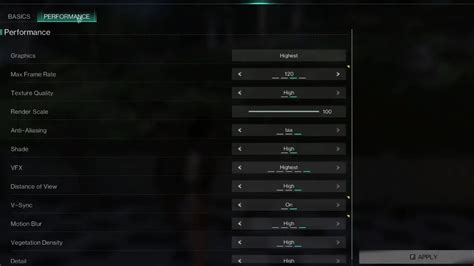
In-Game Graphics Settings for Performance
Most of your FPS gains will come from adjusting settings within the game itself. The general rule of thumb for competitive play is to prioritize performance over visual fidelity.
- Resolution: Always aim for your monitor’s native resolution. Running a lower resolution might provide a slight FPS boost but can make enemies harder to spot due to blurriness.
- Refresh Rate: Ensure this is set to match your monitor’s highest refresh rate (e.g., 144Hz, 240Hz).
- Texture Quality: This impacts VRAM usage. If you have a decent GPU (e.g., 6GB VRAM or more), you can often set this to Medium or High without a significant FPS drop. If VRAM is limited, set it to Low.
- Shadows: Shadows are often the biggest FPS killers. Set these to Low or Very Low. They provide minimal competitive advantage and often obscure enemies.
- Anti-Aliasing (AA): Techniques like MSAA or TXAA are demanding. FXAA or SMAA are less intensive but still cost some FPS. For maximum FPS, consider turning AA off or using the lowest possible setting.
- Post-Processing Effects: Bloom, Motion Blur, Depth of Field, Lens Flare, Chromatic Aberration – disable all of these. They add visual fluff and often hinder visibility while consuming FPS.
- Draw Distance / View Distance: Set to Medium or High enough to see distant enemies, but avoid Ultra settings unless your FPS is consistently high.
- Effects / Particles: Reduce these to Low. While explosions might look less impressive, your FPS won’t tank during chaotic moments.
- V-Sync: Disable V-Sync. While it prevents screen tearing, it introduces input lag. Modern adaptive sync technologies (FreeSync/G-Sync) are superior alternatives.
Graphics Driver Settings (NVIDIA & AMD)
Your graphics card drivers offer a control panel that can override or fine-tune in-game settings. Access these panels (NVIDIA Control Panel or AMD Radeon Software) from your desktop.
NVIDIA Control Panel:
- Manage 3D Settings > Program Settings: Find your game and apply these specific changes, or apply globally under Global Settings.
- Power Management Mode: Set to ‘Prefer maximum performance’. This keeps your GPU clocks high.
- Low Latency Mode: Set to ‘Ultra’. This can significantly reduce input lag.
- Texture Filtering – Quality: Set to ‘High Performance’.
- Shader Cache Size: Set to ‘Driver Default’ or ‘Unlimited’ if available.
- Vertical Sync: Set to ‘Off’ (if you’re not using G-Sync/FreeSync).
- Max Frame Rate: Consider capping your FPS just below your monitor’s refresh rate (e.g., 141 FPS for a 144Hz monitor) if you experience micro-stuttering or to ensure consistent frame times.
AMD Radeon Software:
- Gaming > Games: Find your game or apply under Global Graphics.
- Radeon Anti-Lag: Enable. This helps reduce input lag.
- Radeon Chill: Disable (unless you want to cap FPS and save power, which is not ideal for competitive play).
- Image Sharpening: Disable, as it can add processing overhead.
- Texture Filtering Quality: Set to ‘Performance’.
- Wait for Vertical Refresh: Set to ‘Always Off’ (unless using FreeSync).
- Advanced > Tesselation Mode: Set to ‘Override application settings’ and ‘Off’.
Windows Operating System Optimization
Don’t forget to optimize Windows itself for peak gaming performance.
- Game Mode: Ensure ‘Game Mode’ is enabled in Windows Settings (Settings > Gaming > Game Mode).
- Disable Background Apps: Go to Settings > Privacy > Background apps and turn off apps you don’t need running in the background.
- Power Plan: Set your power plan to ‘High Performance’ or ‘Ultimate Performance’ (if available) in Control Panel > Hardware and Sound > Power Options.
- Startup Programs: Open Task Manager (Ctrl+Shift+Esc), go to the ‘Startup’ tab, and disable unnecessary programs that launch with Windows.
- Notifications: Disable focus assist and notifications to prevent interruptions.
- Update Drivers: Regularly update your GPU, chipset, and audio drivers.
Hardware & Monitoring Best Practices
While software tweaks are crucial, hardware health and monitoring play a supporting role.
- Monitor Temperatures: Use tools like MSI Afterburner or HWMonitor to keep an eye on your CPU and GPU temperatures. Overheating can lead to thermal throttling and FPS drops.
- Close Browser/Other Apps: Before launching a competitive game, close resource-intensive applications like web browsers, streaming apps, or video editors.
- Clean Your System: Physically clean dust from your PC fans and heatsinks regularly to maintain optimal cooling.
- RAM Speed: Ensure your RAM is running at its advertised speed by enabling XMP/DOCP in your motherboard’s BIOS.
Test and Iterate
Optimizing for max FPS isn’t a one-time setup; it’s an ongoing process. After making changes, jump into a practice range or a custom game to test the impact. Use an in-game FPS counter or tools like Fraps/NVIDIA ShadowPlay/AMD Radeon Overlay to monitor your frames. If your FPS is stable and high, try turning up one setting slightly at a time to see its effect, allowing you to find the perfect balance between performance and visual quality for your system and preferences.
Remember, the goal is consistent, high FPS rather than just peak numbers. A stable frame rate prevents jarring micro-stutters and ensures a smooth, competitive experience.