





Best PC settings for high FPS & low latency in competitive gaming?

In the high-stakes world of competitive gaming, every millisecond and every frame per second (FPS) can be the difference between victory and defeat. Achieving optimal performance isn’t just about having top-tier hardware; it’s also about meticulously tuning your PC’s software and settings to deliver the smoothest, most responsive gaming experience possible. This guide will walk you through the essential adjustments to boost your FPS and slash latency, giving you a crucial edge over the competition.
Optimizing Your Graphics Card Drivers
Your GPU drivers are the bridge between your graphics card and your games. Keeping them updated is crucial, but configuring them correctly is equally important. For NVIDIA users, open the NVIDIA Control Panel; for AMD users, navigate to AMD Radeon Software. Focus on settings like “Low Latency Mode” (NVIDIA) or “Radeon Anti-Lag” (AMD), which are designed to reduce input lag. Ensure “Max Frame Rate” is set to a value slightly above your monitor’s refresh rate (or disabled if you prefer uncapped frames and have strong cooling). Turn off features like V-Sync (unless you experience severe screen tearing and cannot maintain higher FPS than your monitor’s refresh rate) and triple buffering.
In-Game Graphics Settings for Performance
While stunning visuals are appealing, competitive gaming prioritizes clarity and performance. Most esports titles offer a plethora of graphics options. Generally, you’ll want to reduce settings that are heavy on your GPU and often provide little competitive advantage. Lowering resolution, texture quality, shadow quality, anti-aliasing, and post-processing effects (like motion blur or depth of field) can significantly increase your FPS. Aim for settings that allow you to consistently hit your monitor’s refresh rate, or even higher, to ensure smooth gameplay and minimal input delay. Experiment with specific settings in each game, as optimal choices can vary.
Windows Operating System Tweaks
Your operating system can also be a significant factor in gaming performance. Start by ensuring Windows Game Mode is enabled (Settings > Gaming > Game Mode), as it prioritizes system resources for games. Next, adjust your power plan to “High Performance” or “Ultimate Performance” (Control Panel > Hardware and Sound > Power Options). Disable background apps (Settings > Privacy > Background apps) and turn off notifications (Settings > System > Notifications & actions) to prevent unnecessary resource consumption. Finally, ensure your display settings are correct, especially your monitor’s refresh rate, which should be set to its maximum value (Settings > System > Display > Advanced display settings).
BIOS/UEFI and Hardware Level Optimizations
Beyond the operating system, your motherboard’s BIOS/UEFI settings can offer further performance gains. One critical setting is enabling XMP (Extreme Memory Profile) or DOCP (Direct Overclock Profile) for AMD systems. This allows your RAM to run at its advertised speeds, which can dramatically impact CPU-bound game performance. Ensure you have the latest BIOS version for your motherboard. For newer systems, enabling Resizable BAR (Re-Size BAR) can also provide a performance boost, allowing your CPU to access the GPU’s entire frame buffer. Disable any unused integrated peripherals or virtualization technologies if they are not needed, as they can consume minor resources.

Network Configuration for Minimal Latency
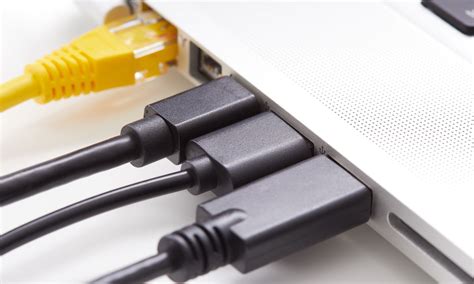
Low latency isn’t just about frames; it’s about the responsiveness of your connection to game servers. Always prioritize a wired Ethernet connection over Wi-Fi, as it provides a more stable connection with lower ping. Ensure your router’s firmware is up to date. You might also consider enabling Quality of Service (QoS) on your router to prioritize gaming traffic, though this is often only beneficial in households with heavy network usage. Experiment with different DNS servers (like Google DNS or Cloudflare DNS) to potentially improve routing to game servers. Avoid using VPNs unless specifically required, as they often add latency.
Ongoing Maintenance and Best Practices
Maintaining optimal performance is an ongoing process. Regularly update your GPU drivers, motherboard BIOS, and Windows. Keep your PC physically clean to prevent overheating, which can lead to thermal throttling and reduced performance. Periodically declutter your hard drives, especially your primary gaming drive, and ensure you have sufficient free space. Close all unnecessary applications before launching a game. Monitoring your system’s temperatures and resource usage during gameplay can help identify bottlenecks and ensure your optimizations are effective.

Conclusion
Achieving peak FPS and minimal latency in competitive gaming requires a comprehensive approach, combining careful hardware choices with meticulous software configuration. By systematically adjusting your GPU drivers, in-game settings, Windows optimizations, and even BIOS options, you can unlock your PC’s full potential. Remember that consistency and responsiveness are key in esports, so take the time to fine-tune your setup and practice with your new, optimized environment. The competitive edge you gain will be well worth the effort.



