





Best practices for managing dozens of game mods without crashes?

The Allure and Challenge of Extensive Modding
For many gamers, the ability to modify their favorite titles is one of the most exciting aspects of PC gaming. From visual overhauls and new quests to gameplay tweaks and quality-of-life improvements, mods can breathe new life into beloved games, extending their longevity and tailoring the experience to individual preferences. However, the joy of a heavily modded game often comes hand-in-hand with the daunting challenge of managing dozens, or even hundreds, of these additions without constant crashes and instability.
Achieving a stable, highly-modded game environment isn’t magic; it’s a discipline built on best practices, patience, and the right tools. This guide will walk you through the essential steps and considerations to keep your extensive mod list running smoothly, allowing you to enjoy the fruits of the modding community without the frustration of constant technical headaches.
Foundation: Quality Over Quantity & Mod Selection
Before you even begin downloading, a crucial first step is careful mod selection. It’s tempting to grab every interesting mod you see, but a discerning approach saves immense headaches later. Prioritize well-maintained mods from reputable authors, checking their compatibility notes, known issues, and user feedback. Mods that haven’t been updated in years or have numerous bug reports are often ticking time bombs.
Always read the mod description thoroughly. This includes installation instructions, dependencies (other mods required), load order recommendations, and potential conflicts. Understanding these details upfront can prevent many common problems.
Embrace Mod Managers: Your Best Friends
Attempting to manage dozens of mods manually is a recipe for disaster. Modern mod managers are indispensable tools that streamline the entire modding process, from installation and uninstallation to conflict detection and load order management. Tools like Mod Organizer 2 (MO2), Vortex, and even Nexus Mod Manager (NMM) for older games, provide robust frameworks to handle your mod library.
These managers create virtual file systems, preventing mods from directly overwriting core game files, which makes troubleshooting and mod removal far safer and cleaner. They also offer features like profiles, allowing you to switch between different mod setups for different playthroughs or testing scenarios without reinstalling your game.
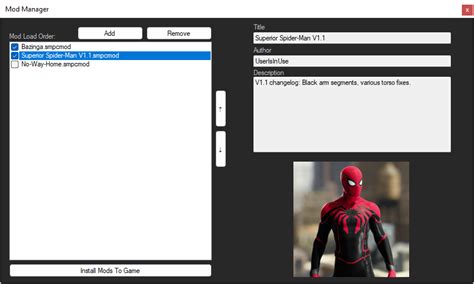
Understanding and Optimizing Your Load Order
The load order refers to the sequence in which your game loads your modification files. If two mods modify the same game record or asset, the one loaded later will “win,” overwriting the changes made by the earlier mod. An incorrect load order is one of the most common causes of crashes, broken quests, or visual glitches.
While mod managers help, dedicated load order optimizers like LOOT (Load Order Optimization Tool) are invaluable. LOOT automatically sorts your plugins based on a comprehensive masterlist, identifying dirty edits and potential conflicts. Always run LOOT regularly, especially after installing new mods. However, remember that LOOT is a tool, not a magic bullet; sometimes, manual adjustments based on mod descriptions or community guides are necessary.
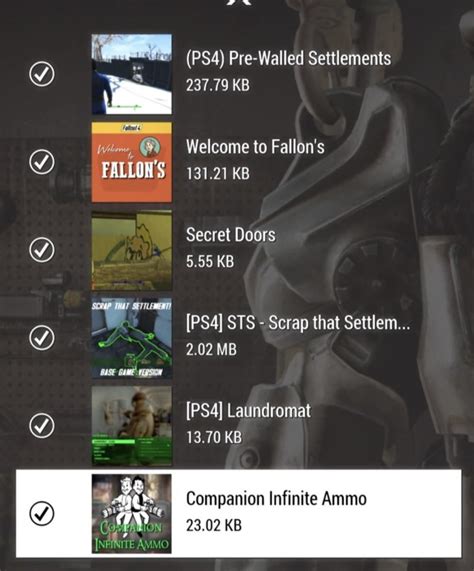
Tackling Mod Conflicts Head-On
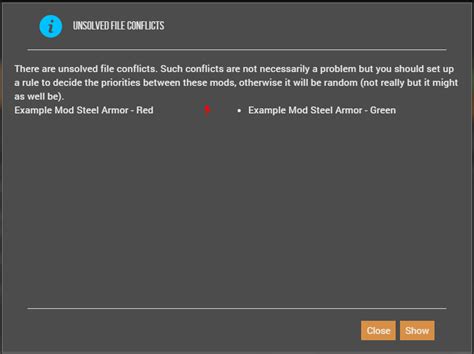
Conflicts are inevitable when managing many mods, but they don’t have to be fatal. A conflict occurs when two or more mods try to change the same aspect of the game. Your mod manager will often highlight these, but understanding how to resolve them is key. For simple conflicts, the load order determines the winner. For more complex interactions, you might need to create a “merged patch” or “bashed patch” using tools like xEdit (TES5Edit/SSEEdit/FO4Edit) or Wrye Bash.
These patcher tools combine conflicting records into a new plugin, ensuring that all desired changes from various mods are incorporated without one completely overwriting another. Learning the basics of xEdit for conflict resolution is a highly recommended skill for any serious modder, allowing you to pinpoint exactly what’s conflicting and make informed decisions.
Strategic Testing: Add and Play Incrementally
One of the biggest mistakes modders make is installing dozens of mods all at once and then wondering why their game crashes. The golden rule for stable modding is to install mods incrementally. Add a small batch of mods (e.g., 5-10 at a time), run your load order optimizer, and then thoroughly test your game. Play for a while, visit different areas, use new items, and check for any immediate issues.
If you encounter a crash or bug, you’ll know it was likely one of the most recently installed mods, significantly narrowing down your troubleshooting efforts. Use your mod manager’s profiles feature to create backup profiles before making major changes, allowing for quick rollbacks if things go wrong.

When Crashes Occur: Troubleshooting and Maintenance
Despite best efforts, crashes will happen. Don’t panic. The first step is to check if your game generates a crash log. Many crash logger mods exist for popular titles (e.g., Crash Logger for Skyrim SE, Buffout 4 for Fallout 4) that can point you to the problematic plugin or file. If no specific mod is identified, disable your most recently installed mods, or disable them in batches (e.g., half your mod list at a time) to isolate the culprit.
Regular maintenance is also crucial. Use tools like FallrimTools (Resaver) for save game cleaning, clean “dirty” plugins identified by LOOT with xEdit, and ensure your game, mods, and modding tools are all updated to their latest stable versions. Keeping your system drivers up to date can also prevent a variety of stability issues.

Patience and Persistence Pave the Way
Managing dozens of game mods without crashes is a testament to patience, attention to detail, and a willingness to learn. While it may seem daunting at first, by adhering to these best practices – using a robust mod manager, understanding load order, resolving conflicts, testing incrementally, and effectively troubleshooting – you can create a personalized, stable, and immensely enjoyable gaming experience that truly stands apart from the vanilla version. Dive into the world of modding with confidence, and unlock the full potential of your favorite games!

