Boost FPS: Essential GPU settings for smoother gaming performance?

Unlock Higher Frames Per Second with Optimized GPU Settings
Stuttering gameplay and low frame rates can ruin even the most immersive gaming experiences. While a powerful GPU is the foundation, simply installing it isn’t enough. To truly maximize your gaming performance and achieve buttery-smooth FPS, you need to delve into your graphics card’s settings. Both NVIDIA and AMD provide comprehensive control panels that allow you to fine-tune various aspects of how your GPU renders games. Understanding and adjusting these settings can make a significant difference, often transforming a choppy experience into a fluid one without needing to upgrade hardware.
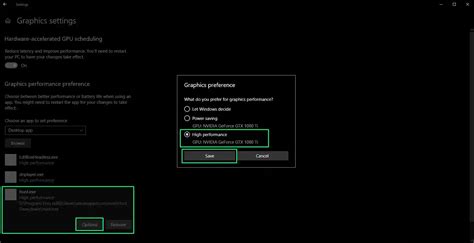
Navigating Your Graphics Driver Control Panel
Whether you’re an NVIDIA GeForce user or an AMD Radeon enthusiast, your graphics driver comes with a dedicated control panel – the NVIDIA Control Panel or AMD Radeon Software, respectively. These are your primary tools for system-wide GPU optimization. It’s crucial to ensure your drivers are always up to date, as new versions often include performance enhancements and bug fixes for the latest games.
Key NVIDIA Control Panel Settings:
- Power Management Mode: Set this to ‘Prefer maximum performance’. While it uses more power, it prevents your GPU from downclocking during demanding moments, ensuring consistent high performance.
- Low Latency Mode: Experiment with ‘On’ or ‘Ultra’. This aims to reduce input lag by submitting frames to the GPU just in time for rendering, though ‘Ultra’ can sometimes introduce micro-stutters on older hardware.
- Texture Filtering – Quality: Set this to ‘High performance’ or ‘Performance’. This can slightly reduce visual fidelity but offers a noticeable FPS gain.
- Vertical Sync (VSync): Generally, turn this ‘Off’ if you have a high refresh rate monitor (144Hz+) and your FPS exceeds your refresh rate, or if you use G-Sync/FreeSync. If you experience screen tearing and don’t have adaptive sync, set it to ‘On’ or ‘Fast Sync’ to cap FPS to your monitor’s refresh rate.
- Shader Cache Size: Keep this at ‘Driver default’ or ‘Unlimited’. A larger cache can help reduce stuttering by quickly reloading compiled shaders.
Key AMD Radeon Software Settings:
- Radeon Anti-Lag: Enable this to reduce input lag, similar to NVIDIA’s Low Latency Mode.
- Radeon Boost: This dynamically lowers resolution in fast-motion scenes to improve FPS. It can be quite effective, but results vary per game.
- Radeon Image Sharpening (RIS): While it enhances visual clarity, it can have a minor performance impact. Use sparingly if FPS is your absolute priority.
- Texture Filtering Quality: Set to ‘Performance’ or ‘Standard’. Similar to NVIDIA, this prioritizes frame rate over ultra-high texture detail.
- Enhanced Sync: An alternative to VSync, it aims to reduce tearing without the input lag penalty of traditional VSync, but can introduce occasional stuttering. Use FreeSync if available.
Crucial In-Game Graphics Settings
Beyond the driver control panel, the most significant FPS gains often come from adjusting in-game settings. Developers usually provide extensive options, allowing you to tailor performance to your system. Start by lowering or disabling the most resource-intensive settings first:
- Anti-Aliasing (AA): MSAA, SSAA, and even TAA can be huge FPS killers. FXAA or SMAA are less demanding alternatives, or consider turning it off entirely if jagged edges don’t bother you.
- Shadow Quality: Shadows are notoriously demanding. Reducing their quality or distance can yield significant performance boosts with minimal visual impact.
- Volumetric Lighting/God Rays: These create beautiful atmospheric effects but often come at a high performance cost.
- Reflections and Water Quality: Complex reflections are very demanding. Lowering these settings can free up considerable GPU resources.
- Post-Processing Effects: Motion blur, depth of field, and lens flare can often be turned off for a cleaner image and better FPS without sacrificing core gameplay visuals.
- View Distance/Draw Distance: While impacting immersion, reducing this can help, especially in open-world games.
Monitor and Experiment
After adjusting settings, always monitor your FPS using an in-game counter or third-party tools like MSI Afterburner. The key is experimentation. Every game and every system is unique. What works perfectly for one title might not be ideal for another. Start by making aggressive changes (e.g., setting everything to low) to establish a baseline, then gradually increase settings until you find the perfect balance between visual quality and desired frame rate. Remember to restart games after changing settings for them to take full effect.
By carefully tweaking both your GPU driver settings and in-game options, you can significantly enhance your gaming experience, achieving higher FPS and smoother gameplay without necessarily buying new hardware. Invest a little time in optimization, and your GPU will thank you with a performance boost.