





Boost FPS: Optimal CPU & GPU settings for competitive gaming performance?

In the high-stakes world of competitive gaming, every frame per second (FPS) can be the difference between victory and defeat. Achieving optimal FPS isn’t just about having top-tier hardware; it’s also about fine-tuning your system’s settings to extract every last ounce of performance. This guide will walk you through essential CPU and GPU configurations to ensure your rig delivers buttery-smooth gameplay when it matters most.
Understanding Your Hardware’s Potential
Before diving into specific settings, it’s crucial to understand that your CPU and GPU work in tandem. The CPU handles game logic, physics, and AI, feeding instructions to the GPU, which then renders the visuals. A bottleneck in either can limit your FPS. Our goal is to balance these components for maximum efficiency.
Optimizing Your CPU for Gaming
BIOS/UEFI Settings
- XMP/DOCP Profile: Enable this to ensure your RAM runs at its advertised speed. This is often overlooked but provides a significant boost.
- CPU Virtualization (VT-x/AMD-V): If you don’t use virtual machines, consider disabling this. While usually minor, it can free up a tiny bit of overhead.
- Core Performance Boost/Precision Boost Overdrive (AMD) / Enhanced Intel SpeedStep Technology (Intel): Ensure these are enabled to allow your CPU to boost to higher clock speeds under load.
Windows Power Plan
Navigate to Control Panel > Hardware and Sound > Power Options. Select the “High performance” or “Ultimate performance” plan. While “Balanced” saves energy, it might throttle your CPU during intense gaming sessions.
Overclocking (Advanced)
If you have an unlocked CPU (Intel K-series, AMD Ryzen), careful overclocking can provide a noticeable FPS increase. This requires proper cooling and understanding of voltage settings. Always research your specific CPU and motherboard combination before attempting an overclock.
Fine-Tuning Your GPU for Maximum Frames
GPU Driver Settings (NVIDIA Control Panel / AMD Radeon Software)
Your graphics card drivers offer a wealth of settings that can impact performance. Here are some key ones:
- Image Sharpening/Anti-aliasing: For competitive gaming, prioritize performance over visual fidelity. Reduce or disable demanding anti-aliasing methods (e.g., MSAA, SSAA) and consider lighter alternatives like FXAA or TAA, or even turn it off completely for maximum FPS.
- Texture Filtering Quality: Set this to “High Performance” or similar.
- Power Management Mode (NVIDIA): Set to “Prefer maximum performance.”
- Shader Cache: Enable this to reduce CPU overhead and stuttering.
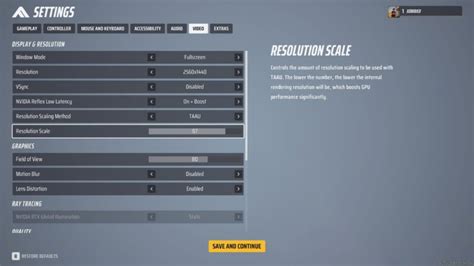
- V-Sync: Disable V-Sync in your driver settings and in-game unless you experience severe screen tearing and don’t have adaptive sync. V-Sync introduces input lag.
- Low Latency Mode (NVIDIA) / Radeon Anti-Lag (AMD): Enable these technologies for reduced input lag, a crucial advantage in competitive titles.
In-Game Graphics Settings
This is where you’ll make the most impactful changes:
- Resolution: Play at your monitor’s native resolution. Dropping it will make the image blurry and might not provide a huge FPS gain on modern GPUs unless you’re severely bottlenecked.
- Texture Quality: This impacts VRAM usage. If you have enough VRAM (6GB+ for most competitive games), set it to High. Otherwise, lower it.
- Shadow Quality: Shadows are extremely demanding. Lowering them significantly improves FPS with minimal competitive disadvantage.
- Reflections & Environmental Detail: These are often eye candy. Lowering or disabling them can yield substantial FPS gains.
- Render Scale: Keep this at 100% (or native). Lowering it makes the game blurry, while increasing it (supersampling) is extremely demanding.
System-Wide Optimizations for a Performance Edge
Keep Drivers Updated
Regularly update your GPU drivers, motherboard chipset drivers, and Windows. New drivers often include performance optimizations for the latest games.
Manage Background Processes
Close any unnecessary applications running in the background while gaming. Discord, web browsers, and streaming software can consume CPU, RAM, and network bandwidth. Use Windows Task Manager to identify and close resource-intensive apps.
Cooling and Thermal Throttling
Ensure your CPU and GPU are adequately cooled. Overheating can lead to thermal throttling, where your components automatically reduce their clock speed to prevent damage, resulting in sudden FPS drops. Clean your PC regularly and ensure good airflow.
Conclusion: The Pursuit of Frames
Achieving optimal FPS for competitive gaming is a blend of hardware knowledge, software configuration, and continuous maintenance. By meticulously adjusting your CPU and GPU settings, managing your system’s resources, and keeping your drivers current, you can unlock your rig’s full potential, ensuring a smoother, more responsive, and ultimately more competitive gaming experience. Experiment with these settings, find what works best for your specific setup, and get ready to dominate the leaderboard.



