





Boost gaming FPS: Optimize GPU settings or upgrade hardware?

For any PC gamer, the quest for higher frames per second (FPS) is a constant pursuit. Smooth, responsive gameplay significantly enhances the gaming experience, but achieving it often presents a dilemma: should you spend time fine-tuning your current graphics card settings, or is it time to open your wallet for a hardware upgrade? This guide delves into both strategies, helping you decide the most effective path to boost your gaming FPS.
![How to Optimize GPU for Gaming? [Guide for Best Performance]](/images/aHR0cHM6Ly90czMubW0uYmluZy5uZXQvdGg/aWQ9T0lQLnVuWDZ4MjVaakl0MENhYW15bjhYVmdIYUVPJnBpZD0xNS4x.webp)
The Power of Software Optimization
Before considering any financial investment, exhaust the free and highly effective methods of software optimization. You might be surprised by how much performance you can unlock from your existing setup.
Update Your Graphics Drivers
This is arguably the most crucial step. NVIDIA, AMD, and Intel frequently release driver updates that include performance optimizations for new game titles and bug fixes. Always ensure your drivers are up-to-date.
Adjust In-Game Graphics Settings
Dive into each game’s graphics menu. This is where you have direct control over the visual fidelity versus performance trade-off. Key settings to tweak include:
- Resolution: Lowering this has a massive impact on FPS. Try a step down (e.g., from 1440p to 1080p).
- Texture Quality: High-resolution textures consume significant VRAM. If your GPU has limited VRAM, lowering this can help.
- Shadow Quality: Shadows are notoriously demanding. Reducing their quality or distance can yield significant FPS gains.
- Anti-Aliasing (AA): While AA makes jagged edges smoother, it’s computationally intensive. Try less demanding AA methods (like FXAA or TAA) or lower settings.
- Post-Processing Effects: Bloom, depth of field, motion blur, and other effects can often be reduced or turned off without severely impacting visual immersion.
Utilize GPU Control Panel Settings
Both NVIDIA Control Panel and AMD Adrenalin Software offer global and per-game settings that can override or complement in-game options. Experiment with settings like:
- Power Management Mode: Set to ‘Prefer maximum performance’.
- Texture Filtering Quality: Set to ‘High performance’.
- Low Latency Mode (NVIDIA) / Anti-Lag (AMD): Can reduce input lag, though their direct FPS impact varies.
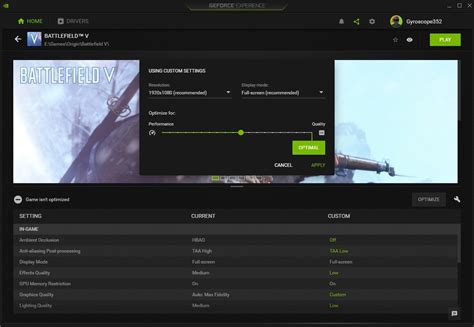
Overclocking Your GPU
For advanced users, carefully overclocking your GPU can provide a moderate FPS boost. This involves increasing the core clock speed and memory clock speed of your graphics card. Use reputable software like MSI Afterburner or EVGA Precision X1, and proceed with caution as it can increase heat and instability if not done correctly.
Manage Background Processes
Close unnecessary applications running in the background. Discord, web browsers, streaming software, and other apps consume CPU, RAM, and even GPU resources that could otherwise be dedicated to your game.
When to Consider Hardware Upgrades
If you’ve exhausted all optimization avenues and still aren’t achieving your desired FPS, it’s likely time to consider a hardware upgrade. Identifying the bottleneck in your system is key.
GPU: The Primary Performer
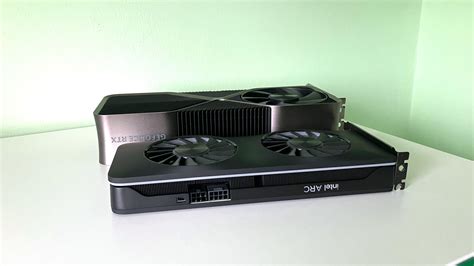
The graphics card is almost always the most impactful upgrade for gaming FPS. If your GPU struggles to hit target frame rates even with low settings, a newer, more powerful card will offer the most significant leap in performance. Look for a GPU that aligns with your desired resolution (1080p, 1440p, 4K) and refresh rate.
CPU: The Game Engine
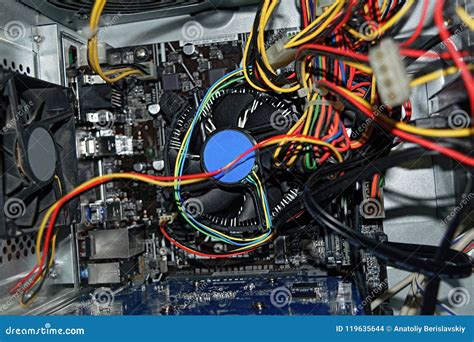
While the GPU renders the graphics, the CPU handles game logic, AI, physics, and instructs the GPU what to render. In CPU-intensive games (strategy, open-world, high player count) or when aiming for very high refresh rates (120Hz+), a weak CPU can bottleneck even a powerful GPU. Upgrading your CPU, however, often entails a new motherboard and potentially new RAM.
RAM: Sufficient and Speedy
Most modern games perform best with 16GB of RAM. While 8GB might be enough for some titles, going above 16GB generally offers diminishing returns for pure FPS. The speed (MHz) of your RAM also plays a role, especially for AMD Ryzen CPUs, but it’s typically less impactful than the GPU or CPU itself.
Storage: SSD for Loading Times
Upgrading to a Solid State Drive (SSD), especially an NVMe M.2 SSD, won’t directly boost your in-game FPS. However, it will drastically improve game loading times, boot times, and overall system responsiveness, which significantly enhances the user experience.
Making the Decision: Optimize vs. Upgrade
The choice ultimately depends on your current system, budget, and desired performance.
- Start with Optimization: Always begin by updating drivers and tweaking in-game and GPU control panel settings. This is free and often yields noticeable improvements.
- Monitor Performance: Use tools like MSI Afterburner or the in-game FPS counter to see what settings have the most impact and where your system is bottlenecking.
- Budget Constraints: If your budget is limited, optimization is your best friend. A significant GPU upgrade can cost hundreds of dollars.
- Age of Hardware: If your GPU is several generations old (e.g., GTX 10-series or older), software optimizations will only take you so far. A hardware upgrade becomes almost essential for modern titles.
- Desired Performance: If you’re happy with stable 60 FPS at medium settings, optimization might be enough. If you crave 144 FPS at ultra settings, a hardware upgrade is likely in your future.

Conclusion
Boosting your gaming FPS doesn’t always require a hefty investment. Begin by meticulously optimizing your current GPU settings, updating drivers, and fine-tuning in-game options. These steps are free and often unlock surprising performance gains. However, if your hardware is showing its age or you’re aiming for significantly higher frame rates and visual fidelity, a strategic upgrade, particularly to your graphics card, will be the most effective solution. By understanding your system’s limitations and your performance goals, you can make an informed decision to elevate your gaming experience.



