Boost gaming FPS: Top GPU driver settings for NVIDIA/AMD cards?

Unlock Peak Performance: Why Driver Settings Matter
Your graphics card is the heart of your gaming PC, but its full potential isn’t just in the hardware itself. The software—specifically, your GPU drivers—plays an equally crucial role in determining your in-game Frame Per Second (FPS) and overall visual experience. Default driver settings are often a compromise, designed for broad compatibility rather than raw performance. By diving into a few key options, both NVIDIA and AMD users can significantly boost FPS and achieve smoother gameplay.
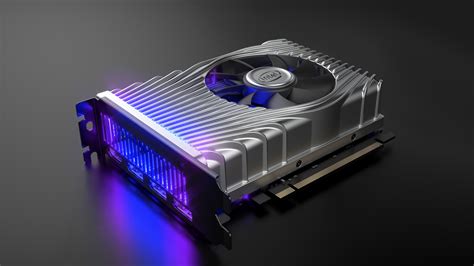
NVIDIA Control Panel: Unleashing GeForce Power
For NVIDIA users, the NVIDIA Control Panel is your command center for performance optimization. Right-click on your desktop and select “NVIDIA Control Panel” to get started. Navigate to “Manage 3D settings” to access global and program-specific adjustments.
- Image Sharpening: Set to “Off” or a very low value (e.g., 0.1) if you prioritize performance, as sharpening can add minor overhead.
- Low Latency Mode: Set to “Ultra” for competitive games. This aims to reduce input lag by submitting frames just-in-time for the GPU.
- Max Frame Rate: Consider capping your FPS just below your monitor’s refresh rate (e.g., 142 FPS for a 144Hz monitor) to reduce tearing without V-Sync and maintain consistent frame times.
- Power Management Mode: Always select “Prefer Maximum Performance.” This ensures your GPU consistently runs at its highest clock speeds when under load.
- Texture Filtering – Quality: Change this to “High Performance” to prioritize FPS over texture detail, especially if you have an older or mid-range card.
- Vertical Sync: Set to “Off” in almost all scenarios, especially if you have a G-Sync monitor. V-Sync can introduce input lag.
- Threaded Optimization: Keep this on “Auto” unless you encounter specific game issues. It allows the driver to utilize multiple CPU cores for rendering.

AMD Radeon Software: Optimizing for Red Team Glory
AMD users will find their performance settings within the AMD Radeon Software. Right-click on your desktop and choose “AMD Radeon Software” to open it. Head to the “Gaming” tab and then “Global Graphics” for general optimizations.
- Radeon Anti-Lag: Enable this for competitive titles. Similar to NVIDIA’s Low Latency Mode, it reduces input lag by dynamically adjusting CPU workload.
- Radeon Boost: Enable for supported games, particularly fast-paced ones. It dynamically lowers resolution in busy scenes to improve FPS, returning to full resolution when static.
- Radeon Image Sharpening (RIS): While it enhances visual clarity, it does consume some resources. If FPS is your priority, keep it off or set to a lower percentage (e.g., 60-70%).
- Wait for Vertical Refresh (V-Sync): Set this to “Always Off” for maximum FPS and minimum input lag. Use FreeSync if you have a compatible monitor.
- Texture Filtering Quality: Select “Performance” for a frame rate boost at the cost of some texture fidelity.
- Tessellation Mode: Set to “AMD Optimized” or “Override application settings” and lower the Max Tessellation Level if you experience performance issues in tessellation-heavy games.
Universal Optimization Tips for Both Brands
Beyond brand-specific settings, a few universal practices can further enhance your gaming experience:
- Keep Drivers Updated: Both NVIDIA and AMD frequently release new drivers with game-ready optimizations and bug fixes. Regularly check for and install the latest versions.
- Monitor Temperatures: Overheating can lead to thermal throttling, reducing your GPU’s performance. Use tools like MSI Afterburner or HWMonitor to keep an eye on your GPU temperature.
- Clean Driver Installs: When updating drivers, consider using Display Driver Uninstaller (DDU) in safe mode to completely remove old drivers before installing new ones. This prevents potential conflicts and ensures a clean slate.
- Game-Specific Settings: Remember that global driver settings can be overridden by in-game graphics options. Always check individual game settings, as often turning down demanding options like shadows, anti-aliasing, or volumetric clouds can yield significant FPS gains.
Conclusion
Optimizing your GPU driver settings is one of the most cost-effective ways to boost your gaming FPS and achieve a smoother, more responsive experience without upgrading your hardware. By dedicating a few minutes to fine-tune these crucial options in your NVIDIA Control Panel or AMD Radeon Software, you can unlock hidden performance, giving you a competitive edge and more enjoyable gameplay. Experiment with these settings, find what works best for your specific system and games, and enjoy the fruits of your optimization efforts!