





Diagnose & fix game mod conflicts safely: Pro tips to avoid save corruption?
Game modifications, or “mods,” can breathe new life into your favorite titles, offering fresh content, improved graphics, and expanded gameplay. However, the more mods you install, the higher the likelihood of encountering conflicts that can lead to crashes, glitches, or, worst of all, save file corruption. Mastering the art of diagnosing and fixing these conflicts safely is paramount for any dedicated PC gamer.
Understanding the Root of Mod Conflicts
Mod conflicts arise when two or more modifications attempt to alter the same game asset or script in incompatible ways. These can manifest in various forms:
- File Overwrites: One mod replaces files that another mod relies on, or simply overwrites an intended change.
- Script Incompatibility: Mods that change core game mechanics or add complex features can conflict if their scripts aren’t designed to work together.
- Load Order Issues: Many games process mods in a specific sequence. If two mods modify the same elements, the one loaded last “wins.” An incorrect load order can lead to unexpected behavior or missing features.
- Missing Dependencies: A mod might require another specific mod or DLC to function, and without it, it causes errors.
Common symptoms include infinite loading screens, texture glitches, character model issues, game crashes, and corrupted save files that refuse to load or exhibit severe bugs.
Essential Preparations Before You Begin
Before diving into troubleshooting, safeguard your game and progress:
- Backup Your Save Files: This is non-negotiable. Locate your game’s save folder (often in your Documents folder or within the game’s installation directory) and copy its contents to a safe place.
- Backup Your Game Installation: For heavily modded games, consider making a full backup of your game folder. This allows for quick restoration if things go south.
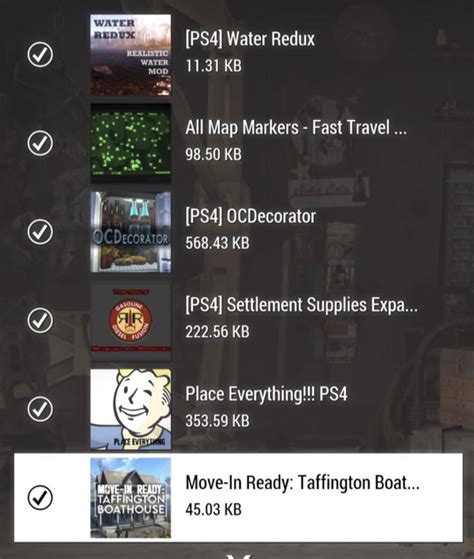
- Use a Mod Manager: Tools like Mod Organizer 2, Vortex, or Nexus Mod Manager are invaluable. They manage installations, track file conflicts, and often handle load order, making the entire process far less daunting.

Diagnosing Mod Conflicts: The Detective Work
Identifying the problematic mod or mods can be a meticulous process, but systematic steps will save you time and frustration.
The Binary Search Method (50/50 Method)
This is arguably the most effective troubleshooting technique for a large mod list:
- Disable half of your installed mods.
- Launch the game and test for the issue.
- If the issue persists, the conflict is in the enabled half. Disable half of *that* group.
- If the issue disappears, the conflict is in the disabled half. Re-enable them and disable half of *that* group.
- Repeat this process, narrowing down the problematic group until you identify the specific mod(s) causing the conflict.
Check Error Logs and Crash Reports
Many games and mod managers generate logs that can provide clues about crashes or errors. Look for references to specific files or scripts when an issue occurs.
Utilize Mod Compatibility Patches
Many popular mods have official or community-made compatibility patches designed to make them work together. Always check the mod pages for “patches” or “compatibility” sections.

Safely Resolving Conflicts and Avoiding Save Corruption
Once you’ve identified the source of the conflict, the next step is resolution, with save integrity as your top priority.
- Adjusting Load Order: For conflicts resolved by load order, use your mod manager (or a dedicated tool like LOOT for Bethesda games) to correctly sort your mods. Generally, patches for a mod should load after the mod itself, and larger overhaul mods might need to be near the top or bottom depending on their design.
- Installing Compatibility Patches: If a patch exists, install it according to its instructions. Ensure it’s placed correctly in your load order.
- Removing or Replacing Conflicting Mods: If no patch exists and two mods are fundamentally incompatible, you may need to choose one over the other or find an alternative that doesn’t conflict.
- Creating a “Clean Save”: Sometimes, a conflict embeds data into your save file. If you’re experiencing persistent issues after fixing mods, you might need to revert to an older, uncorrupted save (if available) or even start a new game (though this is a last resort). Never load a save made with a broken mod setup, fix the mods, then try to load the *same* save, as the damage might already be done.
Best Practices for Future Conflict Prevention
An ounce of prevention is worth a pound of cure in modding.
- Read Mod Descriptions Carefully: Always check for known incompatibilities, required dependencies, and installation instructions before downloading any mod.
- Install Mods Incrementally: Don’t install 50 mods at once. Add a few, test them thoroughly, and then add more. This makes identifying new conflicts much easier.
- Stay Updated: Keep your game and your mods updated. Mod authors often release updates to fix bugs and improve compatibility.
- Consult Community Resources: Nexus Mods forums, Reddit communities, and specific game modding wikis are goldmines of information. If you encounter an issue, chances are someone else has already experienced and solved it.

Conclusion
Navigating the complex world of game modding requires patience, diligence, and a systematic approach. By understanding the causes of conflicts, preparing adequately with backups, employing effective diagnostic methods, and implementing solutions safely, you can enjoy a richly modded game without the fear of dreaded save corruption. Embrace these professional tips, and your modding journey will be far smoother and more rewarding.

