





Essential BIOS settings for optimal gaming performance?
Unlocking Peak Gaming Potential Through BIOS
While cutting-edge hardware is the cornerstone of any high-performance gaming rig, the true potential of your components is often locked away until you venture into the Basic Input/Output System (BIOS). The BIOS, or UEFI (Unified Extensible Firmware Interface) on modern motherboards, is the fundamental software that initializes your hardware before the operating system loads. Adjusting specific settings within this powerful interface can yield significant improvements in gaming performance, stability, and even reduce input lag. This guide will walk you through the essential BIOS settings every gamer should consider optimizing.

Memory Optimization: XMP/DOCP and RAM Speed
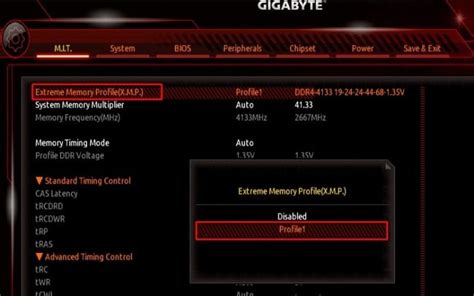
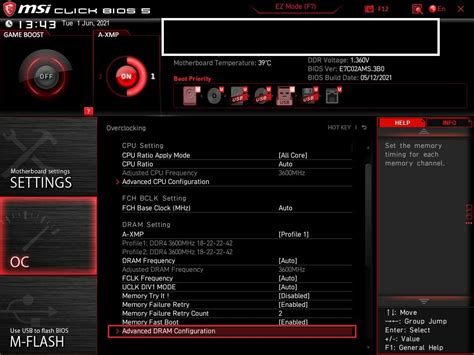
One of the most crucial yet often overlooked settings is enabling your RAM’s advertised speed. Out of the box, many motherboards will run DDR4 or DDR5 RAM at a slower, default JEDEC speed (e.g., 2133MHz or 4800MHz) instead of its rated speed (e.g., 3600MHz or 6000MHz). This is where XMP (Extreme Memory Profile for Intel systems) or DOCP (Direct Overclock Profile for AMD systems) comes in. These profiles are pre-configured settings stored on your RAM modules that allow the motherboard to automatically configure the correct voltage, timings, and frequency for optimal performance.
How to Enable XMP/DOCP:
- Reboot your PC and repeatedly press the designated key (usually Del, F2, or F10) to enter the BIOS.
- Navigate to the “Ai Tweaker,” “OC,” or “Advanced” section.
- Locate the “XMP Profile” or “DOCP Profile” option.
- Select “Profile 1” or the highest available profile.
- Save changes and exit. Your system should now boot with the RAM running at its advertised speed, significantly boosting performance in many games.
CPU Performance Enhancements: Overclocking and PBO
CPU overclocking can provide a noticeable boost in games, especially those that are CPU-bound. However, it requires careful attention to voltages and temperatures. For most users, enabling modern CPU features like AMD’s Precision Boost Overdrive (PBO) or Intel’s Enhanced Thermal Velocity Boost (ETVB) can offer excellent performance gains with less risk.
Precision Boost Overdrive (AMD):
PBO allows your AMD CPU to intelligently boost its clock speeds beyond official limits, utilizing available thermal and power headroom. You can enable it in the BIOS under the “AMD Overclocking” or “PBO” section, often by selecting “Enabled” or “Advanced” and adjusting limits if desired. Auto settings are usually a good starting point.
Intel CPU Enhancements:
For Intel CPUs, ensure that features like MCE (Multi-Core Enhancement) or various “Enhanced Turbo” modes are enabled. These settings often allow all CPU cores to boost to their maximum single-core turbo frequency, which can greatly benefit gaming. Always monitor CPU temperatures after making such changes.
Graphics Card Optimization: Re-Size BAR / Smart Access Memory (SAM)
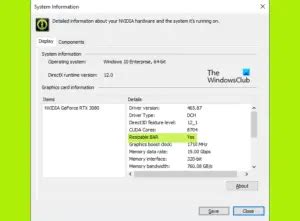
One of the most impactful recent BIOS features for gaming performance is Resizable BAR (Re-Size BAR) or AMD’s Smart Access Memory (SAM). This technology allows the CPU to access the entire GPU frame buffer directly, rather than being limited to 256MB chunks. This can lead to significant performance uplifts (5-15% or more) in many modern titles, especially when pairing compatible AMD CPUs/GPUs or Intel CPUs with NVIDIA RTX 30 series (and newer) or AMD RX 6000 series (and newer) GPUs.
Enabling Re-Size BAR/SAM:
- Ensure your GPU, CPU, motherboard, and BIOS are all compatible and updated to the latest versions.
- Enter the BIOS and look for “Above 4G Decoding” or similar under “PCI Subsystem Settings” or “Advanced.” Enable it.
- Then, locate “Re-Size BAR Support” or “Smart Access Memory” and enable that option.
- Save and exit. Verify in GPU-Z or your graphics driver software that Re-Size BAR is active.
Power Management and Fan Control
Proper power management and fan curves are essential for stability and longevity. While default settings are often adequate, customizing them can improve performance and acoustics.
Power Settings:
Ensure your “Power Plan” in the BIOS (if available, often under “Advanced” or “CPU Configuration”) is set to “High Performance” or “Ultimate Performance.” Also, disable C-States (CPU Sleep States) if you experience micro-stuttering or want absolute maximum performance, though this increases power consumption and heat at idle.
Fan Curves:
Optimize your fan curves for your CPU cooler and case fans. Many BIOS interfaces allow you to set custom fan speeds based on temperature thresholds. A balanced curve ensures quiet operation during light loads and sufficient cooling under heavy gaming sessions. Avoid letting components get too hot, as thermal throttling will severely impact performance.

Other Essential Considerations
- Fast Boot: Enabling this can significantly reduce boot times, but it might make it harder to access the BIOS again. Some motherboards offer “Ultra Fast Boot” which can be even quicker.
- Virtualization Technology (VT-x/AMD-V): If you use emulators, virtual machines, or specific Android app players, ensure this is enabled. For pure gaming, it generally has no impact, but ensure it’s off if you don’t need it and are chasing every last MHz.
- Boot Order: Confirm your primary SSD or NVMe drive is the first boot device to ensure the fastest possible system startup.
- BIOS/UEFI Updates: Regularly check your motherboard manufacturer’s website for BIOS updates. These can bring performance improvements, support for new hardware (like CPUs), and bug fixes. Exercise caution during updates and follow instructions precisely.
Conclusion
Delving into your system’s BIOS/UEFI might seem daunting at first, but with a clear understanding of these essential settings, you can unlock significant performance gains and improve the overall gaming experience. Always remember to make one change at a time, test thoroughly, and if something goes wrong, use the “Load Optimized Defaults” option or clear your CMOS to revert to stable settings. Happy tweaking, and enjoy your optimized gaming rig!



