Essential gaming PC setup tips for minimal input latency?

Understanding Input Latency: The Silent Killer of K/D Ratios
In competitive gaming, every millisecond counts. Input latency, often overlooked, is the delay between your action (like a mouse click or key press) and its corresponding reaction on screen. Minimizing this delay can mean the difference between landing a critical headshot and getting eliminated. While many focus solely on frame rates (FPS), a high FPS with significant input lag can still result in a frustrating and unresponsive experience. This guide will walk you through essential setup tips to drastically reduce input latency and give you a tangible edge.

Hardware: The Foundation of Responsiveness
High Refresh Rate Monitors & Low Response Time
Your monitor is where you see the action. A high refresh rate (144Hz, 240Hz, or higher) ensures that new frames are displayed more frequently, reducing visual latency. Coupled with a low response time (1ms GTG is ideal), this minimizes ghosting and motion blur, making fast-paced action clearer. Ensure your monitor is connected via DisplayPort or HDMI 2.1 to fully utilize its refresh rate capabilities.
Powerful GPU & CPU
While not directly latency reducers, a powerful graphics card (GPU) and processor (CPU) are crucial for maintaining high frame rates consistently. Higher FPS translates to lower frame latency. An underpowered system struggling to hit target frame rates will inherently introduce more delay as it takes longer to render each frame.
Fast RAM & SSD
Ensure you have sufficient and fast RAM (e.g., 16GB or 32GB DDR4/DDR5 with good timings and clock speed). Faster RAM can improve CPU performance, indirectly aiding frame generation. An NVMe SSD significantly reduces game load times and texture streaming delays, though its impact on real-time input latency during gameplay is less direct than other components.
Peripherals: Your Direct Connection to the Game
Your mouse and keyboard are your primary input devices. Opt for gaming-specific peripherals that offer high polling rates (1000Hz or more). A 1000Hz polling rate means the device reports its position or state to the PC 1000 times per second (every 1ms), significantly reducing the delay between your physical action and the system registering it. Wired peripherals generally offer lower latency than wireless, though modern 2.4GHz wireless technologies have narrowed this gap considerably.
Bypass USB Hubs
Connect your gaming peripherals directly to your PC’s motherboard USB ports rather than through external USB hubs or front panel ports, which can sometimes introduce slight additional delay.

Software & Driver Optimization
NVIDIA Reflex & AMD Radeon Anti-Lag
Modern GPUs offer dedicated latency-reducing technologies. NVIDIA Reflex, for compatible GPUs and games, synchronizes the CPU and GPU to reduce render queue latency, often resulting in significant improvements. Similarly, AMD Radeon Anti-Lag works to reduce CPU-to-GPU latency. Always enable these features in supported games if your hardware allows.
Disable V-Sync (or use adaptive sync)
Traditional V-Sync synchronizes frame rendering with your monitor’s refresh rate to prevent screen tearing but introduces input lag. Instead, use G-Sync or FreeSync (adaptive sync technologies) if your monitor and GPU support them. These technologies offer tear-free gaming without the significant latency penalty of traditional V-Sync. If adaptive sync isn’t an option, running with V-Sync off and uncapped frame rates (allowing minor tearing) often provides the lowest latency.
Operating System Settings
- Game Mode: Ensure Windows Game Mode is enabled. It prioritizes game processes and resources.
- Power Plan: Set your Windows power plan to “High Performance” or “Ultimate Performance.”
- Background Processes: Close unnecessary background applications and services while gaming.
- Latest Drivers: Keep your GPU drivers, chipset drivers, and peripheral drivers up to date. Manufacturers often include performance and latency improvements in new releases.
Network Configuration: Latency Beyond Your PC
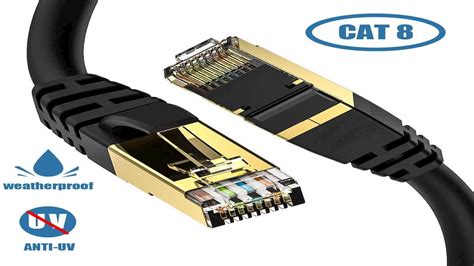
While often associated with network ping (which is different from input latency), network configuration can affect how quickly your inputs register on a game server. A wired Ethernet connection is always superior to Wi-Fi for gaming due to its stability and lower, more consistent latency. If using Wi-Fi is unavoidable, ensure you’re on a 5GHz band with good signal strength. Additionally, enabling Quality of Service (QoS) on your router can prioritize gaming traffic over other network activities.
Conclusion: Every Millisecond Matters
Achieving minimal input latency is a multi-faceted endeavor, touching on every aspect of your gaming PC setup, from hardware choices to software configurations and network optimization. By systematically addressing each of these areas – investing in high-refresh-rate monitors and fast peripherals, leveraging GPU latency technologies, fine-tuning OS settings, and ensuring a stable network connection – you can create a gaming environment that is incredibly responsive. This meticulous approach won’t just improve your in-game performance; it will make your entire gaming experience smoother, more immediate, and ultimately, more enjoyable.