





Fixing high GPU temps & preventing thermal throttling?
Understanding High GPU Temperatures and Thermal Throttling
Your Graphics Processing Unit (GPU) is the powerhouse behind all your visual experiences, from demanding games to professional rendering tasks. However, pushing your GPU hard generates heat, and if that heat isn’t properly managed, temperatures can soar. High GPU temperatures not only reduce performance through a mechanism called thermal throttling but can also shorten the lifespan of your valuable hardware. Understanding the causes and solutions is crucial for maintaining a healthy and high-performing system.
Common Causes of Overheating GPUs
Several factors contribute to a GPU running hotter than it should:
- Dust Accumulation: Over time, dust clogs heatsinks and fans, acting as an insulating layer that traps heat.
- Poor Case Airflow: An improperly configured or undersized PC case can restrict airflow, preventing cool air from reaching components and hot air from escaping.
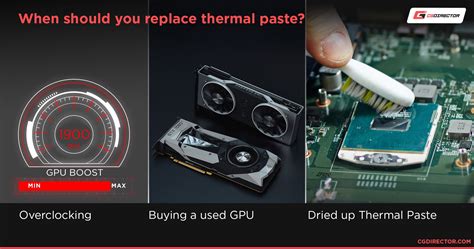
- Dried-Out Thermal Paste: The thermal paste between your GPU die and its heatsink degrades over years, losing its ability to efficiently transfer heat.
- Aggressive Overclocking: While overclocking boosts performance, it significantly increases power consumption and heat output, potentially exceeding cooling capabilities.
- High Ambient Temperatures: If your room is hot, your PC’s cooling system has to work harder and may struggle to dissipate heat effectively.
Diagnosing Your GPU Temperature
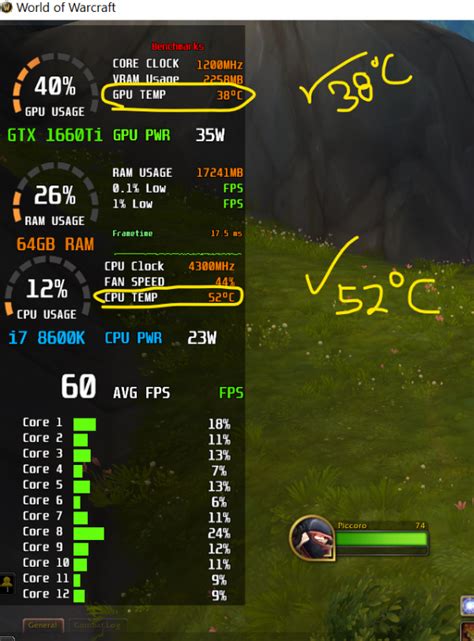
Before you can fix the problem, you need to confirm it. Use monitoring software like MSI Afterburner, HWMonitor, or GPU-Z to track your GPU’s temperature during idle states and under heavy load (e.g., while gaming or benchmarking). Most modern GPUs operate safely up to around 80-85°C, but sustained temperatures above this range, especially hitting 90°C+, are usually indicative of an issue and can trigger thermal throttling.
Effective Solutions to Lower GPU Temps
1. Clean Your GPU and PC Case Thoroughly
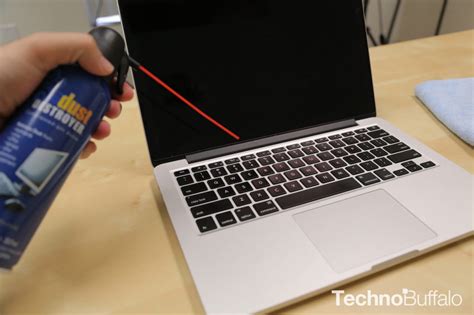
This is often the simplest and most effective first step. Power down your PC, open the case, and use compressed air to blast dust from your GPU’s heatsink fins, fans, and other internal components. Pay special attention to intake vents and dust filters on your case.
2. Optimize Case Airflow
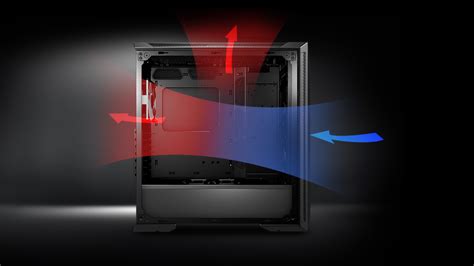
Ensure your PC case has a balanced fan configuration. Generally, you want an even amount of intake fans (pulling cool air in, usually from the front or bottom) and exhaust fans (pushing hot air out, usually from the rear or top). Proper cable management also helps, as messy cables can obstruct airflow. Consider adding more fans or upgrading existing ones if your case allows.
3. Replace Thermal Paste
If your GPU is several years old, its thermal paste may have dried out. Replacing it involves carefully disassembling the GPU cooler, cleaning off the old paste, and applying a fresh, high-quality thermal compound. This is a more advanced task and requires caution, but it can dramatically improve thermal transfer.
4. Undervolt or Underclock Your GPU
Undervolting reduces the voltage supplied to your GPU while maintaining similar clock speeds, significantly lowering power consumption and heat generation. Underclocking (reducing clock speeds) is a more direct way to reduce heat at the expense of some performance. Both can be done using software like MSI Afterburner and offer a good balance for users prioritizing cooler operation over absolute peak performance.
![How to Undervolt a GPU [Reduce Heat and Increase Lifespan]](/images/aHR0cHM6Ly90czEubW0uYmluZy5uZXQvdGg/aWQ9T0lQLk5HcnQtbVRUN3ZjMjlkWGJ1Uk1lalFIYUVCJnBpZD0xNS4x.webp)
5. Upgrade Your Cooling Solution
For persistent high temperatures, consider upgrading your GPU’s cooling. This could mean an aftermarket air cooler designed specifically for your GPU, or even transitioning to an All-in-One (AIO) liquid cooler for the GPU, or a custom liquid cooling loop for enthusiasts. A larger PC case with better airflow potential might also be a worthwhile investment.
Preventing Future Thermal Throttling
Prevention is always better than cure. Implement a regular maintenance schedule, cleaning your PC every 3-6 months depending on your environment. Keep an eye on your GPU temperatures during demanding tasks to catch any rising trends early. Finally, try to keep your room temperature as cool as possible, as ambient heat directly impacts your PC’s cooling efficiency.
![How to Resolve GPU Overheating Issues? [Ultimate Guide 2024]](/images/aHR0cHM6Ly90czEubW0uYmluZy5uZXQvdGg/aWQ9T0lQLlFOMjA3dmNBZGJ1cjVrMjQ1b0U4SkFIYUVPJnBpZD0xNS4x.webp)
Conclusion
High GPU temperatures and thermal throttling are common issues that can hinder your system’s performance and potentially shorten its lifespan. By understanding the root causes and implementing the solutions outlined above, you can ensure your graphics card runs cooler, performs better, and serves you reliably for years to come. A little proactive maintenance goes a long way in keeping your powerful hardware in top condition.


