





Fixing stuttering in PC games: Driver updates or in-game settings first?
PC gaming offers unparalleled immersion and graphical fidelity, but nothing shatters that experience faster than persistent stuttering. That frustrating hiccup, where frames drop inconsistently, can turn an enjoyable session into an infuriating struggle. When faced with this common performance issue, a critical question arises: should you immediately dive into updating your graphics drivers, or is it more effective to tweak in-game settings first? This article aims to clarify that dilemma, providing a systematic approach to get your games running smoothly.

Understanding the Causes of Stuttering
Stuttering isn’t a singular problem but rather a symptom of various underlying issues. It can stem from insufficient hardware resources, driver conflicts, background processes, thermal throttling, or even specific game engine limitations. Effectively troubleshooting requires narrowing down these possibilities.
The Case for Driver Updates: A Foundational Step
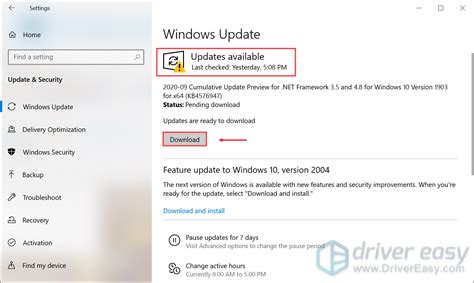
Graphics drivers (GPU drivers) are the essential software bridge between your operating system, graphics card, and games. They dictate how efficiently your hardware communicates and processes graphical instructions. Outdated, corrupt, or even recently released but buggy drivers are frequent culprits for performance issues, including stuttering.
- Why they matter: New game releases often come with “Game Ready” drivers that include specific optimizations and bug fixes for those titles. Missing these updates can lead to sub-optimal performance.
- Outdated drivers: Can lack critical optimizations for newer games or Windows updates.
- Corrupt drivers: Installation errors or system conflicts can damage driver files, leading to erratic behavior.
- Clean installation: When updating, performing a clean installation (often an option within the driver installer) is recommended to remove old, potentially conflicting files.
The Case for In-Game Settings: Tailoring Performance to Hardware
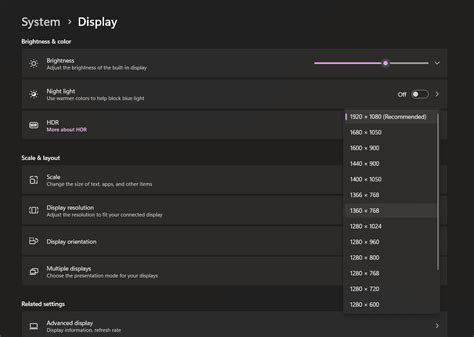
Beyond drivers, the demands a game places on your system through its graphical settings are a primary factor in stuttering. Every setting, from resolution and texture quality to shadow details and anti-aliasing, consumes VRAM and processing power. Pushing these settings too high for your hardware capacity will inevitably lead to performance bottlenecks and stuttering.
- VRAM Overload: High-resolution textures, complex shadows, and advanced anti-aliasing can quickly exhaust your graphics card’s dedicated video memory (VRAM), forcing the system to use slower system RAM, causing major stutter.
- CPU Bottlenecks: Certain settings, especially those affecting draw distance, complex physics, or crowd density, can put a heavy strain on your CPU, leading to stutters if the CPU can’t feed the GPU data fast enough.
- Trial and Error: Adjusting settings incrementally (starting with the most demanding ones like resolution, texture quality, shadows, and anti-aliasing) while monitoring performance is key to finding the sweet spot.

Which Comes First? A Strategic Approach
While both drivers and in-game settings are critical, a strategic approach can save you time and frustration. Generally, it’s advisable to:
- Start with Drivers (If Necessary): If you haven’t updated your GPU drivers in a while, or if the stuttering started after a new game installation or a major Windows update, updating to the latest stable version (performing a clean install) is often the best first step. It establishes a known, optimized software foundation.
- Then Tackle In-Game Settings: If drivers are up to date and stuttering persists, or if you’re playing a particularly demanding title on mid-range hardware, then systematically adjusting in-game settings becomes the priority. Begin by lowering the most demanding settings one by one until performance improves.
Exceptions: If stuttering appears immediately after you’ve just updated your drivers, then rolling back to a previous stable driver version might be the immediate fix before troubleshooting settings. Similarly, if you’ve recently installed a new game and immediately notice stuttering, checking for its specific “Game Ready” driver is paramount.
Beyond Drivers and Settings: Other Considerations
If updating drivers and tweaking in-game settings don’t fully resolve the stuttering, consider these additional factors:
- Background Processes: Close unnecessary applications running in the background (web browsers, chat apps, streaming software).
- Power Settings: Ensure your PC is set to “High Performance” in Windows Power Options.
- Thermal Throttling: Monitor your CPU and GPU temperatures. Overheating components will automatically reduce their clock speed to prevent damage, causing stuttering. Ensure proper cooling.
- Storage Speed: Games installed on a slow HDD can sometimes stutter, especially during asset loading, compared to an SSD.
- Verify Game Files: Corrupt game files can also cause performance issues. Use your game launcher (Steam, Epic Games Store, etc.) to verify the integrity of game files.
- Monitor Performance: Tools like MSI Afterburner or the in-game overlay from NVIDIA GeForce Experience/AMD Radeon Software can help you identify bottlenecks by displaying CPU/GPU usage, temperatures, and frame rates in real-time.

Conclusion
Fixing stuttering in PC games requires a methodical approach. While both driver updates and in-game settings adjustments are crucial, a general guideline is to ensure your drivers are up-to-date and stable first, establishing a solid software foundation. Subsequently, fine-tune your in-game settings to match your hardware’s capabilities, prioritizing the most demanding options. By systematically addressing these areas, you can significantly reduce stuttering and reclaim the smooth, immersive gaming experience you deserve.


