





FPS drops in games? How to optimize GPU drivers for max gaming performance.

Experiencing frustrating frame rate drops (FPS) while gaming? A smooth, high-performance gaming experience largely hinges on your Graphics Processing Unit (GPU) drivers. These essential software components act as the bridge between your operating system, games, and graphics card, dictating how efficiently your hardware performs. When they’re not optimized, even powerful GPUs can struggle.
Understanding GPU Drivers and Their Impact
GPU drivers are more than just software updates; they often contain critical performance enhancements, bug fixes, and compatibility improvements for the latest games and technologies. Outdated, corrupted, or incorrectly configured drivers are a leading cause of stuttering, low FPS, and even game crashes. Optimizing them is one of the most cost-effective ways to boost your gaming performance without upgrading hardware.
Step 1: Keep Your Drivers Up-to-Date (But Choose Wisely)
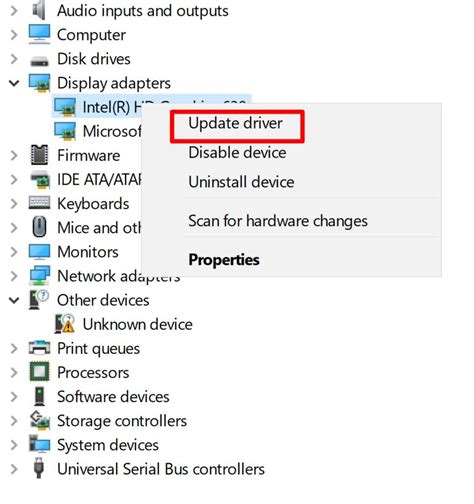
The first and most crucial step is ensuring your GPU drivers are current. Both NVIDIA and AMD regularly release new drivers, often timed with major game releases, offering significant performance gains. However, “newest” doesn’t always mean “best” for every system, so a degree of caution is advised.
- NVIDIA: Download GeForce Experience or visit the official NVIDIA drivers page.
- AMD: Download Radeon Software or visit the official AMD drivers page.
- Intel: For integrated graphics, check the Intel Driver & Support Assistant.
Always download drivers directly from the manufacturer’s website to avoid potential malware or incompatible versions. After installation, a system restart is usually required.
Step 2: Perform a Clean Driver Installation with DDU
Over time, driver installations can leave behind residual files that may conflict with new versions, leading to performance issues. A clean installation removes all traces of previous drivers, ensuring a fresh start. Display Driver Uninstaller (DDU) is a popular third-party tool for this process.
- Download DDU from its official source (e.g., Guru3D).
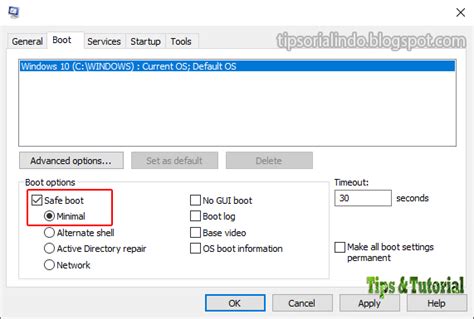
- Boot your PC into Safe Mode (this is crucial for DDU to work effectively).
- Run DDU, select your GPU manufacturer, and choose “Clean and restart.”
- Once restarted, install the latest drivers you downloaded from your GPU manufacturer’s website.
This method significantly reduces the chances of driver conflicts and often resolves persistent FPS issues.
Step 3: Optimize Driver Settings for Gaming
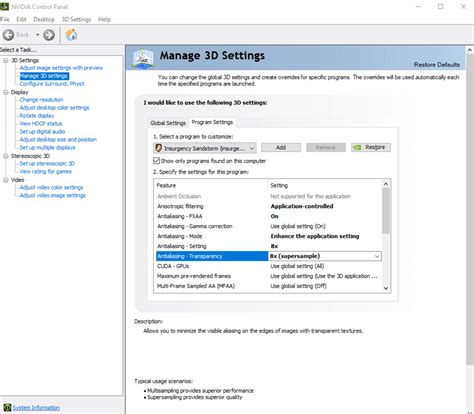
Beyond simply updating, both NVIDIA and AMD offer comprehensive control panels that allow you to fine-tune various graphics settings globally or on a per-game basis. Access these through your desktop context menu or Windows search.
NVIDIA Control Panel Key Settings:
- Power Management Mode: Set to “Prefer maximum performance.” This ensures your GPU always runs at its highest clock speeds.
- Low Latency Mode: Experiment with “On” or “Ultra” for reduced input lag, especially beneficial in competitive games.
- Texture Filtering – Quality: Set to “High performance” for a slight FPS boost, or “Quality” for better visuals.
- V-Sync: Generally “Off” for maximum FPS, unless you experience screen tearing and have a high refresh rate monitor. Alternatively, use G-Sync/FreeSync if supported.
- Anisotropic Filtering: Set to “Application-controlled” or a lower value (e.g., 4x or 8x) if you need more FPS.
AMD Radeon Software Key Settings:
- Radeon Anti-Lag: Similar to NVIDIA’s Low Latency Mode, this reduces input lag.
- Radeon Boost: Dynamically lowers resolution during fast-motion scenes to improve FPS.
- Image Sharpening: Can make games look crisper without a significant performance hit.
- Texture Filtering Quality: Set to “Performance” for higher FPS.
- Wait for Vertical Refresh (V-Sync): Set to “Always Off” unless screen tearing is an issue.
Remember to apply changes and consider creating specific profiles for demanding games.
Step 4: Prioritize In-Game Settings and Monitor Performance
While driver settings are powerful, don’t forget the impact of in-game graphics options. Driver settings often act as an override or baseline, but game-specific settings usually have the most direct impact on FPS. Experiment with lowering demanding settings like shadow quality, anti-aliasing, and post-processing effects first.
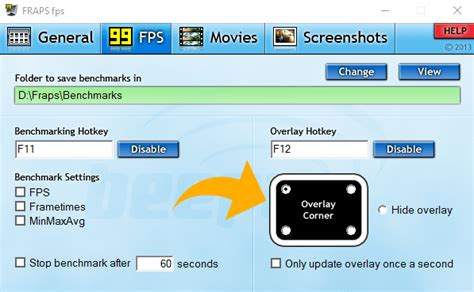
Use tools like MSI Afterburner, FRAPS, or your GPU manufacturer’s overlay (NVIDIA GeForce Experience Overlay, AMD Radeon Overlay) to monitor your FPS and GPU usage in real-time. This helps you understand which settings changes are having the most impact.
Conclusion: Consistent Maintenance for Peak Performance
Optimizing your GPU drivers is an ongoing process, not a one-time fix. Regularly check for new driver releases, especially before playing a new AAA title. Perform clean installations periodically, and don’t be afraid to experiment with settings to find the sweet spot for your hardware and gaming preferences. By maintaining your drivers, you ensure your GPU is always performing at its best, providing you with the smooth, high-FPS gaming experience you deserve.


