





Gaming PC has random FPS drops. How to diagnose and fix performance issues?

Conquering Random FPS Drops on Your Gaming PC
Experiencing frustrating random FPS drops can completely ruin your gaming experience. One moment you’re enjoying smooth gameplay, the next your frames plummet, causing stuttering, lag, and unresponsiveness. This guide will walk you through systematic steps to diagnose the root causes and implement effective solutions to restore your PC’s peak performance.
Understanding FPS Drops: Common Culprits
FPS drops can stem from a variety of sources, ranging from simple software glitches to more complex hardware malfunctions. Identifying the exact cause is the first critical step towards a fix. Common culprits include:
- Outdated or corrupt graphics drivers
- Overheating CPU or GPU
- Insufficient or failing Power Supply Unit (PSU)
- Background applications consuming resources
- Malware or viruses
- Faulty RAM or slow storage drives
- Incorrect system or game settings
Step 1: Monitor and Gather Data
Utilize Monitoring Software
Before you can fix the problem, you need to understand what is happening when the drops occur. Tools like MSI Afterburner (for GPU/CPU usage, temps), HWMonitor, or CapFrameX can provide real-time data on your CPU, GPU, RAM, VRAM usage, clock speeds, and temperatures.
Pay close attention to spikes in CPU/GPU usage, sudden temperature increases, or drops in clock speeds during the performance dips. This data is crucial for pinpointing the source of the issue.
Step 2: Software & Driver Deep Dive
Update Graphics Drivers
Outdated or corrupt graphics drivers (NVIDIA, AMD, Intel) are a very common cause of performance instability. Always ensure you have the latest stable drivers directly from the manufacturer’s website. Consider performing a clean installation using DDU (Display Driver Uninstaller) for a fresh start.
Update Chipset Drivers & BIOS
While less frequent, outdated chipset drivers (for your motherboard) or an old BIOS version can sometimes contribute to performance bottlenecks or instability. Check your motherboard manufacturer’s website for updates. Always follow manufacturer instructions carefully when updating BIOS.
Close Background Applications
Even powerful gaming PCs can struggle if too many resource-intensive applications are running in the background. Close unnecessary browsers, streaming software, recording tools, or other applications before launching your game. Use Task Manager (Ctrl+Shift+Esc) to identify and close resource-hungry processes.

Check for Malware
Malware, including silent cryptocurrency miners, can consume significant system resources, leading to severe FPS drops and system sluggishness. Run a full system scan with a reputable antivirus software (e.g., Windows Defender, Malwarebytes).
Step 3: Hardware Health Check
Monitor Temperatures
Overheating is a primary suspect for FPS drops. When components like your CPU or GPU reach critical temperatures, they ‘throttle’ (reduce clock speeds) to prevent damage. Use monitoring tools to check temperatures during gaming sessions. If they consistently exceed 80-85°C, you likely have a thermal issue. Solutions include cleaning dust from fans/heatsinks, reapplying thermal paste, or improving case airflow.
Power Supply Unit (PSU)
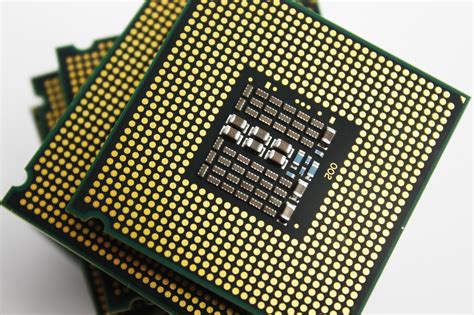
An insufficient or failing PSU can lead to unstable power delivery, especially during peak load, causing components to underperform or even temporarily shut down. Ensure your PSU has adequate wattage for your system and is functioning correctly. Listen for coil whine or consider testing with a known good PSU if possible.
RAM and Storage
Faulty RAM modules can cause system instability and stuttering. Run a memory diagnostic tool (like Windows Memory Diagnostic or MemTest86). Similarly, slow or failing storage drives (HDDs, SSDs) can cause loading stutters and overall system sluggishness. Check drive health with tools like CrystalDiskInfo. Ensure your games are installed on fast storage, preferably an NVMe or SATA SSD.

Step 4: System and Game Settings Optimization
Windows Power Plan
Ensure your Windows power plan is set to ‘High Performance’ or ‘Ultimate Performance’ to prevent the OS from throttling your CPU or GPU when it should be delivering maximum power.
Game Specific Settings
Sometimes the issue is specific to a particular game or a setting within it. Try reducing demanding graphics settings, especially those related to shadows, anti-aliasing, or texture quality, to see if the drops subside. Experiment with different DirectX versions if available.
Disable Overlays
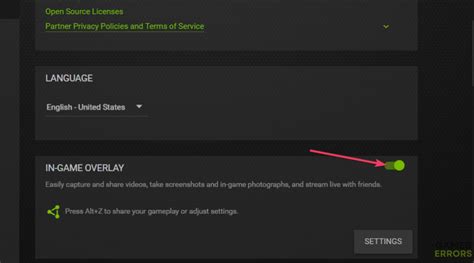
Overlays from platforms like Steam, Discord, Xbox Game Bar, or Geforce Experience (ShadowPlay) can sometimes interfere with game performance or cause conflicts. Try disabling them one by one to see if the issue resolves.
Conclusion: Persistence Pays Off
Diagnosing random FPS drops requires a methodical approach and a bit of patience. By systematically checking software, drivers, hardware, and system settings, you can pinpoint the source of the problem. Remember to test changes one by one to isolate the fix. With persistence, you’ll get your gaming rig back to its optimal, stutter-free performance, allowing you to fully enjoy your favorite titles.


