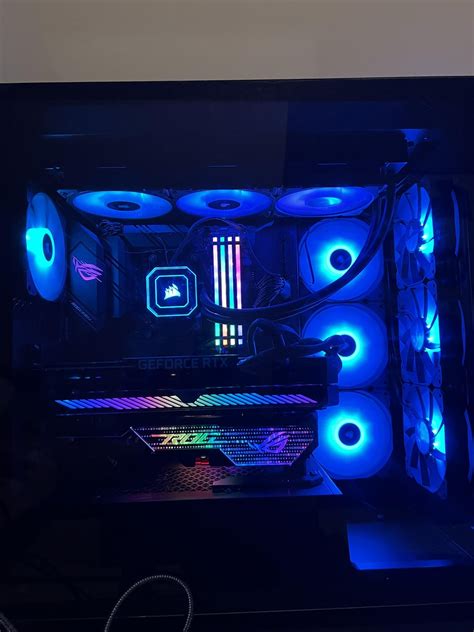
Gaming PC overheating? Essential tips for CPU/GPU cooling & stable FPS.
The Silent Killer: Why Overheating Harms Your Gaming PC
There’s nothing more frustrating than your gaming PC struggling with performance, stuttering, or even crashing mid-game. Often, the culprit is overheating. When your CPU and GPU get too hot, they automatically throttle their performance to prevent damage, leading to lower frame rates (FPS), inconsistent gameplay, and a shorter lifespan for your expensive components. Understanding how to effectively cool your system is crucial for a smooth, stable, and long-lasting gaming experience.
Understanding Your Components: CPU and GPU Cooling Basics
Both your Central Processing Unit (CPU) and Graphics Processing Unit (GPU) generate significant heat under load. While they each have their own cooling mechanisms, their effectiveness is often interdependent and heavily influenced by your PC case’s overall airflow. Maintaining optimal temperatures ensures your components run at their designed speeds without thermal throttling.
Mastering CPU Cooling
Your CPU is the brain of your computer, and keeping it cool is paramount. Here’s how:
- Choose the Right Cooler: Stock coolers are often inadequate for modern gaming CPUs. Consider an aftermarket air cooler with a large heatsink and fan, or an All-in-One (AIO) liquid cooler for superior heat dissipation.
- Proper Thermal Paste Application: The thermal paste acts as a bridge between your CPU’s integrated heat spreader (IHS) and the cooler’s cold plate. Reapply fresh thermal paste every few years, ensuring an even, thin layer for maximum heat transfer.
- Optimize Fan Curves: Most motherboards allow you to customize fan speeds in the BIOS/UEFI or through software. Set a curve that increases fan speed as temperatures rise, balancing performance with noise levels.
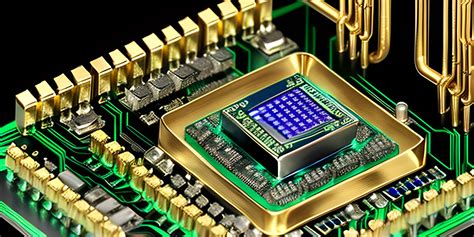
Optimizing GPU Cooling
The GPU is often the hottest component in a gaming PC, especially during intense gaming sessions. Effective GPU cooling is vital for stable FPS:
- Adjust GPU Fan Curves: Similar to CPU fans, many GPU utility tools (like MSI Afterburner or ASUS GPU Tweak) allow you to create custom fan curves. A more aggressive fan curve can significantly lower temperatures, though it will increase noise.
- Consider Undervolting: Reducing the voltage supplied to your GPU while maintaining its clock speed can significantly lower temperatures and power consumption without a noticeable performance hit. This requires careful testing but can be very effective.
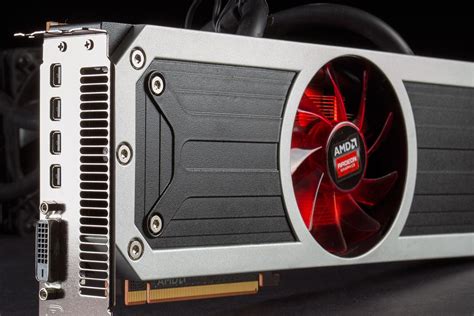
- Ensure Clearance: Make sure your GPU has enough space around it, especially if it’s a large, multi-fan card. Crowding it with other components or poor cable management can restrict airflow.
General PC Cooling Best Practices for Stable FPS
Beyond individual component cooling, the overall thermal environment of your PC case plays a massive role.
Airflow is King
- Positive vs. Negative Pressure: Aim for a balanced or slightly positive pressure setup, meaning more air comes into your case than leaves it. This helps keep dust out and ensures fresh air reaches all components. Install intake fans at the front/bottom and exhaust fans at the rear/top.
- Cable Management: Untidy cables obstruct airflow. Route cables neatly behind the motherboard tray and out of the main airflow path to allow unrestricted movement of air.

Maintenance and Environment
- Regular Cleaning: Dust is an insulator and significantly impedes cooling. Regularly clean your PC, especially fan blades, heatsinks, and dust filters, using compressed air.
- Monitor Room Temperature: A cooler ambient room temperature directly translates to cooler PC components. Ensure your gaming space is well-ventilated or air-conditioned if possible.
- Software Monitoring: Use tools like HWMonitor, Core Temp, or MSI Afterburner to keep an eye on your CPU and GPU temperatures. Know what’s normal for your system and react if you see unusually high readings.
Conclusion: Keep Your Cool, Keep Your FPS
Proactive cooling measures are not just about preventing damage; they’re about unlocking and maintaining the full performance potential of your gaming PC. By implementing these essential tips for CPU and GPU cooling, optimizing case airflow, and practicing regular maintenance, you’ll ensure stable frame rates, a quieter system, and many more hours of uninterrupted, high-performance gaming. Don’t let overheating be the bottleneck in your gaming experience.