





Gaming PC overheating? Tips to improve airflow & CPU/GPU cooling.
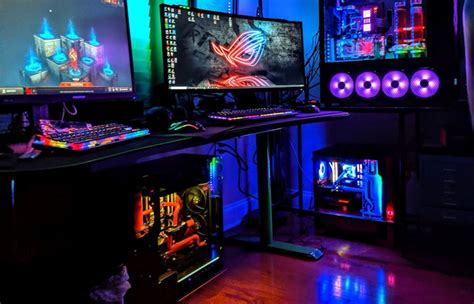
A high-performance gaming PC is a powerful machine, but with great power comes great heat. Overheating can lead to reduced performance (thermal throttling), system instability, and even damage to components over time. If your gaming sessions are getting cut short by crashes or sluggish frame rates, it’s likely time to address your PC’s cooling. This guide will walk you through effective strategies to improve your system’s airflow and enhance CPU and GPU cooling, ensuring your rig stays frosty under pressure.
Understanding PC Overheating
Before diving into solutions, it’s crucial to understand why your PC might be overheating. Common culprits include:
- Dust Buildup: A thick layer of dust acts as an insulator, trapping heat and impeding fan performance.
- Poor Case Airflow: Inefficient fan placement or cluttered internals can create hot spots.
- Insufficient Cooling Hardware: Stock CPU coolers or inadequate GPU cooling can struggle with demanding games.
- High Ambient Temperatures: Your room’s temperature directly impacts your PC’s ability to dissipate heat.
Symptoms of an overheating PC include loud fan noise, sudden performance drops, system crashes, and visual artifacts on screen. Addressing these signs early can save your components from long-term wear.

Optimizing Case Airflow
Your PC case is more than just an enclosure; it’s a crucial part of your cooling strategy. Proper airflow ensures that cool air enters, circulates effectively, and expels hot air.
1. Fan Placement & Configuration
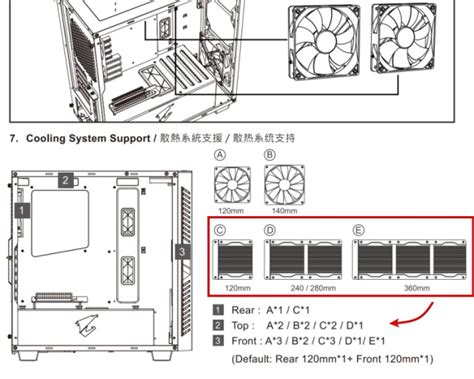
- Intake Fans: Typically placed at the front and bottom, these draw cool air into the case.
- Exhaust Fans: Located at the rear and top, these push hot air out.
- Positive Pressure: More intake than exhaust, which helps keep dust out but might create recirculation zones if not balanced.
- Negative Pressure: More exhaust than intake, which can pull dust in through unsealed openings but ensures hot air is rapidly expelled.
A balanced approach, often with slightly more intake, is generally recommended. Ensure your fans are oriented correctly – the side with the frame/motor is usually the exhaust side.
2. Cable Management
Tidy cables aren’t just for aesthetics; they significantly improve airflow. Route cables behind the motherboard tray or bundle them neatly out of the path of airflow, especially near intake and exhaust fans.
3. Dust Management
Regular cleaning is paramount. Use compressed air to blow dust out of fans, heatsinks, and vents. Consider adding dust filters to your intake fans to reduce dust ingress.
Enhancing CPU Cooling
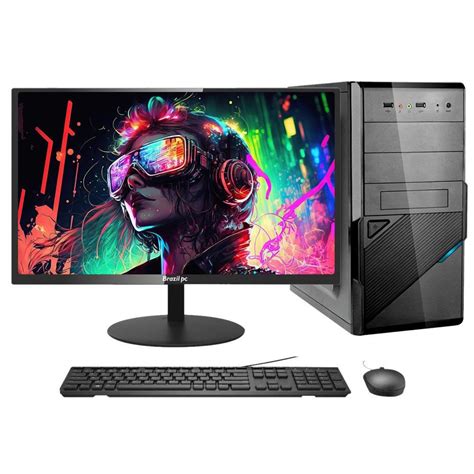
Your CPU is the brain of your operation, and it generates a significant amount of heat. Effective CPU cooling is non-negotiable for stable gaming.
1. Aftermarket Coolers
- Air Coolers: Large heatsinks with fans. Higher-end air coolers with multiple heat pipes and larger fans can outperform many entry-level liquid coolers. Ensure it fits your case and doesn’t interfere with RAM.
- All-in-One (AIO) Liquid Coolers: These sealed units circulate coolant to a radiator. They often offer superior cooling in a smaller footprint, especially for high-end CPUs or overclocking. Ensure your case has mounting points for the radiator (e.g., 240mm, 360mm).
2. Thermal Paste
This paste fills microscopic gaps between your CPU’s IHS (Integrated Heat Spreader) and the cooler’s base, maximizing heat transfer. If you’re installing a new cooler or your current one is old, reapply a fresh layer of high-quality thermal paste. A pea-sized dot in the center of the CPU is a common and effective application method.
Improving GPU Cooling
The GPU often works the hardest during gaming, generating immense heat. Keeping it cool is vital for consistent frame rates.
1. Custom Fan Curves
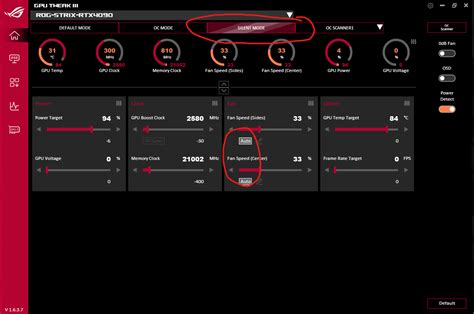
Most GPU manufacturers provide software (e.g., MSI Afterburner, ASUS GPU Tweak) that allows you to create custom fan curves. This lets you set fan speeds based on GPU temperature, ensuring adequate cooling without unnecessary noise when idle.
2. Case Airflow & Vertical Mounts
Ensure your case has good intake from the front/bottom, as many GPUs draw air directly from below. If you’re using a vertical GPU mount, be mindful that it can sometimes place the GPU too close to the side panel, restricting airflow. Check your GPU temperatures with and without the vertical mount if you suspect it’s an issue.
Advanced Tips & Monitoring
1. Monitoring Software
Tools like HWMonitor, Core Temp, MSI Afterburner, and HWiNFO allow you to track CPU and GPU temperatures in real-time. This data is invaluable for diagnosing issues and verifying the effectiveness of your cooling solutions. Pay attention to temperatures under load (during gaming) to get an accurate picture.
2. Ambient Room Temperature
Remember that your PC can only cool itself relative to the air around it. A cooler room temperature will always result in lower component temperatures.
3. Undervolting
For advanced users, undervolting your CPU or GPU can reduce power consumption and heat generation without significantly impacting performance. This can be a complex process, so proceed with caution and research thoroughly.
Conclusion
Keeping your gaming PC cool is an ongoing process, not a one-time fix. By systematically improving your case airflow, investing in better CPU and GPU cooling, maintaining a clean system, and regularly monitoring temperatures, you can ensure your rig performs at its peak for years to come. Don’t let overheating be the bottleneck in your gaming experience – a little effort in cooling goes a long way in stability and longevity.


