





Guide me: How to troubleshoot common game mod conflicts on PC for stable gameplay?

Understanding Game Mod Conflicts
Modding PC games opens up a world of possibilities, from enhanced graphics and new content to quality-of-life improvements. However, integrating multiple modifications, especially in complex games like Skyrim, Fallout, or Minecraft, often leads to conflicts that can cause crashes, performance issues, or even prevent the game from launching. These conflicts typically arise when two or more mods try to alter the same game asset, script, or record in incompatible ways. Learning to troubleshoot these issues is a crucial skill for any PC gamer who delves into the modding scene.
The key to stable modded gameplay lies in methodical troubleshooting. Instead of randomly disabling mods, a structured approach will save you time and frustration. This guide will walk you through the essential steps, tools, and techniques needed to identify and resolve common mod conflicts, helping you maintain a robust and enjoyable gaming experience.

Preparation: Before You Begin Troubleshooting
Before diving into conflict resolution, a few preparatory steps can significantly streamline the process and prevent further issues:
- Backup Your Game and Save Files: Always create a backup of your clean game installation and your current save files. This ensures you can revert to a working state if something goes wrong.
- Read Mod Descriptions Carefully: Many conflicts can be avoided by simply reading the mod’s description page. Mod authors often list known incompatibilities, required patches, and load order recommendations.
- Install a Mod Manager: For most modern games, a dedicated mod manager (like Vortex, Mod Organizer 2, or Nexus Mod Manager) is indispensable. These tools handle installation, uninstallation, load order, and often provide basic conflict detection, making troubleshooting much easier.
- Understand Load Order: The order in which mods load can dictate which mod’s changes take precedence. Tools within mod managers can help, but understanding the basics is crucial. Generally, mods that depend on others should load after their dependencies, and general overhauls often load earlier than specific patches.
Step-by-Step Troubleshooting Strategies
1. The 50/50 Method (Binary Search)
This is arguably the most effective method for isolating a problematic mod or conflict. It works best if you know your game was stable before adding a recent batch of mods:
- Divide Your Mods: If you have a large mod list, disable half of them.
- Test the Game: Launch the game and see if the issue persists.
- Isolate the Problem:
- If the problem is gone, the conflicting mod is in the half you disabled. Re-enable that half and disable the other.
- If the problem persists, the conflicting mod is in the half that is still enabled.
- Repeat: Continue halving the problematic group and testing until you pinpoint the exact mod or combination of mods causing the conflict.

2. Utilize Your Mod Manager’s Features
Most mod managers offer powerful features to help detect and resolve conflicts:
- Conflict Detection: Many managers highlight files or records that are being overwritten by multiple mods. Pay attention to warnings and đỏ alerts.
- Load Order Optimization: Tools like LOOT (Load Order Optimization Tool) integrate with managers to automatically sort your load order based on community rules, significantly reducing conflicts.
- Virtual File System: Mod Organizer 2, for example, uses a virtual file system, keeping your game’s data folder clean and making it easier to enable/disable mods without affecting core files.
3. Check for Compatibility Patches
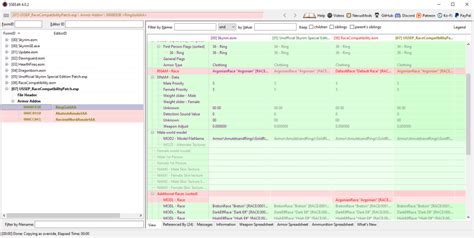
Many popular mods have official or community-made compatibility patches designed to make them work together. If you’re using two large mods that affect similar aspects of the game, search for a patch on Nexus Mods or the mod authors’ pages. These patches often resolve known conflicts by merging or adjusting conflicting records.
4. Analyze Game Logs and Crash Reports
When your game crashes, it often leaves behind a log file (e.g., crash.log, NetScriptFramework.log for Skyrim, or specific console output). These logs can provide invaluable clues about the cause of the crash, often pointing directly to a specific mod file or script that failed. Look for error messages, file paths, or references to specific mod names. Learning to interpret these logs is a game-changer for advanced troubleshooting.
5. Reinstall and Test in Small Batches
If you’re starting a new modded playthrough and encountering issues immediately, consider installing your mods in smaller groups. Install a core set of foundational mods, test the game, then add 5-10 more mods, test again, and repeat. This helps you identify which specific group of mods introduced the problem.

Preventative Measures for Future Stability
Once you’ve resolved your current conflicts, adopt these practices to minimize future issues:
- Read Everything: Don’t skip mod descriptions, installation instructions, or compatibility notes.
- Install One Mod at a Time: When adding new mods, install them individually and test your game after each addition. This makes it trivial to identify the culprit if a new issue arises.
- Keep Mods Updated: Periodically check for updates to your installed mods. Bug fixes and compatibility improvements are often included.
- Monitor Community Forums: Stay engaged with the modding community for your specific game. Forums and Discord servers are excellent resources for known issues, solutions, and upcoming compatibility patches.
- Don’t Over-Mod: While tempting, installing hundreds of mods, especially large, complex ones, dramatically increases the chance of conflicts. Prioritize quality over quantity.

Conclusion
Troubleshooting game mod conflicts can seem daunting at first, but with a systematic approach and the right tools, it becomes a manageable task. By preparing adequately, employing methods like the 50/50 test, leveraging mod manager features, and proactively reading documentation, you can effectively resolve most conflicts. Remember, patience is key, and the reward of a stable, custom-tailored gaming experience is well worth the effort. Happy modding!

