





Guide: Safely resolving game mod conflicts & load order issues?
Introduction: Navigating the Modded Wonderland
Modding can transform your favorite games, breathing new life into familiar worlds and adding countless hours of enjoyment. However, the more mods you install, the higher the likelihood of encountering conflicts and load order issues. These problems can range from minor graphical glitches to game-breaking crashes. This guide will walk you through the essential steps and best practices to safely diagnose, resolve, and prevent common mod-related headaches, ensuring a stable and immersive modded experience.
Understanding Mod Conflicts and Load Order
At its core, a mod conflict occurs when two or more mods attempt to modify the same game asset or record in different ways. The game engine then has to decide which change to apply, often leading to unintended behavior. Load order dictates the sequence in which your mods are loaded by the game. If Mod A loads after Mod B and both modify the same element, Mod A’s changes will typically “win” or overwrite Mod B’s, potentially causing issues if that wasn’t the desired outcome.

Essential Tools for Mod Management
Before diving into troubleshooting, arm yourself with the right tools. A robust mod manager (like Mod Organizer 2, Vortex, or Nexus Mod Manager) is indispensable for installing, enabling/disabling, and managing your mods and their load order. Many mod managers also include built-in conflict detection or integrate with external tools like LOOT (Load Order Optimization Tool) or xEdit (TES5Edit, FO4Edit, etc.) which are crucial for deeper analysis.
Identifying the Source of Conflict
The first step to resolution is identification. Common signs of conflicts include crashes to desktop, infinite loading screens, missing textures (purple/pink squares), odd character behavior, or corrupted save files. Always check your game’s crash logs or error reports if available, as they often point to the problematic mod or file. Tools like xEdit allow you to visually inspect exactly which mods are modifying specific records and highlight conflicts.
Strategies for Resolving Conflicts
Adjusting Load Order
Often, simply changing the order in which mods load can resolve conflicts. General rule: more specific or dependent mods should load after the mods they modify or depend on. Tools like LOOT automate this process for many games by applying a community-maintained master list of sorting rules. Always run LOOT after adding or removing mods, then fine-tune manually if necessary.
Creating Merged or Bashed Patches
For more complex conflicts, particularly in games like Skyrim or Fallout, merged or bashed patches are invaluable. These utilities (e.g., Mator Smash, Wrye Bash) analyze your entire load order, consolidate non-critical changes from multiple mods into a single patch, and smartly resolve many conflicts by combining compatible records. This significantly reduces the number of overridden records and improves stability.
Manual Conflict Resolution with xEdit
For advanced users, tools like xEdit offer unparalleled control. You can load your entire mod list and see all conflicting records. Here, you can manually decide which mod’s changes to “carry over” as the winner, or even create a custom “patch” mod that combines elements from multiple conflicting mods. This requires a good understanding of game data structures and careful execution.
Disabling or Replacing Conflicting Mods
Sometimes, two mods are simply incompatible and cannot be easily resolved. In such cases, you might have to make a choice: disable one of the conflicting mods or seek an alternative mod that provides similar functionality without the conflict.
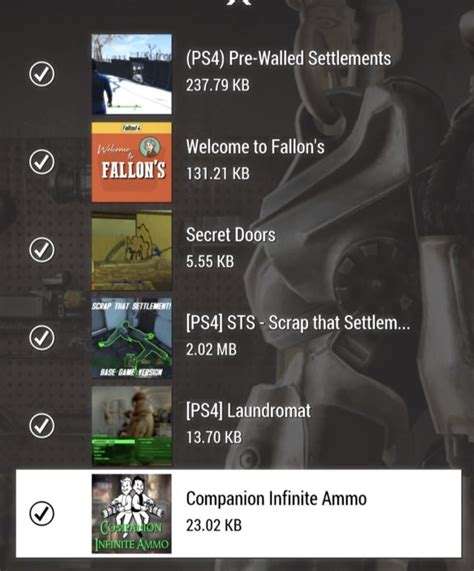
Establishing a Stable Load Order: Best Practices
- Master Files First: Always load official game files and DLCs at the very top.
- Foundational Mods: Essential utilities, bug fixes, and core framework mods come next.
- Overhauls & Worldspace: Large-scale overhauls, new lands, or major texture packs follow.
- Quests & Gameplay: Quest mods, combat overhauls, new items, and character customization.
- Patches & Fixes: Compatibility patches, unofficial patches, and any specific fixes should load after the mods they patch.
- Bashed/Merged Patches Last: These should always be at the very bottom of your load order to ensure they incorporate all previous changes.

Testing and Iteration
Resolving mod conflicts is often an iterative process. After making any changes to your load order or mod files, test your game thoroughly. Load a save file, visit areas impacted by the mods, and try to trigger potential conflict scenarios. If new issues arise, revert your changes and re-evaluate. It’s wise to make changes in small batches rather than overhauling everything at once.
When All Else Fails: Seek Community Help
If you’re stuck, don’t hesitate to reach out to the modding community. Forums like Nexus Mods, Reddit communities for specific games, or modding Discord servers are excellent resources. When asking for help, provide as much detail as possible: your game version, mod list, mod manager used, exact error messages, and what steps you’ve already taken.

Conclusion: Embrace the Modding Journey
Safely resolving game mod conflicts and load order issues is a skill that develops with practice and patience. By understanding the underlying principles, utilizing the right tools, and following a systematic approach, you can overcome most challenges. Remember, the goal is a stable and enjoyable game that reflects your personal vision. Happy modding!

