





How can I optimize my gaming PC for max FPS without upgrading my GPU?
Unlock Your PC’s Full Gaming Potential
Many gamers believe that the only way to achieve higher frame rates (FPS) is to upgrade their graphics card, but that’s not always true. A well-optimized system can often squeeze out significant performance gains from existing hardware. If you’re looking to boost your gaming experience without opening your wallet for a new GPU, you’ve come to the right place. This guide will walk you through a series of steps to fine-tune your PC for maximum FPS.

1. Update Your Drivers & Operating System
Graphics Drivers are Critical
- NVIDIA/AMD: Always ensure you have the latest stable graphics drivers installed. These updates frequently include performance optimizations and bug fixes for new game releases. Visit your GPU manufacturer’s website directly or use their respective software (GeForce Experience, AMD Radeon Software) to check for and install updates.
- Chipset Drivers: Don’t overlook your motherboard’s chipset drivers. Keeping them updated can improve communication between your CPU, GPU, and other components.
Windows Updates
While some Windows updates can occasionally cause issues, keeping your operating system current often includes performance improvements, security patches, and DirectX updates that can benefit gaming. Regularly check for and install recommended Windows updates.
2. Optimize In-Game Settings
This is arguably the most direct way to impact FPS. Every game offers a plethora of graphical options, and understanding them is key.
- Resolution: Playing at your monitor’s native resolution is ideal, but if you’re struggling for FPS, slightly lowering it can provide a substantial boost.
- Texture Quality: Often tied to VRAM, higher settings look better but can tax older GPUs. Experiment with medium or high, depending on your card’s VRAM.
- Shadows: Shadows are notoriously performance-intensive. Reducing shadow quality or disabling them completely in competitive games can yield significant FPS gains.
- Anti-Aliasing: Techniques like MSAA or TAA smooth jagged edges but come at a performance cost. Consider lighter options like FXAA or disabling it if necessary.
- Post-Processing Effects: Bloom, depth of field, motion blur, and lens flare can look nice but often have a measurable impact on FPS. Experiment with turning them off or down.
- Draw Distance/View Distance: Reducing how far into the distance objects are rendered can improve performance, especially in open-world games.

3. Tweak Windows Settings for Performance
Power Options
- High Performance/Ultimate Performance: Go to Control Panel > Power Options and select the ‘High Performance’ or ‘Ultimate Performance’ plan. This prevents your CPU from throttling down to save power.
Disable Background Apps
Apps running in the background consume CPU, RAM, and disk resources. Close unnecessary programs before gaming. You can also disable specific background apps via Windows Settings > Privacy > Background apps.
Game Mode
Ensure Windows Game Mode is enabled (Settings > Gaming > Game Mode). This feature prioritizes your game’s resources and suppresses background tasks.
Visual Effects
For older systems, disabling some of Windows’ visual flair can free up resources. Search for ‘Adjust the appearance and performance of Windows’ and select ‘Adjust for best performance.’
4. Hardware-Related Optimizations (No Upgrades Needed)
Enable XMP/DOCP for RAM
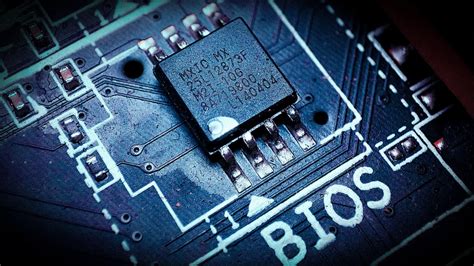
Many RAM kits ship at a lower default speed. Access your motherboard’s BIOS/UEFI settings (usually by pressing DEL or F2 during boot) and enable XMP (Intel) or DOCP (AMD) to run your RAM at its advertised speed. This can significantly impact CPU-intensive games.
Monitor Refresh Rate
Ensure your monitor is set to its maximum refresh rate (e.g., 144Hz, 240Hz) in Windows Display Settings > Advanced display settings. An older GPU might not hit these FPS numbers, but it’s important to ensure Windows isn’t capping it unnecessarily.
Overclocking (CPU/RAM – Use Caution!)
While more advanced, a modest CPU or RAM overclock can yield extra performance. This requires research into your specific components and proper cooling. Proceed with caution, as improper overclocking can lead to instability or hardware damage.
5. Maintain Your System
Keep Your PC Clean
Dust buildup can hinder cooling, causing components to thermal throttle and reduce performance. Regularly clean your PC’s fans, heatsinks, and vents with compressed air.
Defragment Your Hard Drive (If Applicable)
If you’re still using a traditional Hard Disk Drive (HDD), regular defragmentation can improve load times and overall system responsiveness. SSDs do not need defragmentation; in fact, it can reduce their lifespan.
Monitor Temperatures
Use software like HWMonitor or MSI Afterburner to keep an eye on your CPU and GPU temperatures while gaming. High temperatures are a primary cause of performance throttling.

Conclusion
Optimizing your gaming PC for maximum FPS without upgrading your GPU involves a holistic approach, touching on driver updates, in-game settings, Windows tweaks, and even basic hardware maintenance. By systematically working through these steps, you can often discover untapped performance and enjoy a smoother, more responsive gaming experience on your current setup. Dedicate some time to these optimizations, and you might be surprised at how much extra life you can get out of your existing rig.


