How can I resolve game crashes caused by conflicting mods in my PC gaming setup?
Modding PC games offers an unparalleled level of customization and extended gameplay, but it often comes with the headache of stability issues, particularly game crashes. These crashes are frequently a symptom of conflicting mods, where two or more modifications are attempting to alter the same game files, scripts, or assets in incompatible ways. Understanding how to identify, prevent, and resolve these conflicts is crucial for any enthusiastic PC modder.
Understanding Mod Conflicts
Mod conflicts arise when different mods try to modify the same aspects of a game. This could involve texture files, character models, world data, quest scripts, or even basic game mechanics. When the game engine tries to load conflicting information, it doesn’t know which mod’s changes to prioritize, leading to unpredictable behavior, graphical glitches, freezes, or outright crashes to the desktop.
Common types of conflicts include file overwrites (one mod’s file replacing another’s), script incompatibilities (scripts from different mods clashing), and load order issues (the sequence in which mods are loaded determining which changes take precedence).
Initial Steps: Identifying the Culprit
When a game starts crashing after installing new mods, the first step is to identify which mod or combination of mods is causing the problem. This can be a tedious process but is essential for a stable setup.
- Recent Changes First: Start by disabling any mods you’ve installed or updated most recently. If the game stabilizes, you’ve likely found your culprit. Re-enable them one by one to pinpoint the exact problematic mod.
- Binary Elimination: For a larger mod list, try disabling half of your mods. If the crash stops, the conflict is in the disabled half; if it continues, it’s in the enabled half. Repeat this process, halving the problematic group each time, until you isolate the conflicting mods.
- Read Mod Descriptions: Always check mod descriptions for known incompatibilities with other popular mods or specific game versions. Mod authors often provide patches or workarounds.
![[Minecraft Modding] Mods disallowing certain users from playing them ...](/images/aHR0cHM6Ly90czIubW0uYmluZy5uZXQvdGg/aWQ9T0lQLmxkMWY4NS1kUEY3OE4zVWJEbW4tOVFIYUdEJnBpZD0xNS4x.webp)
Essential Tools for Mod Management
Manual mod management can be a nightmare, especially for games with extensive modding communities. Fortunately, powerful mod managers exist to streamline the process.
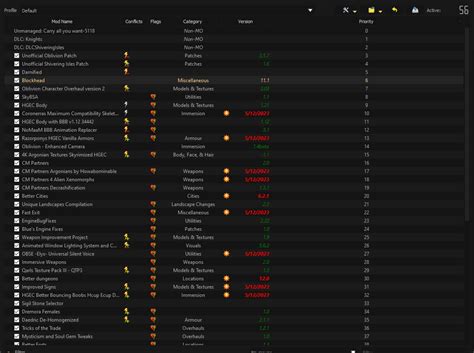
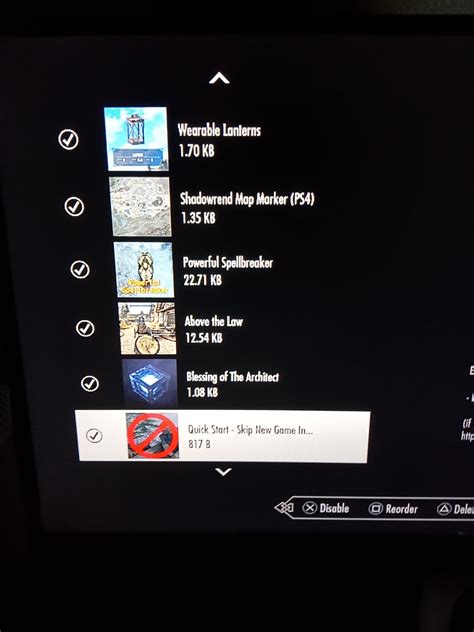
- Mod Organizer 2 (MO2) / Vortex: These are highly recommended mod managers for games like Skyrim, Fallout, and many others. They offer features like virtual file systems (preventing direct game folder modification), profile management (allowing different mod setups), and conflict detection.
- LOOT (Load Order Optimization Tool): For games where load order is critical (e.g., Bethesda titles), LOOT is indispensable. It automatically sorts your plugin load order based on a comprehensive masterlist, resolving many common conflicts.
- Merge Plugins Standalone / xEdit (TES5Edit/FO4Edit): These advanced tools allow you to manually create patches to resolve conflicts between multiple mods. xEdit, in particular, lets you view and edit individual records within plugins, making it possible to manually resolve specific data conflicts.
The Importance of Load Order
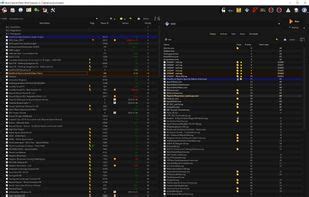
Load order dictates which mod’s changes take precedence when multiple mods modify the same game element. Generally, mods loaded later in the sequence will overwrite changes made by mods loaded earlier. A correctly optimized load order can prevent many crashes and ensure all your mods function as intended.
While tools like LOOT automate much of this, understanding the basics helps when troubleshooting. Always try to load foundational mods (e.g., unofficial patches, core frameworks) early, followed by major overhauls, then smaller additions, and finally patches designed to bridge compatibility between other mods.
Advanced Troubleshooting & Community Support
If basic steps don’t resolve your issues, you might need to delve deeper:
- Crash Logs: Many games or modding frameworks (like SKSE for Skyrim) generate crash logs. These logs often point to the specific file or memory address causing the crash, which can lead you directly to the problematic mod. Learning to interpret these can save hours of troubleshooting.
- Manual Patching: Using tools like xEdit, you can create a custom compatibility patch. This involves identifying the conflicting records between two mods and manually deciding which values to keep or merging them to achieve desired effects without crashes.
- Community Forums and Wikis: Nexus Mods, official game forums, and dedicated modding wikis are invaluable resources. Chances are, someone else has encountered and solved your specific conflict. Searching for your error message or conflicting mod names can yield quick solutions.
Conclusion
Resolving game crashes caused by conflicting mods is an integral part of the PC modding experience. While it can be challenging, a methodical approach involving careful mod installation, diligent troubleshooting, and the smart use of modding tools will typically lead to a stable and enjoyable modded game. Don’t be afraid to experiment, learn from the community, and meticulously manage your mod list – the reward of a perfectly tailored gaming experience is well worth the effort.