





How do I fix my PC’s high CPU temps while gaming for stable FPS?
The Silent Killer of Stable FPS: High CPU Temperatures
Few things are more frustrating for a PC gamer than experiencing performance drops and stuttering, especially when you know your hardware should be capable of more. Often, the culprit isn’t a lack of raw power, but rather a CPU struggling to stay cool under load. High CPU temperatures can lead to thermal throttling, where your processor intentionally slows itself down to prevent damage, resulting in unstable frames per second (FPS) and an inconsistent gaming experience. Understanding why this happens and how to address it is crucial for a smooth gaming journey.
Identifying the Root Causes of Overheating
Before diving into solutions, it’s important to pinpoint why your CPU is running hot. Several factors can contribute to elevated temperatures:
- Dust Buildup: Over time, dust accumulates on fan blades, heatsink fins, and inside the PC case, acting as an insulating layer and impeding airflow.
- Poor Airflow: Inadequate case fans, incorrect fan orientation, or cluttered cable management can restrict the flow of cool air in and hot air out of your system.
- Degraded Thermal Paste: The thermal paste between your CPU and its cooler’s base can dry out or become less effective over years, reducing heat transfer efficiency.
- Inadequate CPU Cooler: The stock cooler or an older aftermarket cooler might not be sufficient for your CPU, especially if it’s a high-performance model or you’ve started overclocking.
- High Ambient Temperatures: If your room is hot, your PC’s internal temperatures will naturally be higher.
Immediate Checks and Simple Fixes
1. Monitor Your Temperatures
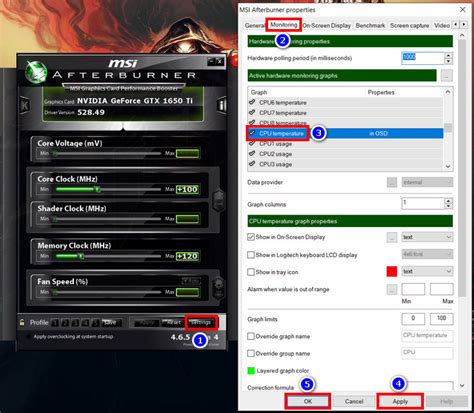
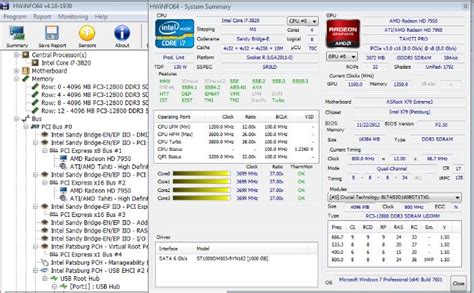
First, confirm your CPU temperatures using software like HWMonitor, Core Temp, or MSI Afterburner. Check both idle and load temperatures (while gaming). Generally, anything consistently above 85-90°C during gaming is cause for concern.
2. Clean Your PC Thoroughly
This is often the most effective and easiest fix. Power down your PC, unplug it, and use compressed air to blast dust from your CPU cooler, case fans, GPU fans, and any vents. Hold fans in place while cleaning to prevent damage.

3. Optimize Case Airflow
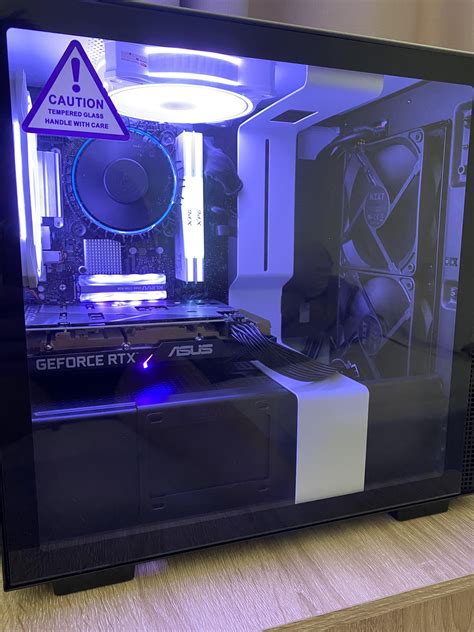
Ensure you have a balanced airflow setup: typically, intake fans at the front/bottom and exhaust fans at the top/rear. Tidy up internal cables to prevent them from obstructing airflow. Consider adding more case fans if your case has available mounts and your current setup is lacking.
Advanced Cooling Solutions
1. Reapply Thermal Paste
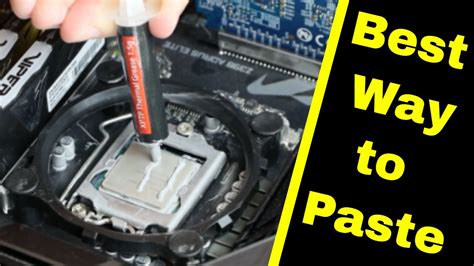
If cleaning doesn’t significantly help, your thermal paste might be the issue. Carefully remove your CPU cooler, clean off the old thermal paste from both the CPU’s integrated heat spreader (IHS) and the cooler’s base using isopropyl alcohol, and apply a fresh, high-quality thermal paste. There are many application methods (pea, line, X), but ensure even coverage.
2. Upgrade Your CPU Cooler
For more demanding CPUs or consistent high temperatures, an aftermarket cooler is often necessary. Options include high-performance air coolers with larger heatsinks and multiple fans, or All-in-One (AIO) liquid coolers. Choose a cooler appropriate for your CPU’s TDP (Thermal Design Power) and ensure it fits your case and RAM modules.
3. Optimize Fan Curves
Many motherboards allow you to customize fan speed curves in the BIOS/UEFI. You can set your CPU and case fans to spin faster at higher temperatures, providing more aggressive cooling when needed. Software like FanControl or your motherboard’s utility can also achieve this within Windows.
4. Undervolting Your CPU
Advanced users can consider undervolting their CPU. This involves reducing the voltage supplied to the CPU without sacrificing performance, which significantly lowers heat output. This requires careful testing and knowledge of your BIOS settings.
Software & Settings Adjustments
1. Update Drivers and BIOS
Ensure your chipset, GPU drivers, and BIOS are up to date. Sometimes, updates include performance optimizations or better fan control algorithms.
2. Manage Background Processes
Close unnecessary applications and background processes while gaming. These can consume CPU cycles and generate additional heat.
3. Optimize In-Game Settings
While not a direct cooling solution, reducing demanding in-game settings (like resolution, anti-aliasing, or shadows) can lessen the load on your CPU and GPU, indirectly leading to lower temperatures and more stable FPS.
Conclusion
High CPU temperatures are a common yet solvable problem that can significantly impact your gaming experience. By systematically addressing potential issues, from basic dust cleaning and airflow optimization to reapplying thermal paste or upgrading your cooler, you can achieve a cooler-running PC, eliminate thermal throttling, and enjoy the stable, high FPS gaming you deserve. Regular maintenance is key to long-term stability and performance.


