





How do I optimize GPU settings for max FPS in competitive PC games?

The Quest for Max FPS: Gaining Your Competitive Edge
In the world of competitive PC gaming, every frame per second (FPS) counts. Higher frame rates lead to smoother gameplay, reduced input lag, and a more responsive experience, which can be the difference between victory and defeat. While a powerful GPU is a great start, simply having one doesn’t guarantee optimal performance. This comprehensive guide will walk you through the essential GPU and system settings to squeeze every last frame out of your hardware.
Update Your GPU Drivers Regularly
Before diving into specific settings, ensure your graphics card drivers are up to date. NVIDIA, AMD, and Intel frequently release driver updates that include performance optimizations for new and popular games, bug fixes, and sometimes even new features. Always download drivers directly from the manufacturer’s official website.
A clean installation of drivers is often recommended. For NVIDIA users, select ‘Custom’ installation and check the ‘Perform a clean installation’ box. AMD users can use the AMD Cleanup Utility before installing new drivers. This process removes old driver files that might conflict with new ones, ensuring a fresh start.
Tweak NVIDIA Control Panel or AMD Adrenalin Settings
Your GPU’s control panel offers a wealth of global and game-specific settings that can significantly impact performance. Prioritize ‘Program Settings’ for your competitive titles over ‘Global Settings’ to avoid affecting other applications.
NVIDIA Control Panel Key Settings:
- Power Management Mode: Set to ‘Prefer maximum performance’. This ensures your GPU always runs at its highest clock speeds, preventing throttling.
- Texture Filtering – Quality: Set to ‘High performance’ or ‘Performance’. This slightly reduces texture fidelity in favor of speed.
- Low Latency Mode: Experiment with ‘On’ or ‘Ultra’. ‘Ultra’ aims to reduce input lag by submitting frames just-in-time for the GPU to render them.
- Shader Cache Size: Set to ‘Unlimited’ or a large value (e.g., 100GB). This stores compiled shaders on your drive, reducing loading times and stutters.
- Max Frame Rate: If you’re consistently hitting very high FPS, consider capping it just below your monitor’s refresh rate (e.g., 141 FPS for a 144Hz monitor) to maintain frame pacing and reduce tearing without V-Sync.
AMD Adrenalin Key Settings:
- Radeon Anti-Lag: Enable this to reduce input lag by dynamically adjusting CPU work to ensure it doesn’t get too far ahead of the GPU.
- Radeon Boost: If supported, enable this to dynamically lower resolution in fast-motion scenes, boosting FPS.
- Radeon Image Sharpening (RIS): Set this to a lower percentage or disable it if you need every bit of performance, as it uses GPU resources.
- Texture Filtering Quality: Set to ‘Performance’.
- Tessellation Mode: Set to ‘Override application settings’ and choose ‘Off’ or ‘AMD Optimized’ for older games, or ‘Use application settings’ for modern titles.
- Shader Cache: Ensure this is ‘Enabled’ or set to ‘Standard/Optimized’.
Optimize In-Game Graphics Settings for Max FPS
The most direct way to influence FPS is through in-game graphics settings. For competitive play, prioritize frame rate and responsiveness over visual fidelity. Here’s a general hierarchy for common settings:
- Resolution: Always play at your monitor’s native resolution for clarity. Reducing it significantly impacts visual sharpness.
- Texture Quality: This impacts VRAM usage. If you have a modern GPU with ample VRAM (8GB+), you can often set this to High without much FPS loss. For lower VRAM cards, reduce it.
- Shadow Quality: Shadows are notoriously demanding. Set this to Low or Medium. High-quality shadows add little competitive advantage.
- Anti-aliasing (AA): Techniques like MSAA are very performance-intensive. Opt for lighter options like FXAA, TAA, or even disable it if you prioritize raw FPS.
- View Distance / Object Detail: Reduce this to medium or low, especially in fast-paced shooters. While helpful for spotting distant enemies, very high settings can significantly tax your CPU and GPU.
- Post-processing Effects: Bloom, depth of field, motion blur, lens flare, film grain, and chromatic aberration should almost always be disabled. They add visual fluff and latency while consuming precious resources.
- Reflections and Water Quality: Often very demanding. Reduce or disable for competitive advantage.
- V-Sync: Disable V-Sync. While it prevents screen tearing, it introduces input lag. Use a G-Sync or FreeSync monitor with an in-game or driver-level FPS cap just below your monitor’s refresh rate instead.

Essential System-Level Optimizations
Beyond your GPU settings, your entire system plays a role in achieving maximum FPS.
Monitor Refresh Rate
Ensure your high-refresh-rate monitor is actually running at its advertised refresh rate. Go to Windows Display Settings > Advanced display settings > Display adapter properties for Display [X] > Monitor tab, and select the highest available refresh rate.
Windows Game Mode and Background Processes
Enable Windows Game Mode (Settings > Gaming > Game Mode) as it helps prioritize system resources for your game. Additionally, close all unnecessary background applications, browser tabs, and widgets before launching a game. Use Task Manager to identify and close resource-intensive processes.
Power Options
In Windows Power Options (Control Panel > Hardware and Sound > Power Options), set your plan to ‘High performance’ or ‘Ultimate Performance’ to prevent CPU throttling.
BIOS/UEFI Settings
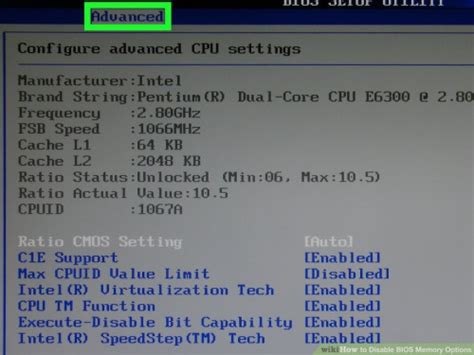
Ensure XMP (Intel) or DOCP (AMD) is enabled for your RAM in your motherboard’s BIOS/UEFI settings. This allows your RAM to run at its advertised speeds, which can significantly impact CPU-bound games and minimum FPS.
Regular Maintenance for Peak Performance
Even with optimized settings, a poorly maintained PC can suffer. Regularly clean your PC to prevent dust buildup, which can lead to higher temperatures and thermal throttling. Ensure your CPU cooler and GPU fans are functioning correctly. Consider reapplying thermal paste to your CPU and GPU if temperatures are consistently high after prolonged use.

Conclusion
Achieving maximum FPS in competitive PC games is an ongoing process of optimization and maintenance. By meticulously adjusting your GPU drivers, fine-tuning in-game graphics settings, and implementing essential system-level optimizations, you can unlock your hardware’s full potential. Remember to test changes systematically and observe their impact on your frame rates and overall gaming experience. A smoother, more responsive game means a more enjoyable and competitive experience for you.


