





How do I optimize my gaming PC setup for minimal input lag in competitive titles?

In the high-stakes world of competitive gaming, every millisecond counts. Input lag, the delay between your action and its on-screen representation, can be the critical difference between victory and defeat. Optimizing your gaming PC for minimal input lag requires a holistic approach, touching upon hardware, software, peripherals, and network configuration. This guide will walk you through the essential steps to create a butter-smooth, ultra-responsive gaming experience.
Understanding Input Lag and Its Sources
Input lag manifests in various forms, from the moment you click your mouse to when that action is processed by your PC, sent to your display, and finally rendered on screen. Key contributors include monitor response times, GPU processing delays, game engine latency, and even operating system overhead. Our goal is to minimize each of these bottlenecks.

Hardware Foundation: The Core Components
Your hardware forms the bedrock of a low-latency setup. Investing in the right components is crucial.
- High Refresh Rate Monitor: This is arguably the most impactful component. A 144Hz, 240Hz, or even 360Hz monitor displays more frames per second, significantly reducing perceived input lag. Pair this with a low response time (1ms GTG) display for optimal clarity during fast motion. Ensure you’re utilizing adaptive sync technologies like NVIDIA G-Sync or AMD FreeSync Premium Pro if your GPU supports it, as they prevent screen tearing without the input lag penalty of traditional V-Sync.
- Powerful GPU & CPU: A graphics card and processor capable of consistently pushing high frame rates (at or above your monitor’s refresh rate) in your target competitive titles is essential. If your frame rate drops below your monitor’s refresh rate, you’re not fully utilizing its potential. Overclocking, if done carefully, can offer marginal gains.
- Fast Storage (SSD/NVMe): While not directly impacting in-game input lag, an NVMe SSD dramatically reduces game load times and system boot-up, getting you into the action quicker.
- Adequate RAM: 16GB of fast DDR4 or DDR5 RAM is typically sufficient for competitive gaming. Ensure XMP (Extreme Memory Profile) is enabled in your BIOS for optimal memory speeds.
Peripherals: Your Direct Interface
Your mouse and keyboard are your direct link to the game. Choose them wisely.
- Low Latency Mouse: Opt for a high-quality wired gaming mouse with a high polling rate (1000Hz or higher) for the most immediate response. While wireless technology has improved, a wired connection often offers a slight edge in raw latency and reliability. Look for lightweight designs for quicker movements.
- Responsive Keyboard: Mechanical keyboards are popular for their tactile feedback and fast actuation, but the type of switch (linear, tactile, clicky) is largely personal preference. Focus on keyboards with a high polling rate and minimal debounce delay.
- Wired Connections: For all critical peripherals (mouse, keyboard, headset), wired USB connections are preferred over wireless to eliminate potential signal interference and latency.
Software & Operating System Optimization
Even with top-tier hardware, suboptimal software settings can introduce unnecessary lag.
- Windows Settings:
- Game Mode: Ensure Windows Game Mode is enabled. It prioritizes system resources for your game.
- Power Plan: Set your power plan to “High Performance” or “Ultimate Performance” (if available) to prevent your CPU from downclocking during gameplay.
- Background Apps: Disable unnecessary background applications, notifications, and startup programs to free up CPU cycles and RAM.
- Display Settings: Ensure your monitor is running at its native resolution and highest refresh rate in Windows Display Settings.
- GPU Driver Settings:
- NVIDIA Reflex / AMD Anti-Lag: Enable these features in your respective GPU control panel for supported games. They significantly reduce system latency by optimizing the rendering pipeline.
- Low Latency Mode (NVIDIA): Set to “Ultra” for maximum lag reduction.
- Image Sharpening/Scaling: Disable or minimize these features if they introduce processing overhead.
- In-Game Settings: Always disable V-Sync unless you absolutely cannot tolerate screen tearing and your adaptive sync solution isn’t working perfectly. Lowering graphics settings (especially shadows, anti-aliasing, and post-processing effects) can increase frame rates, which directly translates to lower input lag.
- Driver Updates: Keep your graphics drivers, chipset drivers, and other relevant drivers updated to ensure optimal performance and access to the latest optimizations.
Network Optimization for Online Play
For online competitive games, network latency (ping) is a form of input lag.
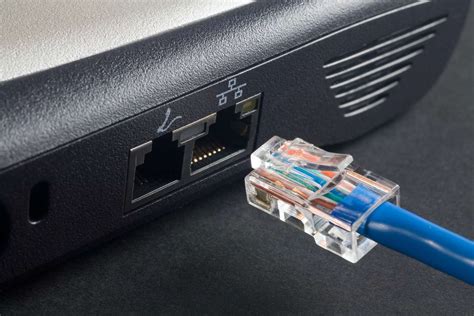
- Wired Ethernet Connection: Always use a wired Ethernet connection instead of Wi-Fi. Wi-Fi introduces variability and higher latency due to signal interference and packet loss.
- Quality of Service (QoS): Configure QoS settings on your router to prioritize gaming traffic over other network activities.
- Modern Router/Modem: Ensure your networking hardware is up-to-date and capable of handling your internet speed efficiently.
- Close Servers: Whenever possible, choose game servers geographically closer to your location.
Final Checks & Maintenance
Maintaining your setup ensures consistent low-latency performance.
- Regular Updates: Keep your OS, drivers, and game clients updated.
- Temperature Management: Ensure your PC components are running cool. Overheating can lead to throttling, which increases latency. Clean dust filters regularly.
- Minimize Background Processes: Use Task Manager to identify and close any non-essential applications or processes running in the background while gaming.
- Monitor Cables: Ensure your display cables (DisplayPort, HDMI) are high quality and securely connected.
By meticulously addressing each of these areas, you can significantly reduce input lag, making your competitive gaming setup as responsive as possible. Remember, it’s a combination of optimized hardware and software working in harmony that yields the best results, giving you the edge you need to dominate the leaderboard.


