





How do I optimize NVIDIA/AMD drivers for max FPS in new AAA games?
Unleashing Maximum FPS: Your Guide to NVIDIA and AMD Driver Optimization
In the competitive world of PC gaming, every frame per second (FPS) counts. While powerful hardware is essential, even the mightiest GPU can be underperforming if its drivers aren’t properly configured. Optimizing your NVIDIA or AMD graphics drivers is a critical, yet often overlooked, step to achieving peak performance and the smoothest gameplay in the latest AAA titles. This guide will walk you through the key settings and practices to unlock your GPU’s full potential.
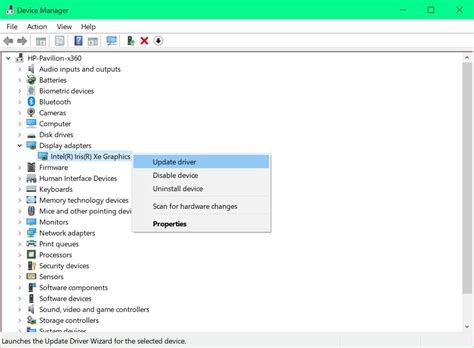
Step 1: Always Keep Your Drivers Up-to-Date
The single most impactful step you can take is to consistently update your graphics drivers. Both NVIDIA and AMD frequently release “Game Ready” or “Adrenalin” drivers specifically optimized for new AAA game launches, often providing significant performance improvements and bug fixes.
For NVIDIA Users:
- Download GeForce Experience: This software notifies you of new drivers and allows for one-click installation.
- Manual Download: Visit the official NVIDIA driver download page, select your GPU series and operating system, and download the latest version.
- Clean Installation: During installation, select “Custom” and then check “Perform a clean installation.” This removes old driver files that might cause conflicts.
For AMD Users:
- Download AMD Software: Adrenalin Edition: Similar to GeForce Experience, Adrenalin software manages drivers and provides optimization tools.
- Manual Download: Go to the official AMD driver support page, identify your graphics card, and download the recommended driver version.
- Factory Reset: When installing, the Adrenalin software often provides an option for a “Factory Reset,” which performs a clean installation by removing previous settings and drivers.
Step 2: Dive into Your Driver Control Panel Settings
Once your drivers are updated, the real optimization begins within your GPU’s control panel. Access these settings by right-clicking on your desktop and selecting either “NVIDIA Control Panel” or “AMD Software: Adrenalin Edition.”
Common Performance Settings (NVIDIA & AMD):
- Image Sharpening / Scaling (NVIDIA DLSS/NIS, AMD FSR/RSR): These technologies render games at a lower resolution and then upscale them using AI or spatial algorithms, providing a significant FPS boost with minimal perceived visual degradation. Always enable these if your game and GPU support them (DLSS for NVIDIA RTX, FSR for most modern GPUs).
- Low Latency Mode (NVIDIA) / Anti-Lag (AMD): These settings aim to reduce input lag by optimizing the way frames are processed. For competitive gaming, enable these to “On” or “Ultra” (NVIDIA).
- Texture Filtering Quality: Set this to “High Performance” or “Performance.” While “High Quality” looks marginally better, the performance hit is often not worth it for competitive play.
- Shader Cache Size: Ensure this is enabled (NVIDIA) or set to a reasonable size (AMD). A larger cache can reduce stuttering in games as frequently used shaders are stored for quicker access.
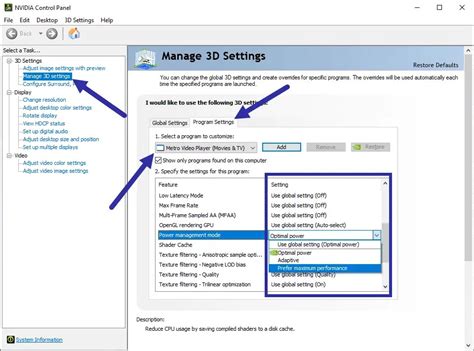
- Power Management Mode (NVIDIA): Set to “Prefer Maximum Performance.” This ensures your GPU always runs at its highest clock speeds when under load, preventing downclocking that can cause FPS drops.
- Vertical Sync (V-Sync): Generally, keep V-Sync “Off” to avoid input lag unless you experience severe screen tearing and don’t have a G-Sync or FreeSync monitor. If you do have an adaptive sync monitor, enable G-Sync/FreeSync in your driver settings and keep V-Sync off in-game.
![[UPDATE] AMD Adrenalin 2020 Driver Out Now; 12% Performance Boost ...](/images/aHR0cHM6Ly90czQubW0uYmluZy5uZXQvdGg/aWQ9T0lQLkRtTHF6eWxHNF83RHkyYmh5dHkxMWdIYUZHJnBpZD0xNS4x.webp)
Step 3: Game-Specific Driver Profiles
Many drivers allow you to create or modify profiles for individual games. This is incredibly useful as some games might benefit from specific settings over others. For instance, a fast-paced shooter might prioritize low latency, while a graphically intensive RPG might need aggressive image scaling.
- NVIDIA: Navigate to “Manage 3D settings” > “Program Settings.” Add the game executable and then customize settings for that specific title.
- AMD: In Adrenalin Software, go to the “Gaming” tab and select the game. Here you can adjust individual settings like Radeon Anti-Lag, Radeon Boost, Image Sharpening, and more.
Step 4: Don’t Forget In-Game Settings
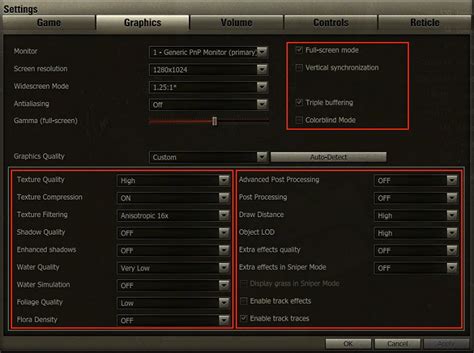
While driver optimization is powerful, it works best in conjunction with smart in-game settings. Always review and adjust a game’s graphics options. Prioritize settings that have a high impact on FPS, like shadow quality, global illumination, and anti-aliasing. Experiment to find the sweet spot between visual fidelity and performance that suits your preferences.
Step 5: Verify Monitor Settings
It’s surprisingly common for monitors not to be set to their native or highest refresh rate. Ensure your monitor is running at its advertised refresh rate (e.g., 144Hz, 240Hz) in both your Windows display settings and your GPU control panel. An optimized driver is useless if your display isn’t showcasing the extra frames.

Conclusion: Experiment and Conquer
Optimizing your NVIDIA or AMD drivers for maximum FPS in new AAA games is an ongoing process that requires a bit of experimentation. Start with the latest drivers, fine-tune your control panel settings for performance, utilize game-specific profiles, and always complement these with intelligent in-game adjustments. By diligently following these steps, you’ll ensure your gaming rig is consistently delivering the highest possible frame rates and the most enjoyable experience in your favorite titles.


