





How do I optimize Windows and GPU settings for maximum FPS in competitive PC games?

In the high-stakes world of competitive PC gaming, every frame per second (FPS) and millisecond of input lag can mean the difference between victory and defeat. Optimizing your system goes beyond just having powerful hardware; it involves meticulously tuning your operating system and graphics card settings to squeeze out every drop of performance. This guide will walk you through the essential steps to configure Windows and your GPU for maximum FPS and a buttery-smooth, responsive gaming experience.
Windows Operating System Optimization
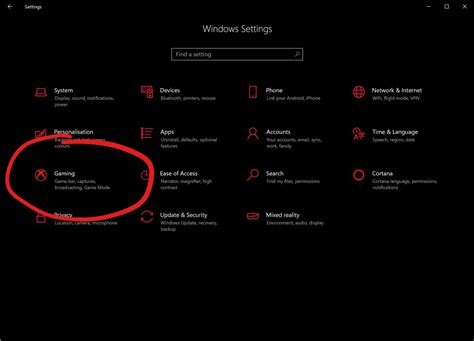
Your operating system can be a silent performance killer if not properly configured. Here are key Windows settings to adjust:
- Game Mode: Ensure Windows Game Mode is enabled. Go to
Settings > Gaming > Game Modeand toggle it “On.” This helps Windows prioritize your game and reduce background task interference. - Background Apps: Disable unnecessary background apps. Navigate to
Settings > Privacy > Background appsand turn off apps you don’t need running while gaming. This frees up CPU and RAM resources. - Power Plan: Set your power plan to “High Performance” or “Ultimate Performance.” Search for “Edit power plan” in the Windows search bar, then click “Power Options” and select the appropriate plan. Some modern systems might automatically handle this, but it’s good to double-check.
- Visual Effects: Reduce visual clutter. Search for “Adjust the appearance and performance of Windows,” go to the “Visual Effects” tab, and select “Adjust for best performance.” You can then manually re-enable specific effects like “Smooth edges of screen fonts” if desired.
- Notifications: Turn off notifications and Focus Assist. Go to
Settings > System > Notifications & actionsand disable all non-essential notifications. Enable Focus Assist during gaming sessions to prevent interruptions. - Hardware-accelerated GPU scheduling: For modern GPUs and Windows versions (2004 and later), enabling this can sometimes improve performance and reduce latency. Find it under
Settings > System > Display > Graphics settings.
Graphics Card (GPU) Driver and Software Settings
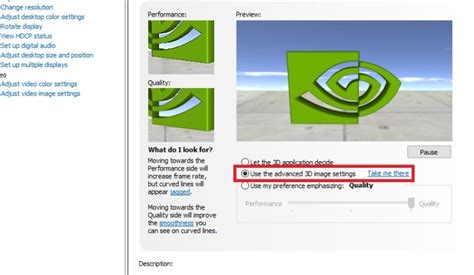
Your GPU is the heart of your gaming performance, and its accompanying software offers powerful optimization tools. Whether you have NVIDIA or AMD, the principles are similar:
- Update Drivers: Always keep your GPU drivers updated to the latest stable version. Both NVIDIA GeForce Experience and AMD Adrenalin Software provide easy ways to check for and install updates. Newer drivers often include performance optimizations for recent game titles.
- Global 3D Settings (NVIDIA Control Panel):
- Low Latency Mode: Set to “Ultra.” This mode queues frames just in time for the GPU, significantly reducing input lag.
- Power Management Mode: Select “Prefer maximum performance.” This ensures your GPU is always running at its highest clock speeds.
- Texture Filtering – Quality: Set to “High performance.”
- Vertical Sync (V-Sync): Turn “Off.” V-Sync introduces input lag to prevent screen tearing. If tearing is an issue and you have a high refresh rate monitor with G-Sync/FreeSync, use those technologies instead.
- Shader Cache Size: Set to “Unlimited” or a large value.
- Global Graphics (AMD Adrenalin Software):
- Radeon Anti-Lag: Enable this to reduce input lag.
- Radeon Boost: Experiment with this setting; it dynamically reduces resolution in fast-motion scenes to increase FPS.
- Radeon Image Sharpening: Can be enabled for visual clarity without a significant performance hit.
- Wait for Vertical Refresh (V-Sync): Set to “Off, unless application specifies.”
- Texture Filtering Quality: Set to “Performance.”
- Game-Specific Profiles: For your most played competitive titles, create or modify profiles within your GPU software. This allows for fine-tuning settings that might differ from your global preferences.
In-Game Settings for Maximum FPS
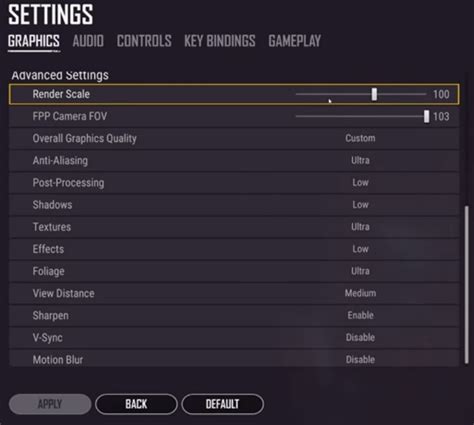
Once you’ve optimized Windows and your GPU software, the final frontier is the in-game settings. Many competitive players prioritize FPS over graphical fidelity. Here’s what to focus on:
- Resolution: Always play at your monitor’s native resolution for the sharpest image. Lowering resolution significantly increases FPS, but can make targets harder to see.
- Display Mode: Always use “Fullscreen Exclusive” mode if available. Borderless windowed or windowed modes can introduce input lag and reduce FPS.
- Texture Quality: This often has a minimal impact on FPS (depending on VRAM) but can be set to medium or low if VRAM is a bottleneck.
- Shadow Quality: One of the biggest FPS killers. Set to “Low” or “Off.”
- Anti-Aliasing: Often a heavy performance hit. Turn it “Off” or use the least demanding option (e.g., FXAA instead of MSAA).
- Post-Processing Effects: Things like Motion Blur, Bloom, Depth of Field, Lens Flare, and Vignette should generally be “Off.” They add visual flair but obscure vision and reduce FPS.
- Draw Distance / View Distance: Reduce these settings if they are impacting your FPS, but be mindful of competitive disadvantages (e.g., not seeing enemies from afar).
- Environmental Detail / Clutter: Lowering these reduces the number of objects rendered, improving FPS.
Monitor Settings and Refresh Rate
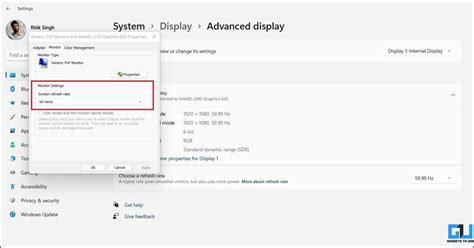
Even with optimal system settings, your monitor plays a crucial role in how smooth your game feels. Ensure your monitor is set to its highest refresh rate:
- Windows Display Settings: Right-click on your desktop, go to
Display settings > Advanced display settings > Display adapter properties for Display 1 > Monitor tab. Select your monitor’s highest refresh rate from the drop-down menu. - G-Sync / FreeSync: If your monitor and GPU support adaptive sync, ensure it’s enabled. This synchronizes your monitor’s refresh rate with your GPU’s frame rate, eliminating tearing without the input lag of V-Sync.
Regular Maintenance and Monitoring
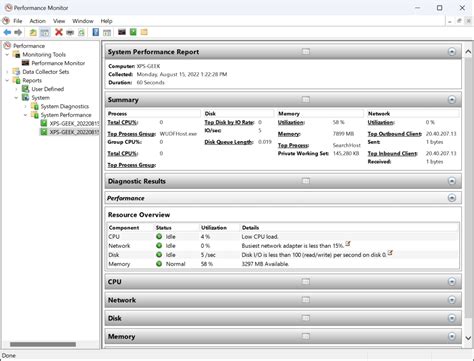
Optimization is not a one-time task. Regular maintenance ensures your system stays in top shape:
- Monitor Temperatures: Overheating components can throttle performance. Use tools like MSI Afterburner or HWMonitor to keep an eye on CPU and GPU temperatures.
- Keep Drivers Updated: As mentioned, new GPU drivers often bring performance improvements.
- Clean Your PC: Dust accumulation can lead to overheating. Regularly clean your case fans, CPU cooler, and GPU.
- Close Unnecessary Programs: Before launching a game, close any applications you don’t need, including web browsers, Discord (unless you’re using it for comms), and streaming apps.
By systematically applying these Windows and GPU optimizations, along with sensible in-game settings, you’ll be well on your way to achieving maximum FPS and a more competitive edge in your favorite PC games. Remember to test changes one by one to understand their impact and find the sweet spot for your specific hardware and games.



