





How do I optimize Windows settings for maximum gaming FPS on my custom PC build?
Building a custom PC is the first step towards an incredible gaming experience, but to truly maximize your frames per second (FPS), fine-tuning your Windows operating system is crucial. Even the most powerful hardware can be held back by inefficient software configurations. This guide will walk you through essential Windows settings adjustments designed to squeeze every last bit of performance out of your rig for gaming.
Optimize Your Power Plan
One of the most immediate impacts on your system’s performance comes from your power plan. By default, Windows often uses a balanced plan, which conserves energy but might limit your CPU and GPU’s full potential under load. For gaming, you want to ensure your components are receiving consistent power.
- Set to High Performance or Ultimate Performance: Go to Control Panel > Hardware and Sound > Power Options. Select ‘High Performance’ or, if available on your system, ‘Ultimate Performance’. If you don’t see ‘Ultimate Performance’, you can enable it via Command Prompt (Admin) by typing
powercfg -duplicatescheme e9a42b02-d5df-448d-aa00-03f1474967acand pressing Enter. - Customize Advanced Settings: Within your chosen plan, click ‘Change plan settings’ then ‘Change advanced power settings’. Ensure ‘Processor power management’ > ‘Minimum processor state’ is set to 100% when plugged in.
Enable Windows Game Mode
Game Mode is a Windows feature designed to optimize your PC for gaming. When enabled, it prioritizes your game’s CPU and GPU resources and suspends background tasks like Windows Update notifications, potentially leading to smoother gameplay and higher FPS.
- Access Game Mode Settings: Go to Settings > Gaming > Game Mode.
- Toggle On: Ensure the ‘Game Mode’ toggle is set to ‘On’. Windows will automatically apply optimizations when it detects you’re playing a game.
Adjust Graphics Settings and GPU Scheduling
Windows offers specific graphics settings that can directly impact your gaming performance, especially for modern GPUs.
- Hardware-accelerated GPU Scheduling: This feature can potentially reduce input latency and improve performance by allowing the GPU to manage its own video memory. Go to Settings > System > Display > Graphics settings. Toggle ‘Hardware-accelerated GPU scheduling’ to ‘On’. (Requires compatible hardware and drivers).
- Variable Refresh Rate (VRR): If you have a G-Sync or FreeSync monitor, enabling VRR can significantly reduce screen tearing. In the same Graphics settings menu, toggle ‘Variable refresh rate’ to ‘On’ if your system and display support it.
- Per-Application Graphics Performance: In ‘Graphics settings’, you can also specify high-performance preferences for individual games. Click ‘Browse’ to add your game’s executable, then select ‘Options’ and choose ‘High performance’ for your dedicated GPU.
Manage Background Processes and Notifications
Unnecessary applications running in the background consume valuable CPU, RAM, and GPU resources that could otherwise be allocated to your game. Similarly, distracting notifications can pull you out of the action.
- Background Apps: Go to Settings > Privacy > Background apps. Toggle off ‘Let apps run in the background’ entirely, or selectively disable apps you don’t need running in the background.
- Notifications & Focus Assist: Go to Settings > System > Notifications & actions. Turn off notifications for apps you don’t need during gaming. For more control, use ‘Focus assist’ (Settings > System > Focus assist) to suppress notifications automatically when you’re playing games or using specific apps.
![How to manage background apps in Windows 10 [Tip] | dotTech](/images/aHR0cHM6Ly90czMubW0uYmluZy5uZXQvdGg/aWQ9T0lQLlpIY3ByNkxjdjRxdTVPNVl6b1JfdWdIYUdTJnBpZD0xNS4x.webp)
Optimize Visual Effects and Startup Programs
While Windows’ visual flair looks nice, some effects consume system resources without contributing to gaming performance. Also, many programs automatically launch with Windows, slowing down your boot time and consuming memory.
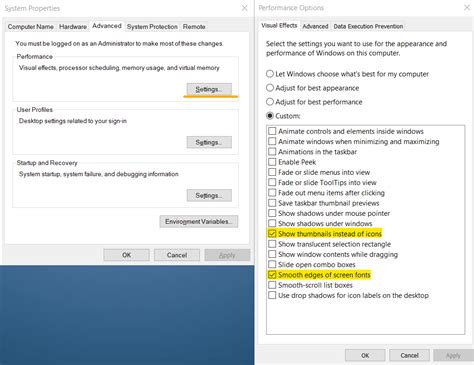
- Adjust Visual Effects: Search for ‘Adjust the appearance and performance of Windows’ in the Start menu. In the ‘Performance Options’ window, under the ‘Visual Effects’ tab, select ‘Adjust for best performance’ or ‘Custom’ and uncheck unnecessary animations and visual effects.
- Disable Startup Programs: Open Task Manager (Ctrl+Shift+Esc), go to the ‘Startup’ tab. Disable any programs that you don’t need to launch automatically with Windows. Be cautious not to disable essential system drivers or security software.

Keep Drivers Updated
While not a Windows *setting*, ensuring your graphics card, chipset, and other essential drivers are up-to-date is paramount for optimal gaming performance. Always download the latest stable drivers directly from your GPU manufacturer’s (NVIDIA, AMD, Intel) website and your motherboard manufacturer’s website.
Perform Regular Disk Maintenance
A cluttered or fragmented drive can also subtly impact performance, especially if your games are installed on an older Hard Disk Drive (HDD).
- Disk Cleanup: Search for ‘Disk Cleanup’ in the Start menu to remove temporary files and other junk.
- Defragment and Optimize Drives: Search for ‘Defragment and Optimize Drives’. While SSDs don’t need defragmentation, ensure your SSDs are ‘optimized’ regularly (which is TRIM for SSDs). For HDDs, regular defragmentation is beneficial.
Conclusion
Optimizing Windows for gaming is an ongoing process. After making these changes, restart your PC and test your favorite games to observe the FPS improvements. Remember that the impact of each setting can vary depending on your specific hardware and the game. Continuously monitor your performance and adjust settings as needed to maintain that smooth, high-FPS gaming experience on your custom-built machine.


