





How do I reduce input lag for competitive gaming? Monitor settings, peripherals, or OS tweaks?

In competitive gaming, every millisecond counts. Input lag—the delay between your action (like a mouse click) and its on-screen representation—can be the difference between victory and defeat. Minimizing this delay requires a holistic strategy, addressing various components of your gaming setup from hardware to software. Let’s delve into how you can shave off those precious milliseconds.
Monitor Settings: Your Visual Gateway
Your monitor is where you see the immediate results of your actions. Optimizing its settings is paramount:
- Refresh Rate: Higher refresh rates (144Hz, 240Hz, 360Hz) mean the monitor displays more frames per second, reducing the delay between frames and making motion appear smoother and more responsive. Ensure your monitor is set to its maximum refresh rate in your display settings.
- Response Time: This measures how quickly pixels can change color. Lower response times (1ms GTG – Grey-to-Grey) reduce ghosting and motion blur, making visuals clearer during fast-paced action.
- Overdrive/Response Time Setting: Many monitors have an ‘Overdrive’ or ‘Response Time’ setting in their OSD (On-Screen Display). Experiment with this; too high can cause inverse ghosting, but the optimal setting can significantly sharpen visuals without adding lag.
- Adaptive Sync (G-Sync/FreeSync): While these technologies prevent screen tearing and can make gameplay feel smoother, they can introduce a tiny amount of input lag if not configured correctly or if framerates drop significantly. For peak competitive play, some pros disable them and aim for framerates far exceeding their monitor’s refresh rate (e.g., 300+ FPS on a 144Hz monitor) to minimize latency.
- V-Sync: Always disable V-Sync in competitive games. It synchronizes your GPU’s frame output with your monitor’s refresh rate to prevent tearing but introduces substantial input lag.
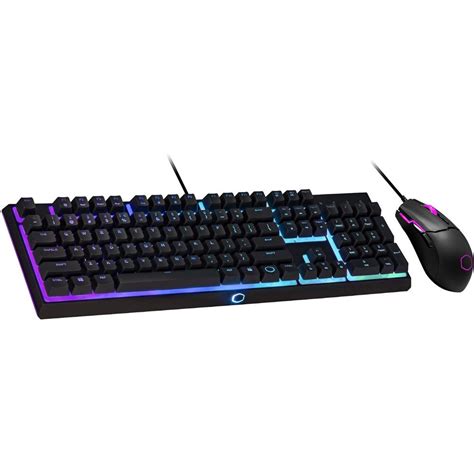
Peripherals: Bridging Your Actions
The devices you interact with directly play a critical role in input lag:
- Gaming Mouse:
- Polling Rate: Aim for a high polling rate (1000Hz or 1ms response time) which means the mouse reports its position to the PC 1000 times per second, reducing latency.
- DPI/CPI: While a higher DPI doesn’t reduce input lag directly, it allows for more precise tracking. Use a DPI that suits your gameplay and allows for raw input (no software acceleration).
- Wired vs. Wireless: High-end wireless gaming mice have virtually eliminated the latency gap with wired mice, often performing just as well or better due to advanced wireless technologies. However, ensure yours is a reputable gaming-grade wireless mouse.
- Mechanical Keyboard: Mechanical keyboards offer faster actuation points and more consistent key presses than membrane keyboards. Look for models with low debounce times, which refers to the brief delay before a key press is registered, preventing multiple inputs from a single press. Wired keyboards are generally preferred for competitive play over wireless.
- Controllers: For console gaming or PC games that support controllers, a wired connection will almost always offer lower input lag than Bluetooth or other wireless options.
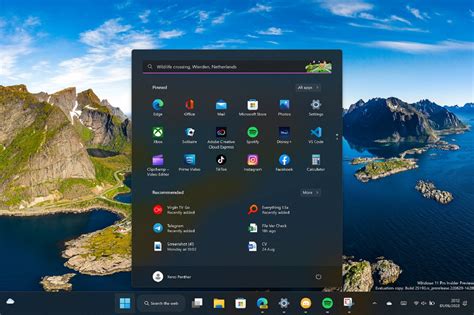
Operating System (OS) Tweaks: Optimizing the Core
Your operating system can introduce subtle delays if not properly configured:
- Power Plan: Set your Windows power plan to ‘High Performance’ or ‘Ultimate Performance’ to ensure your CPU and GPU always run at full speed.
- Game Mode (Windows 10/11): While intended to optimize gaming performance, its effectiveness can vary. Test it yourself; for some, it helps, for others, it introduces instability or minimal lag.
- Disable Mouse Acceleration: In Windows, disable ‘Enhance pointer precision’ (mouse acceleration) to ensure a 1:1 movement ratio between your physical mouse movement and on-screen cursor. Do this in both Windows settings and any game-specific settings.
- Background Processes: Close unnecessary background applications, browser tabs, and widgets that consume CPU, RAM, or GPU resources, which can indirectly contribute to lag.
- GPU Drivers: Keep your graphics card drivers updated to the latest version. NVIDIA and AMD frequently release drivers optimized for new games and performance, often including latency improvements.
- Fullscreen Optimizations: In Windows, right-click your game’s .exe file, go to Properties > Compatibility, and check ‘Disable fullscreen optimizations’. This can bypass some Windows rendering processes that might add latency.
In-Game & GPU Control Panel Settings
Your game’s internal settings and your GPU’s control panel offer further optimization:
- Graphics Settings: Generally, lower graphics settings (shadows, reflections, anti-aliasing) result in higher frame rates, which directly translates to lower input lag. Prioritize performance over visual fidelity for competitive edge.
- NVIDIA Reflex / AMD Anti-Lag: These technologies are specifically designed to reduce system latency. Enable them if your GPU supports them and the game has integrated them.
- Max Pre-Rendered Frames (NVIDIA) / Frame Rate Target Control (AMD): In your GPU control panel, setting ‘Max Pre-Rendered Frames’ to 1 (NVIDIA) or using ‘Frame Rate Target Control’ (AMD) can reduce CPU-to-GPU latency, though it might increase GPU utilization slightly.
Conclusion
Eliminating input lag is a continuous process of fine-tuning. There’s no single magic bullet; instead, it’s about systematically optimizing every link in the chain—from your monitor’s settings and your chosen peripherals to your operating system and in-game configurations. By implementing these strategies, you’ll ensure your actions translate to the screen with minimal delay, giving you the fastest, most responsive competitive gaming experience possible.


