How do I troubleshoot common game mod conflicts effectively?
Modding can breathe new life into your favorite games, offering everything from visual overhauls to entirely new gameplay mechanics. However, with the freedom of customization comes the challenge of mod conflicts. When two or more mods try to modify the same game file, script, or resource in incompatible ways, issues like crashes, graphical glitches, or broken quests can arise. Learning to effectively troubleshoot these conflicts is a crucial skill for any serious mod user.
Understanding the Roots of Conflict
Before diving into solutions, it’s helpful to understand why conflicts occur. Most stem from:
- File Overwrites: Two mods attempting to modify the same textures, meshes, or scripts, with the last one loaded ‘winning’ and potentially breaking the other.
- Load Order: The sequence in which mods are loaded by the game. An incorrect order can lead to unexpected behavior or outright crashes if dependencies aren’t met.
- Script Conflicts: Mods introducing or altering game scripts that interact poorly with other script modifications.
- Incompatibility: Some mods are simply not designed to work together, often stated by their creators.
Initial Steps and Best Practices
Prevention is always better than cure. Adopting these habits can significantly reduce future headaches:
- Read Mod Descriptions Thoroughly: Always check for compatibility notes, required dependencies, and known conflicts before installing any mod.
- Install One Mod at a Time: Especially for larger overhauls, install and test each mod individually. This makes it much easier to pinpoint the source of a new issue.
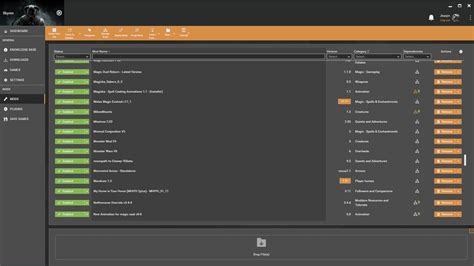
- Use a Mod Manager: Tools like Nexus Mod Manager, Mod Organizer 2, or Vortex are indispensable. They help manage installation, load order, and often identify potential conflicts automatically.
- Back Up Your Game: Before embarking on extensive modding, make a clean backup of your game’s installation folder and save files.
Systematic Troubleshooting Techniques
1. Check Your Load Order
This is often the most critical step. Mod managers usually have built-in tools for sorting load order (e.g., LOOT for Bethesda games). These tools analyze your installed mods and arrange them in an optimized sequence. If you’re manually managing, pay close attention to mod descriptions for specific load order instructions.

2. The 50/50 Method (Binary Search)
If your game is crashing or exhibiting strange behavior and you’re unsure which mod is causing it, the 50/50 method is highly effective:
- Disable half of your installed mods.
- Launch the game.
- If the problem persists, the conflicting mod is in the half you left enabled.
- If the problem disappears, the conflicting mod is in the half you disabled.
- Repeat the process, continually narrowing down the suspect group until you find the culprit.
3. Examine Error Logs
Many games or modding frameworks generate log files that record errors. These logs can provide invaluable clues about which files or scripts are causing issues. Common log locations include the game’s root directory, ‘My Documents’ folder, or specific mod manager folders.
4. Verify Game Files
Sometimes, conflicts can arise from corrupted game files rather than mods themselves, or from mods incompletely uninstalling. Use your game client’s (Steam, GOG, Epic) ‘verify integrity of game files’ feature to check for and repair any damaged core files.
5. Consult Community Resources
The modding community is a vast resource. If you’re stuck, chances are someone else has encountered and solved a similar problem. Check:
- Mod Pages: Comments sections often contain troubleshooting tips for common conflicts.
- Game-Specific Modding Forums: Dedicated forums (e.g., Nexus Forums, Reddit communities) are excellent places to ask for help or search for existing solutions.
- Wiki & Guides: Many popular games have extensive modding wikis or community-made guides.

Advanced Conflict Resolution
For more stubborn issues, you might need to dive deeper:
- Merge Patches: For games like Skyrim or Fallout, tools like xEdit (FO4Edit, SSEEdit) allow you to create ‘merge patches’ that combine conflicting records from multiple mods into a single file, resolving many overwrite issues.
- Cleaning Mods: Some older mods might contain ‘dirty edits’ that can cause instability. Tools like xEdit can also be used to clean these unnecessary edits.
- Clean Save Files: If you’ve uninstalled a mod mid-playthrough, especially one with complex scripts, you might need to revert to an earlier save made before the mod was installed, or even start a new game, as remnants can persist and cause issues.
Troubleshooting mod conflicts requires patience and a systematic approach. By following these steps, you’ll not only resolve immediate issues but also gain a deeper understanding of how your game and its mods interact, making your modding experience much smoother and more enjoyable in the long run.