





How do I troubleshoot game crashes caused by conflicting mods?
Understanding Mod Conflicts
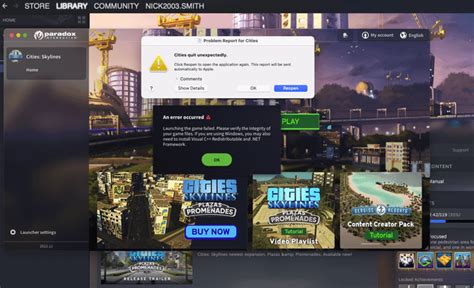
Modding a game can vastly enhance your experience, adding new content, improving graphics, or altering gameplay mechanics. However, when multiple mods try to change the same game files or systems in incompatible ways, conflicts arise, often leading to frustrating game crashes, freezes, or unexpected behavior. Successfully troubleshooting these issues requires a systematic approach.
The Basics: Backup and Verification
Before you dive into the labyrinth of mod conflicts, always prioritize safety. The first step in any troubleshooting process should be to secure your game data.
- Backup Your Saves: Copy your save game files to a safe location outside of your game directory. This ensures that even if you accidentally corrupt your main game files, your progress remains intact.
- Backup Your Game Folder: For heavily modded games, consider backing up your entire game installation folder, or at least your ‘Data’ or ‘Mods’ folder.
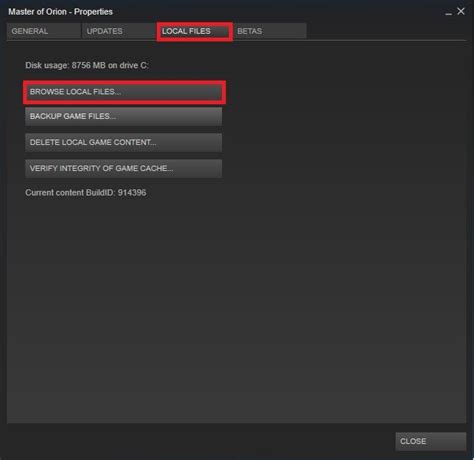
- Verify Game Files: Most game launchers (like Steam, GOG Galaxy, Epic Games Store) offer an option to verify the integrity of game files. This process checks for missing or corrupted core game files and replaces them, often fixing issues that aren’t mod-related but might be mistaken for such.
- Start Clean (Optional but Recommended): If verification doesn’t help, or if you’re facing persistent issues, consider doing a clean reinstallation of the game. Install it, run it once to ensure it works, then start adding mods systematically.
Pinpointing the Culprit: Isolation Techniques
The most challenging part of mod conflict troubleshooting is identifying which specific mod or combination of mods is causing the crash. Here are effective isolation methods:
- The 50/50 Method: This is a highly efficient technique for large mod lists. Disable half of your mods and test the game.
- If the crash persists, the conflicting mod is in the disabled half. Re-enable the working half, and repeat the 50/50 method on the problematic half.
- If the crash stops, the conflicting mod is in the enabled half. Disable the working half, enable the problematic half, and repeat the 50/50 method on this new problematic half.
- One by One Disablement: For smaller mod lists (under 20-30 mods), you can disable mods one by one, testing the game after each disablement, until the crash stops. The last mod you disabled is likely the culprit, or at least part of the conflict.
- Check Mod Requirements: Many mods require other specific mods (dependencies) to function correctly. Ensure you have all necessary prerequisite mods installed and activated. Missing dependencies are a common source of crashes.
Continue this process until you narrow it down to a small group or a single mod.
Leveraging Mod Managers and Advanced Tools
Modern modding is significantly streamlined by mod managers, which are invaluable for conflict resolution.
- Load Order Optimization: Most mod managers (like Mod Organizer 2, Vortex, Nexus Mod Manager, or specific game launchers) allow you to sort your load order. The order in which mods load can drastically impact stability. Generally, smaller, foundational mods should load before larger content-adding mods. Texture packs usually load last. Consult mod pages for recommended load order positions. Tools like LOOT (Load Order Optimization Tool) can automate this for many games.

- Conflict Resolution Patches: Some communities create dedicated patches to resolve known conflicts between popular mods. Search the modding community or Nexus Mods for specific conflict resolution patches for your game and mod list. Mod managers often have built-in conflict detection features that can highlight overrides and potential issues.
- Reading Crash Logs: If your game generates crash logs, they are often the most direct source of information. While cryptic, they can point to specific files or memory addresses involved in the crash, which can often be traced back to a particular mod. Tools like FallrimTools (for Bethesda games) or specific game debuggers can help interpret these logs.
Best Practices for Modding
Prevention is always better than cure. Following these best practices can significantly reduce your chances of encountering mod conflicts:
- Read Mod Descriptions Carefully: Always read the entire mod description, requirements, installation instructions, and known incompatibilities before downloading.
- Check Comments and Bug Reports: Look at the mod’s comment section or bug reports page on its hosting site. Other users may have already reported the exact issue you’re facing, along with potential solutions.
- Use Reputable Sources: Stick to well-known modding websites (like Nexus Mods) that offer robust community support and file integrity checks.
- Install Mods Incrementally: Don’t install 50 mods at once. Install a few, test them, and ensure stability before adding more. This makes it much easier to identify new conflicts.
- Keep Mods Updated: Outdated mods can cause compatibility issues with game patches or other mods. Regularly check for updates for your installed mods.
Conclusion
Troubleshooting game crashes caused by conflicting mods can be a time-consuming process, but with patience and a systematic approach, you can usually identify and resolve the issues. By leveraging backup strategies, isolation techniques, mod management tools, and proactive best practices, you can enjoy a stable and richly modded gaming experience. Remember, the modding community is a great resource, so don’t hesitate to seek help on forums or discords if you get stuck.

