How to boost FPS in demanding PC games without upgrading my GPU?

Optimizing In-Game Graphics Settings
The first and most impactful step to increasing your FPS without touching hardware is to dive deep into your game’s graphics settings. While tempting to crank everything to “Ultra,” understanding which settings have the biggest performance hit allows for strategic reductions. Start by lowering the overall graphics preset from High or Ultra to Medium or even Low and test the difference. Then, fine-tune individual settings.
Resolution: The FPS King
Your display resolution has the most significant impact on performance. Playing at 1080p will yield much higher frame rates than 1440p or 4K. If you’re struggling, consider dropping the resolution slightly (e.g., from 1920×1080 to 1600×900) or using a dynamic resolution scaling feature if the game supports it. This renders the game at a lower resolution internally while upscaling it to your monitor’s native resolution, often with minimal visual compromise.
Key Graphics Settings to Tweak
- Shadows: Often one of the most demanding settings. Lowering shadow quality or resolution can provide a substantial FPS boost.
- Anti-Aliasing (AA): Reduces jagged edges but can be very resource-intensive. Try less demanding AA methods like FXAA or TAA instead of MSAA, or disable it entirely if acceptable.
- Reflections & Ambient Occlusion (AO): These add realism but come at a high performance cost. Reducing their quality or disabling them can free up valuable frames.
- Volumetric Effects: Smoke, fog, and light shafts look great but can heavily impact performance, especially in scenes with many such effects.
- Texture Quality: This primarily affects VRAM usage. If your GPU has limited VRAM (e.g., 2GB or 4GB), lowering texture quality can prevent stuttering. If you have enough VRAM, this setting has a relatively low performance impact on the GPU core.
- Draw Distance / Level of Detail (LoD): Affects how far objects are rendered. Lowering this can improve CPU and GPU performance, especially in open-world games.

Optimizing Your GPU Drivers and System Software
Beyond in-game settings, ensuring your system’s software environment is optimized is crucial for squeezing out every possible frame.
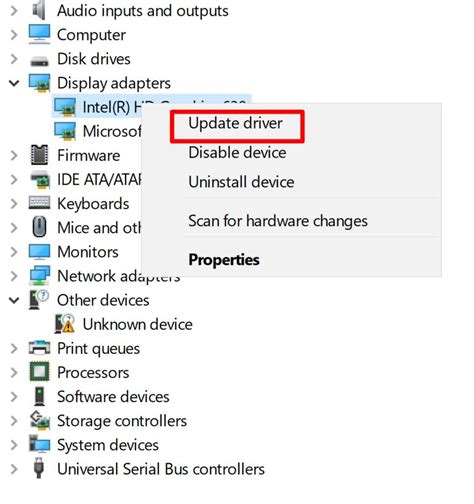
Update Your Graphics Drivers
This is non-negotiable. NVIDIA, AMD, and Intel frequently release driver updates that include performance optimizations for new and popular games. Always download the latest stable drivers directly from your GPU manufacturer’s website. A clean install (using the “Custom/Advanced” option and selecting “Perform a clean installation”) is often recommended to remove old driver files that might cause conflicts.
Windows Game Mode and Background Processes
Windows 10 and 11 offer a “Game Mode” feature designed to prioritize gaming performance by allocating system resources and preventing background updates. Ensure it’s enabled (Settings > Gaming > Game Mode). Additionally, close any unnecessary background applications like web browsers, streaming apps, or download clients while gaming. These can consume valuable CPU cycles and RAM.
Disable Overlays and Unnecessary Software
Overlays from Discord, Steam, Xbox Game Bar, NVIDIA GeForce Experience, or AMD Radeon Software, while convenient, can sometimes introduce performance overhead or instability. If you’re experiencing stuttering or lower-than-expected FPS, try disabling these overlays one by one to see if there’s an improvement.
System-Level Tweaks for Enhanced Performance
Diving deeper into your operating system and even BIOS can reveal more opportunities for performance gains.
Power Plan Settings
Ensure your Windows power plan is set to “High Performance” (or “Ultimate Performance” if available). This prevents your CPU and GPU from downclocking to save power, ensuring they’re always ready to deliver maximum performance. You can find this in Control Panel > Hardware and Sound > Power Options.
Optimize Storage Drives
If you’re still using a Hard Disk Drive (HDD), ensure it’s regularly defragmented. For Solid State Drives (SSDs), defragmentation is unnecessary and can reduce lifespan, but ensure you have sufficient free space (at least 15-20%) for optimal performance. Moving games to an SSD if possible can significantly reduce loading times and sometimes in-game stutter.
Memory (RAM) Management and Virtual Memory
Having sufficient RAM is vital. If you only have 8GB, closing background apps becomes even more critical. For virtual memory (page file), Windows usually manages this well, but in extreme cases of low RAM, you might consider manually setting a larger, fixed size on a fast SSD, though this is often a last resort.
BIOS/UEFI Settings: XMP Profile
If your RAM modules are rated for higher speeds than your system’s default (e.g., 3200MHz but running at 2133MHz), you might need to enable the XMP (Extreme Memory Profile) or DOCP (Direct Overclock Profile) in your motherboard’s BIOS/UEFI settings. This allows your RAM to run at its advertised speed, which can boost CPU-dependent games.
Hardware Maintenance and Cooling
An often-overlooked aspect of performance is the physical health and cooling of your PC components. Overheating can lead to thermal throttling, where your CPU or GPU automatically reduces its clock speed to prevent damage, directly impacting FPS.
Clean Your PC Regularly
Dust is the enemy of performance. Over time, dust accumulates in heatsinks, fans, and vents, impeding airflow and trapping heat. Regularly (every 3-6 months) clean your PC internals with compressed air, paying special attention to your CPU cooler, GPU heatsink, and case fans. Ensure there are no dust bunnies obstructing fan blades or radiator fins.
Monitor Temperatures and Improve Airflow
Use monitoring software (like HWMonitor, MSI Afterburner, or HWiNFO) to keep an eye on your CPU and GPU temperatures while gaming. If they consistently hit high temperatures (e.g., GPU above 80-85°C, CPU above 90°C), consider improving your case airflow by ensuring proper fan placement (intake and exhaust) or replacing stock coolers with better aftermarket options if thermal throttling is severe.
Reapply Thermal Paste (Advanced)
If your CPU or GPU is several years old and consistently runs hot even after cleaning, the thermal paste between the chip and its heatsink might have dried out. Reapplying fresh thermal paste can significantly improve heat transfer, but this is a more advanced procedure that requires careful disassembly and reassembly of cooling components.

Conclusion: Experiment and Fine-Tune
Boosting FPS without a GPU upgrade is entirely possible through a combination of smart software configuration and diligent hardware maintenance. The key is to approach it systematically: start with the most impactful changes (in-game settings, driver updates), monitor your results, and then move on to more granular system tweaks and hardware checks.
Remember that every game and PC setup is unique. What works best for one game might not be ideal for another. Be prepared to experiment with different settings, test thoroughly, and find the perfect balance between visual fidelity and smooth, enjoyable frame rates. With a bit of effort, you can extend the life of your current GPU and continue to enjoy demanding titles.