





How to boost FPS in modern PC games on older hardware?
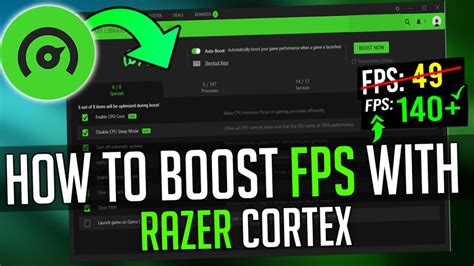
Modern PC games demand increasingly powerful hardware, often leaving those with older systems feeling left behind. While you might not achieve Ultra settings at 4K, it’s entirely possible to significantly boost your frame rates per second (FPS) and enjoy a smoother gaming experience on your trusty, aging machine. This guide will walk you through a series of practical software tweaks, hardware maintenance tips, and strategic budget upgrades to squeeze every last frame out of your setup.
The Foundation: Software Optimization is Key
Before you even think about opening your PC case, there’s a wealth of performance to be gained through software adjustments. These are often the easiest and most impactful changes you can make.
Update Graphics Drivers Regularly
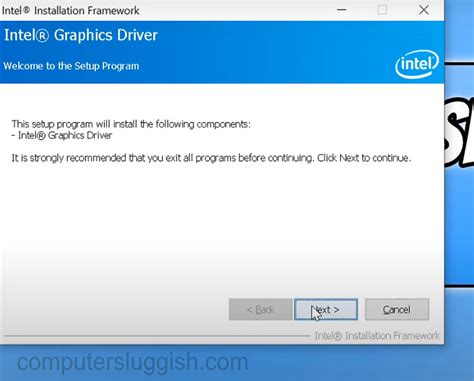
This cannot be stressed enough. NVIDIA, AMD, and Intel frequently release driver updates that include performance optimizations for new games, bug fixes, and general improvements. Always download the latest stable drivers directly from your GPU manufacturer’s website. A clean install is often recommended to avoid conflicts with older driver files.
Master Your In-Game Graphics Settings
This is where the magic truly happens for older hardware. Every setting has a performance cost, and knowing which ones to tweak can dramatically improve your FPS without making the game look terrible. Prioritize lowering these:
- Resolution: Lowering this from 1080p to 900p or even 720p can give you huge FPS gains. You can also use “render scale” options if available, which lowers the internal rendering resolution while keeping the UI sharp.
- Shadow Quality: Shadows are notoriously demanding. Reducing shadow quality or disabling them entirely can provide a massive boost.
- Anti-Aliasing (AA): While AA makes jagged edges smoother, it’s very GPU intensive. Try disabling it or using less demanding forms like FXAA or TAA instead of MSAA.
- Texture Quality: This impacts VRAM usage. If you have a GPU with 4GB VRAM or less, keep textures on Medium or Low.
- Post-Processing Effects: Things like Motion Blur, Depth of Field, Bloom, and Lens Flares can often be disabled with minimal visual impact and noticeable FPS gains.
- Draw Distance / View Distance: Lowering these reduces the amount of detail rendered in the distance, saving CPU and GPU cycles.
- Ambient Occlusion: Adds realistic shadows where objects meet, but it’s very demanding. Disable it or set it to a lower quality.

Optimize Your Windows System
Your operating system can also be a bottleneck. Make sure Windows is optimized for gaming:
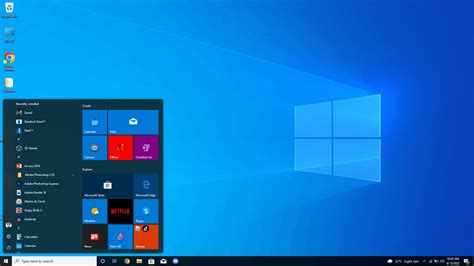
- Game Mode: Enable Windows 10/11 Game Mode (Settings > Gaming > Game Mode) as it prioritizes game processes.
- Power Plan: Set your power plan to “High Performance” (Control Panel > Hardware and Sound > Power Options).
- Disable Background Apps: Close any unnecessary programs running in the background (web browsers, streaming apps, cloud storage clients) before launching a game.
- Disable Visual Effects: In System Properties (Advanced tab > Performance Settings), select “Adjust for best performance.”
- Update Windows: Ensure your OS is up to date, as Microsoft often includes performance improvements.
Hardware Maintenance & Minor Tweaks
Even the most powerful hardware will underperform if it’s not well-maintained. A little TLC can go a long way.
Clean Your PC and Monitor Thermals
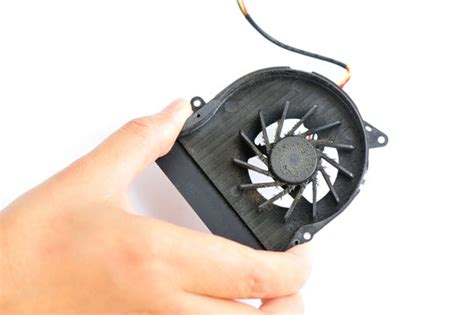
Dust buildup is an FPS killer. It restricts airflow, causing components to overheat and “thermal throttle” (reduce performance to prevent damage). Regularly clean your CPU cooler, GPU heatsink, and case fans with compressed air. Monitor your CPU and GPU temperatures using software like HWMonitor or MSI Afterburner. Lower temperatures mean more consistent performance.
RAM Management and Virtual Memory
If you have 8GB of RAM or less, running modern games can be challenging. Ensure you have as few background applications open as possible. Windows uses “virtual memory” (a page file on your storage drive) when RAM runs out. While an SSD is best for this, ensure your page file is managed by the system or set to a reasonable size on your fastest drive.
Strategic (Budget) Upgrades for Older Hardware
Sometimes, software tweaks aren’t enough. If you have a small budget, certain upgrades offer excellent performance-per-dollar, even on an older system.
SSD: The Game-Changer for Load Times
While an SSD won’t directly boost your in-game FPS, it dramatically improves game load times, level transitions, and overall system responsiveness. Upgrading from an HDD to an SSD is one of the most noticeable improvements you can make, making the entire gaming experience feel smoother and faster. Install Windows and your most-played games on it.
RAM: More is Often Better
If you’re still on 4GB or even 8GB of RAM, upgrading to 16GB (or at least 8GB if you have less) can significantly improve performance in modern, RAM-hungry titles. Ensure you buy RAM compatible with your motherboard and CPU.
GPU: The Biggest Impact (Even Second-Hand)
For gaming, the graphics card is usually the most important component. If you can afford even a second-hand mid-range GPU from a few generations ago (e.g., an NVIDIA GTX 1060 or AMD RX 580), it can provide an enormous FPS boost over integrated graphics or a very old discrete card. Research compatibility with your power supply and motherboard.
Conclusion: Realistic Expectations Lead to Satisfying Results
Boosting FPS on older hardware is a balancing act between visual fidelity and performance. By diligently applying software optimizations, maintaining your system, and considering strategic budget upgrades, you can breathe new life into your aging PC and enjoy a much more playable experience in modern titles. Remember to set realistic expectations; while you might not hit 144 FPS on Ultra, achieving a stable 30-60 FPS on lower settings is a very achievable and satisfying goal.


