





How to boost FPS on my gaming PC and optimize GPU settings?
Unleashing Your Gaming PC’s Full Potential
Achieving smooth, high frame rates (FPS) is the holy grail for any PC gamer. Higher FPS not only makes games look better but also provides a more responsive and enjoyable experience, giving you an edge in competitive titles. While a powerful GPU is essential, optimizing your existing hardware and software can significantly boost performance without spending a dime on upgrades. This guide will walk you through various steps, from simple tweaks to advanced GPU settings, to help you squeeze every last frame out of your gaming rig.
![How to Improve PC Performance for Gaming [Ultimate Guide]](/images/aHR0cHM6Ly90czMubW0uYmluZy5uZXQvdGg/aWQ9T0lQLmJ2LVBEMHhGTnNRZXdQY2FfXzBvMUFIYUVIJnBpZD0xNS4x.webp)
The Foundation: Software Updates and System Hygiene
1. Update Your Graphics Drivers Regularly
This is arguably the most critical step. NVIDIA and AMD frequently release new drivers that include performance optimizations for the latest games and bug fixes. Always ensure you’re running the most up-to-date drivers for your graphics card. You can download them directly from the manufacturer’s website (NVIDIA GeForce Experience or AMD Radeon Software) or through their respective update utilities.
2. Optimize In-Game Graphics Settings
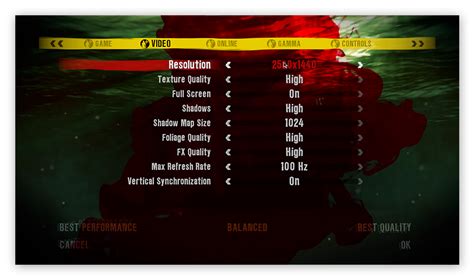
Every game offers a plethora of graphical options, and knowing which ones to tweak can dramatically impact FPS. Start by lowering demanding settings like:
- Resolution: Dropping from 4K to 1440p or 1080p yields massive FPS gains.
- Texture Quality: High-resolution textures consume VRAM. Lowering them can help, especially on GPUs with less VRAM.
- Shadows: Shadows are notoriously performance-intensive. Reducing shadow quality or disabling them entirely provides a significant boost.
- Anti-Aliasing: Techniques like MSAA or TAA can be very demanding. Consider FXAA or less aggressive options, or even disabling it if you’re desperate for frames.
- Reflections & Global Illumination: These add realism but come at a high performance cost.
- Draw Distance/LOD: Reducing how far objects are rendered can improve performance in open-world games.
Experiment with settings. Often, a slight drop in visual fidelity is barely noticeable but can give you a substantial FPS increase.
3. Close Background Applications
Programs running in the background consume CPU, RAM, and even GPU resources. Before launching a game, close unnecessary web browsers, chat applications, streaming services, and other demanding software. Use Task Manager (Ctrl+Shift+Esc) to identify and end processes that are hogging resources.
4. Windows Game Mode and Power Plan
- Game Mode: Windows 10/11 includes a Game Mode designed to prioritize your game’s performance. Ensure it’s enabled via
Settings > Gaming > Game Mode. - Power Plan: Set your power plan to “High Performance” (or “Ultimate Performance” if available) in
Control Panel > Hardware and Sound > Power Options. This ensures your CPU and GPU aren’t being throttled to save power.
Diving Deeper: GPU Control Panel Optimization
Your graphics card’s control panel (NVIDIA Control Panel or AMD Radeon Software) offers advanced settings that can fine-tune performance on a global or per-game basis.
1. NVIDIA Control Panel Settings
- Manage 3D Settings > Program Settings: You can apply specific settings for individual games.
- Power Management Mode: Set to “Prefer maximum performance” to ensure your GPU always runs at its highest clock speeds.
- Low Latency Mode (NULL): Experiment with “On” or “Ultra” to reduce input lag, especially in competitive titles.
- Texture Filtering – Quality: Set to “High performance.”
- Shader Cache: Enable it to reduce load times and stuttering.
- Vertical Sync: If you experience screen tearing and your monitor doesn’t have G-Sync/FreeSync, try “Fast Sync” (NVIDIA) or “Enhanced Sync” (AMD) instead of traditional VSync, which can introduce input lag. Otherwise, keep it off for maximum FPS.
2. AMD Radeon Software Settings
- Gaming Tab: Find your games here and apply profiles.
- Radeon Boost: Dynamically lowers resolution during fast-motion scenes for increased FPS.
- Radeon Anti-Lag: Similar to NVIDIA’s Low Latency Mode, it reduces input lag.
- Image Sharpening: Can enhance visual clarity without a significant performance hit.
- Texture Filtering Quality: Set to “Performance.”
- Enhanced Sync: An alternative to VSync that aims to reduce tearing without the input lag penalty.

3. GPU Overclocking (Advanced)
Overclocking your GPU can yield additional FPS, but it comes with risks. It increases power consumption and heat output, potentially leading to instability or reduced hardware lifespan if not done carefully. Use reputable software like MSI Afterburner or EVGA Precision X1, and only increase clock speeds and memory frequencies incrementally, stress-testing thoroughly after each adjustment.
Hardware Checks: When Software Isn’t Enough
1. Monitor Temperatures
Overheating components (CPU and GPU) will throttle their performance to prevent damage, leading to significant FPS drops. Use monitoring software (e.g., HWMonitor, MSI Afterburner) to keep an eye on your temps. If they’re consistently high (above 85°C for GPU, 90°C for CPU under load), consider improving your case airflow, cleaning dust, or upgrading your cooler.

2. Clean Your PC
Dust buildup inside your PC acts as an insulator, trapping heat and hindering airflow. Regularly clean your case fans, CPU cooler, and GPU heatsink with compressed air. A clean PC runs cooler and more efficiently.
3. Check for Bottlenecks
Sometimes, your GPU isn’t the limiting factor. An old or underpowered CPU, insufficient RAM (less than 16GB for modern gaming), or a slow storage drive (HDD instead of SSD) can bottleneck even the most powerful graphics card. Monitor your CPU and RAM usage during gaming to identify if they are hitting 100% while your GPU is underutilized.

Conclusion
Boosting your gaming PC’s FPS is a multi-faceted process that involves a combination of software optimization, careful GPU settings adjustment, and maintaining healthy hardware. By systematically working through these steps, you can significantly improve your gaming experience, enjoying smoother visuals and more responsive gameplay without necessarily needing to buy new components. Remember to regularly update your drivers, monitor your system, and experiment with settings to find the sweet spot for your specific setup and favorite games.



