





How to boost gaming FPS without upgrading hardware?

Unleash Your PC’s Gaming Potential Without Spending a Dime
In the world of PC gaming, buttery-smooth frame rates per second (FPS) are the holy grail. While upgrading hardware is the most straightforward path to higher FPS, it’s not always feasible or necessary. Many gamers overlook the significant performance gains that can be achieved through software tweaks, system optimization, and smart configuration choices. This article will guide you through a comprehensive set of strategies to boost your gaming FPS, allowing you to enjoy a smoother, more responsive gaming experience on your current rig.
Mastering In-Game Graphics Settings
The first and most impactful area to explore is your game’s internal graphics settings. Developers often include a myriad of options, and understanding what each does can be key to finding the perfect balance between visual fidelity and performance. Start by lowering settings that are known FPS hogs:
- Resolution: The single biggest factor. Dropping from 4K to 1440p or 1080p will yield massive gains. You can also experiment with resolution scaling.
- Shadow Quality: Shadows are notoriously demanding. Reducing their quality or even disabling them can free up significant resources.
- Anti-Aliasing: While it smooths jagged edges, high anti-aliasing (like MSAA) can be very performance-intensive. Try lower settings like FXAA or TAA, or disable it if performance is critical.
- Texture Quality: This impacts VRAM usage. If you have limited VRAM (e.g., 4GB or less), lower texture quality can prevent stuttering.
- Reflections and Ambient Occlusion: These effects add realism but come at a high computational cost. Try reducing or disabling them.
- V-Sync: While it prevents screen tearing, V-Sync can introduce input lag and cap your FPS to your monitor’s refresh rate. Disable it if you prioritize raw FPS.
Experiment with settings one by one, testing the FPS after each change to pinpoint the most effective adjustments for your system and game.

Keep Your Drivers Up-to-Date
Outdated graphics drivers are a common culprit for suboptimal gaming performance. NVIDIA, AMD, and Intel regularly release new driver versions that include performance optimizations for recent game titles, bug fixes, and general stability improvements. Always download drivers directly from your GPU manufacturer’s official website.
- Graphics Drivers: This is paramount. Use GeForce Experience (NVIDIA) or Radeon Software (AMD) to check for and install the latest drivers, or download them manually.
- Chipset Drivers: While less frequent, keeping your motherboard’s chipset drivers updated can also contribute to overall system stability and performance.
A clean installation of new drivers (often an option in the installer) can help prevent potential conflicts.
Optimize Your Operating System
Your operating system, particularly Windows, can be a major drain on resources if not properly configured for gaming. Several built-in features and settings can be tweaked:
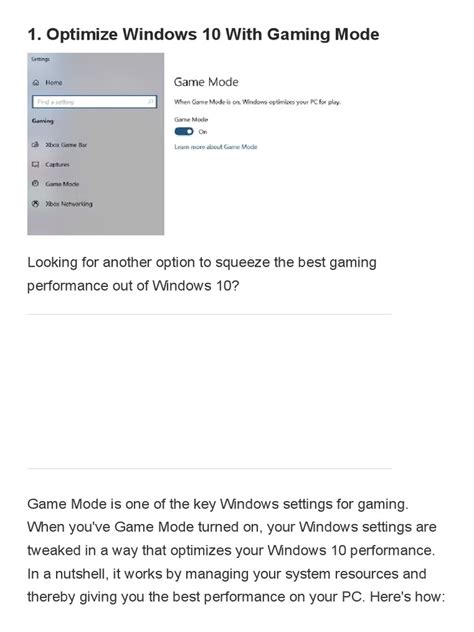
- Windows Game Mode: Ensure Game Mode is enabled in Windows settings (Settings > Gaming > Game Mode). This prioritizes your game’s resources and suppresses background activities.
- Disable Background Apps: Go to Settings > Privacy > Background apps and turn off apps you don’t need running in the background.
- Power Plan Settings: Set your power plan to “High Performance” (or “Ultimate Performance” if available) in Control Panel > Hardware and Sound > Power Options. This ensures your CPU and GPU aren’t being throttled.
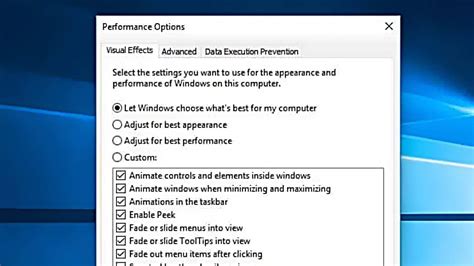
- Visual Effects: Reduce demanding visual effects in Windows. Right-click “This PC” > Properties > Advanced system settings > Performance > Settings, then choose “Adjust for best performance” or customize.
- Startup Programs: Open Task Manager (Ctrl+Shift+Esc), go to the “Startup” tab, and disable unnecessary programs from launching with Windows.

Maintain a Tidy System
A cluttered and fragmented system can impede performance, especially for games that frequently access storage. Regular maintenance helps keep your PC running smoothly:
- Disk Cleanup: Use the built-in Disk Cleanup utility to remove temporary files, old updates, and other junk files that accumulate over time.
- Defragment Your Hard Drive (HDD only): If your games are installed on an older Hard Disk Drive (HDD), defragmenting it can improve load times. Do NOT defragment Solid State Drives (SSDs), as it can reduce their lifespan and offers no performance benefit.
- Close Browser Tabs and Unnecessary Applications: Before launching a game, close any applications, browser tabs, or background processes that consume significant RAM or CPU cycles.
Exploring Advanced Tweaks (Use with Caution)
For those willing to delve a little deeper, some more advanced tweaks can offer additional FPS gains, though they come with a need for careful execution:
- Resolution Scaling: Many modern games offer an in-game resolution scaler. You can render the game at a lower internal resolution (e.g., 80% of 1080p) and then upscale it to your native display resolution. This can provide a noticeable FPS boost with minimal visual degradation, especially in fast-paced games.
- GPU Control Panel Settings: Beyond driver updates, your GPU control panel (NVIDIA Control Panel or AMD Radeon Software) offers global and per-game settings. Experiment with options like “Max Frame Rate,” “Low Latency Mode,” or texture filtering quality to find optimal performance settings.
- Overclocking (CPU/GPU): This involves increasing the clock speed of your CPU or GPU beyond their factory settings. While it can provide significant performance boosts, it also increases heat generation and power consumption and carries a risk of instability or hardware damage if not done correctly. Only attempt this if you are comfortable with the risks and have adequate cooling.
Conclusion
Achieving higher FPS in your favorite games doesn’t always require an expensive hardware overhaul. By meticulously optimizing your in-game settings, keeping your drivers current, fine-tuning your operating system, and maintaining a clean system, you can unlock significant performance improvements from your existing gaming PC. Take the time to experiment with these strategies, and you’ll be surprised at how much smoother and more enjoyable your gaming experience becomes.


