How to diagnose and fix common mod conflicts for stable gameplay?
Understanding Mod Conflicts: A Gamer’s Essential Guide
For many PC gamers, mods are the lifeblood of extended gameplay, offering new content, enhanced graphics, and innovative mechanics. However, the joy of modding often comes with the frustrating challenge of mod conflicts. When multiple modifications try to alter the same game files or scripts in incompatible ways, the result can be anything from minor glitches to outright game crashes. This guide will walk you through the process of identifying, diagnosing, and ultimately fixing these common conflicts, paving the way for a stable and enjoyable modded experience.
![Mod The Sims - Mod Conflict Detector [Update 03/03/2018]](/images/aHR0cHM6Ly90czMubW0uYmluZy5uZXQvdGg/aWQ9T0lQLlZNY3E5TlgzMk5tVHZidGFaRm9OT1FIYUQ1JnBpZD0xNS4x.webp)
Identifying the Symptoms of a Conflict
Before you can fix a problem, you need to recognize its signs. Mod conflicts manifest in various ways, and understanding these symptoms is the first step towards a solution. Common indicators include:
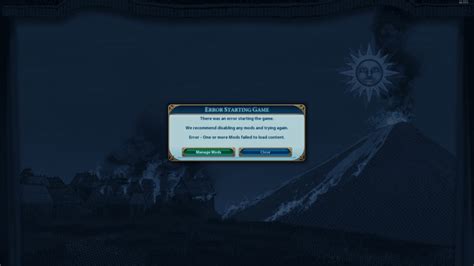
- Frequent Crashes to Desktop (CTD): The most obvious and frustrating symptom, often occurring at specific points in the game or when loading saves.
- Graphical Glitches: Textures not loading, incorrect colors, strange artifacts, or character models behaving erratically.
- Broken Quests or Mechanics: Non-playable characters (NPCs) not performing their actions, quest markers pointing to wrong locations, or core game systems failing.
- Infinite Loading Screens: Getting stuck on a loading screen, preventing progress into the game world or new areas.
- Unusual Game Behavior: Anything that seems “off” or unexpected, from missing sounds to incorrect item descriptions.
Initial Diagnostic Steps
1. Replicate the Issue
Try to make the problem happen consistently. Does it occur after loading a specific save? In a particular area? After using a certain item? Pinpointing the trigger can significantly narrow down the potential culprits.
2. Check Mod Load Order
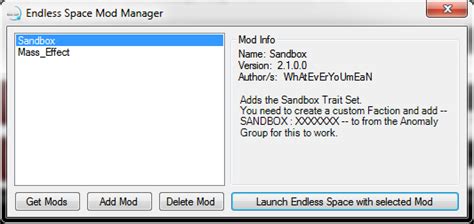
Many games rely heavily on a specific load order for mods. Tools like LOOT (Load Order Optimisation Tool) for Bethesda games, or built-in mod managers, can automatically sort your mods. An incorrect load order is a frequent cause of conflicts, as mods loaded later can overwrite or conflict with those loaded earlier.
3. The “One-by-One” Method (Binary Search)
This is often the most effective, albeit time-consuming, method. The goal is to isolate the conflicting mod(s):
- Disable half of your mods and test the game.
- If the problem persists, the conflict is in the enabled half; if it disappears, it’s in the disabled half.
- Continue halving the problematic group until you identify the specific mod(s) causing the issue.
Alternatively, if you suspect a newly installed mod, disable only that mod and test. If the issue resolves, you’ve found your culprit.
4. Consult Crash Logs and Error Messages
Many games or modding frameworks generate crash logs or provide error messages. While often cryptic, these logs can contain file paths or mod names that point directly to the source of the conflict. Search online forums or the mod’s description page for explanations of specific error codes.
Common Conflict Types and Resolution Strategies
1. Overwriting Files
When two mods try to modify the same game file (e.g., a texture, a script, or a record), one will inevitably overwrite the other. This isn’t always a problem, but it can lead to unintended consequences.
- Resolution: Use a mod manager that highlights file conflicts (like Mod Organizer 2). You might need to adjust load order, create a “patch” mod that combines desired changes, or choose which mod’s changes you prefer.
2. Scripting Conflicts
Two mods trying to execute incompatible scripts or hook into the same game function can cause crashes or broken mechanics.
- Resolution: These are harder to diagnose without deep technical knowledge. Often, mod authors provide compatibility patches for popular mods. Look for these or seek advice from the modding community. Sometimes, merging the conflicting scripts using tools (if available for your game) might be an option, but this is advanced.
3. Missing Dependencies
A mod might require another specific mod or DLC to function correctly. If the dependency is missing, the mod will fail to load or cause errors.
- Resolution: Always read mod descriptions carefully. Mod managers usually warn about missing masters or dependencies. Install all required files.
Best Practices for Stable Modding
- Read Mod Descriptions Thoroughly: Pay attention to compatibility notes, known issues, and required dependencies.
- Install Mods Incrementally: Don’t install dozens of mods at once. Add a few, test, then add more. This makes it easier to pinpoint new conflicts.
- Use a Robust Mod Manager: Tools like Mod Organizer 2 (MO2), Vortex, or similar game-specific managers provide better control over load order, file overwrites, and profiles.
- Backup Your Game and Save Files: Before making significant changes, always create a backup. This can save you from having to reinstall everything.
- Consult the Community: Modding forums, Discord servers, and wikis are invaluable resources. Chances are, someone else has encountered and solved your specific conflict.

Conclusion
Mod conflicts are an inevitable part of the modding experience, but they don’t have to ruin your game. By systematically diagnosing symptoms, utilizing diagnostic tools, and applying the right resolution strategies, you can overcome these hurdles. Embrace the learning process, leverage the vast modding communities, and soon you’ll be enjoying a perfectly stable and customized gaming world.